Discounted Products
-
 Home Garage 210 TC Cotton King Floral Fitted (Elastic) Bedsheet(Pack of 1, Grey)
Original price was: ₹999.00.₹299.00Current price is: ₹299.00.
Home Garage 210 TC Cotton King Floral Fitted (Elastic) Bedsheet(Pack of 1, Grey)
Original price was: ₹999.00.₹299.00Current price is: ₹299.00.
-
 Goodrik 140 TC Cotton Double 3D Printed Flat Bedsheet(Pack of 1, Brown)
Original price was: ₹499.00.₹229.00Current price is: ₹229.00.
Goodrik 140 TC Cotton Double 3D Printed Flat Bedsheet(Pack of 1, Brown)
Original price was: ₹499.00.₹229.00Current price is: ₹229.00.
-
 GLOBALSHOP 350 TC Microfiber Double Floral Flat Bedsheet(Pack of 1, Multicolor)
Original price was: ₹1,250.00.₹263.00Current price is: ₹263.00.
GLOBALSHOP 350 TC Microfiber Double Floral Flat Bedsheet(Pack of 1, Multicolor)
Original price was: ₹1,250.00.₹263.00Current price is: ₹263.00.
-
 RisingStar 250 TC Microfiber King Printed Fitted (Elastic) Bedsheet(Pack of 1, FITTED-ROUND-CIRCLES-PREMIUM)
Original price was: ₹2,299.00.₹299.00Current price is: ₹299.00.
RisingStar 250 TC Microfiber King Printed Fitted (Elastic) Bedsheet(Pack of 1, FITTED-ROUND-CIRCLES-PREMIUM)
Original price was: ₹2,299.00.₹299.00Current price is: ₹299.00.
-
 Home Garage 210 TC Cotton King Floral Fitted (Elastic) Bedsheet(Pack of 1, Fitted Black Green)
Original price was: ₹1,299.00.₹299.00Current price is: ₹299.00.
Home Garage 210 TC Cotton King Floral Fitted (Elastic) Bedsheet(Pack of 1, Fitted Black Green)
Original price was: ₹1,299.00.₹299.00Current price is: ₹299.00.
-
 Home Garage 180 TC Cotton King 3D Printed Flat Bedsheet(Pack of 1, White)
Original price was: ₹999.00.₹229.00Current price is: ₹229.00.
Home Garage 180 TC Cotton King 3D Printed Flat Bedsheet(Pack of 1, White)
Original price was: ₹999.00.₹229.00Current price is: ₹229.00.
-
 Panipat Textile Hub 152.4 cm (5 ft) Polyester Window Curtain (Pack Of 2)(Solid, Aqua)
Original price was: ₹1,899.00.₹299.00Current price is: ₹299.00.
Panipat Textile Hub 152.4 cm (5 ft) Polyester Window Curtain (Pack Of 2)(Solid, Aqua)
Original price was: ₹1,899.00.₹299.00Current price is: ₹299.00.
-
 Home Sizzler 214 cm (7 ft) Polyester Semi Transparent Door Curtain (Pack Of 2)(Floral, Maroon)
Original price was: ₹1,199.00.₹399.00Current price is: ₹399.00.
Home Sizzler 214 cm (7 ft) Polyester Semi Transparent Door Curtain (Pack Of 2)(Floral, Maroon)
Original price was: ₹1,199.00.₹399.00Current price is: ₹399.00.
-
 Home Sizzler 153 cm (5 ft) Polyester Room Darkening Window Curtain (Pack Of 2)(Floral, Brown)
Original price was: ₹799.00.₹299.00Current price is: ₹299.00.
Home Sizzler 153 cm (5 ft) Polyester Room Darkening Window Curtain (Pack Of 2)(Floral, Brown)
Original price was: ₹799.00.₹299.00Current price is: ₹299.00.
-
 Stella Creations 214 cm (7 ft) Polyester Room Darkening Door Curtain (Pack Of 2)(Abstract, Brown)
Original price was: ₹1,299.00.₹449.00Current price is: ₹449.00.
Stella Creations 214 cm (7 ft) Polyester Room Darkening Door Curtain (Pack Of 2)(Abstract, Brown)
Original price was: ₹1,299.00.₹449.00Current price is: ₹449.00.
-
 Homefab India 152.5 cm (5 ft) Polyester Room Darkening Window Curtain (Pack Of 2)(Floral, Light Blue)
Original price was: ₹1,199.00.₹319.00Current price is: ₹319.00.
Homefab India 152.5 cm (5 ft) Polyester Room Darkening Window Curtain (Pack Of 2)(Floral, Light Blue)
Original price was: ₹1,199.00.₹319.00Current price is: ₹319.00.
-
 Urban Home 214 cm (7 ft) PVC Transparent Door Curtain Single Curtain(Solid, Off White)
Original price was: ₹699.00.₹203.00Current price is: ₹203.00.
Urban Home 214 cm (7 ft) PVC Transparent Door Curtain Single Curtain(Solid, Off White)
Original price was: ₹699.00.₹203.00Current price is: ₹203.00.
-
 Panipat Textile Hub 213 cm (7 ft) Polyester Door Curtain (Pack Of 2)(Solid, Brown)
Original price was: ₹1,199.00.₹349.00Current price is: ₹349.00.
Panipat Textile Hub 213 cm (7 ft) Polyester Door Curtain (Pack Of 2)(Solid, Brown)
Original price was: ₹1,199.00.₹349.00Current price is: ₹349.00.
-
 Home Sizzler 214 cm (7 ft) Polyester Semi Transparent Door Curtain (Pack Of 2)(Floral, Brown)
Original price was: ₹999.00.₹349.00Current price is: ₹349.00.
Home Sizzler 214 cm (7 ft) Polyester Semi Transparent Door Curtain (Pack Of 2)(Floral, Brown)
Original price was: ₹999.00.₹349.00Current price is: ₹349.00.
-
 Panipat Textile Hub 213 cm (7 ft) Polyester Semi Transparent Door Curtain (Pack Of 2)(Floral, Brown)
Original price was: ₹899.00.₹299.00Current price is: ₹299.00.
Panipat Textile Hub 213 cm (7 ft) Polyester Semi Transparent Door Curtain (Pack Of 2)(Floral, Brown)
Original price was: ₹899.00.₹299.00Current price is: ₹299.00.
Reset Windows 11 Without Losing Your Files: When Nothing Else Works and How to Actually Do It Safely
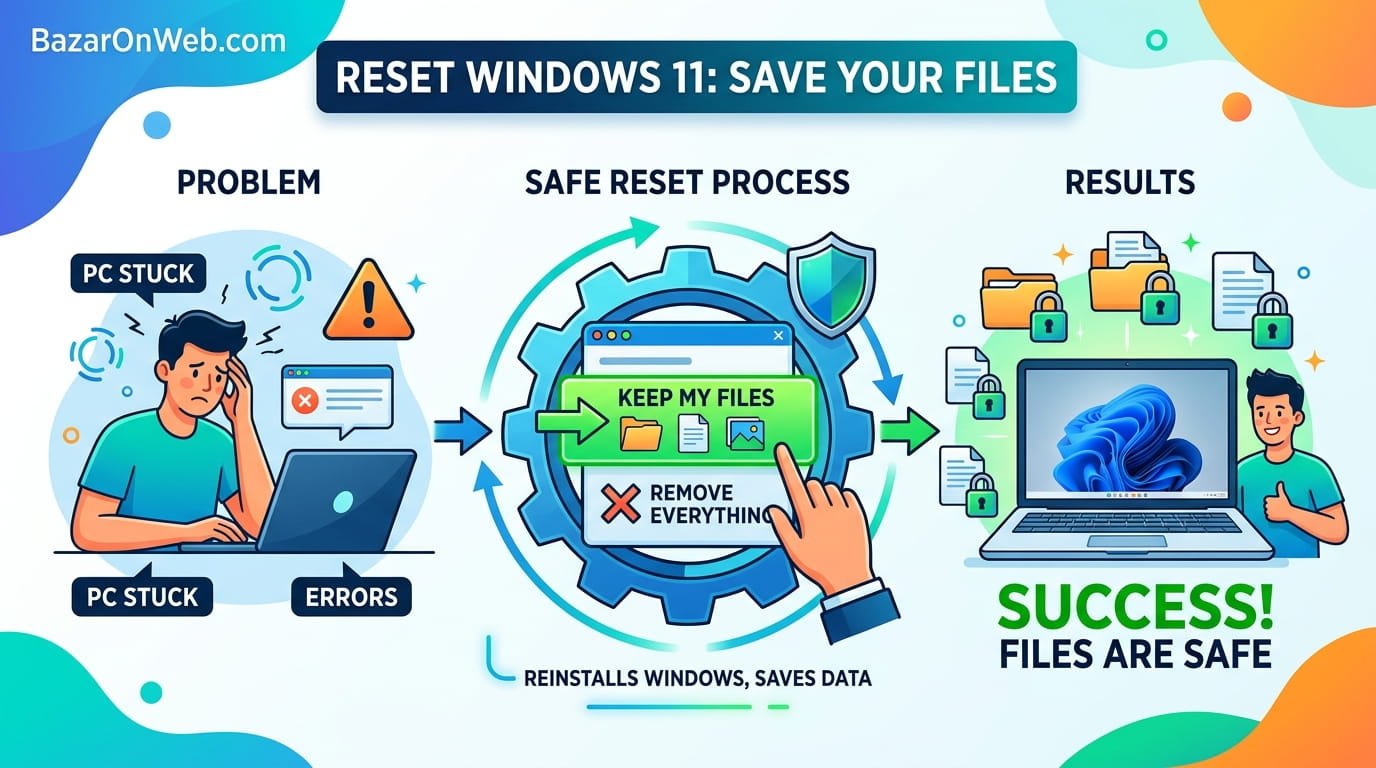
Why Resetting Windows Feels Like Giving Up (But Sometimes It’s the Right Move)**
There’s this moment that every Windows user eventually reaches. You’ve tried everything. You’ve run disk cleanup. You’ve disabled startup programs. You’ve updated drivers. You’ve uninstalled suspicious software. You’ve scanned for malware. Nothing worked. Your system is still sluggish, or crashing randomly, or behaving weirdly, or just generally broken in ways you can’t identify.
At some point, someone tells you to just reset Windows. And you think they’re crazy. Resetting means losing everything, right? Losing your files, your programs, your settings, starting from scratch like it’s a brand new computer. Who has time for that?
Then you discover something almost nobody knows about: Windows 11 has a reset feature that keeps your personal files intact. You can reset the operating system while preserving documents, photos, downloads, and everything else you actually care about. Just the system files get reset to factory defaults. Everything else stays.
I was skeptical when I first heard this. It seemed too good to be true. But I was desperate—my Windows installation had been broken in ways I couldn’t fix through normal troubleshooting. I backed up my important files anyway (always backup), then attempted the reset. Two hours later, Windows was clean and responsive, and all my files were exactly where I left them.
It felt like magic. Except it’s not magic. It’s just a feature Windows quietly added that most people never discover because Microsoft doesn’t exactly advertise it.
Understanding What “Reset” Actually Means (And What You’re Actually Doing)
Before resetting anything, understanding what happens during a reset prevents surprises and disappointment.
When you reset Windows 11, you’re doing several things simultaneously. You’re removing all installed applications—Chrome, Microsoft Office, Discord, whatever programs you’ve downloaded and installed since getting the computer. You’re clearing all your settings and preferences. You’re removing temporary files and cache. You’re deleting the registry entries that applications created. Essentially, you’re returning Windows to a clean state like it was the day you first turned on the computer.
But—and this is the important part—you’re preserving your personal files. Documents, photos, videos, downloads, music, anything stored in your user profile folders stays intact. The system itself resets. Your files don’t.
This distinction is crucial. Most people assume resetting means losing everything. It doesn’t. It means losing only the operating system’s configuration and installed applications, not your actual data.
There’s also a more extreme reset option where you can choose to remove everything including your files. But the point of this guide is showing you how to reset without that loss.
Additionally, your Windows license remains valid after reset. If you have Windows 11 Pro or another version, you don’t lose that. You just get a fresh installation of whatever version you already owned.
Why You Should Actually Reset Windows (And When It’s Truly the Right Answer)
Resetting Windows feels extreme. You should consider it only when legitimate problems justify such drastic measures. But if your system has genuine issues that normal troubleshooting can’t fix, resetting is sometimes the most practical solution.
Consider resetting if you’ve experienced: constant system crashes that happen randomly without obvious triggers, extreme slowness despite having powerful hardware and no obvious resource hogs, malware or virus infections that persistent cleaning doesn’t eliminate, driver conflicts causing system instability after an update, corrupt system files that repairs haven’t fixed, mysterious problems that none of your troubleshooting has resolved.
Resetting is particularly useful when you can’t identify what’s actually wrong. You know something is broken, but you have no idea what. Resetting eliminates all the possibilities at once. If the system works fine after reset, your problems were software-related and it wasn’t worth spending more time diagnosing the specific cause. If problems persist after reset, the issue might be hardware and you need professional service.
Don’t reset just because you want a cleaner system or because your computer feels a little sluggish. Try actual troubleshooting first. Disable startup programs, uninstall unused software, run disk cleanup, scan for malware. If those don’t help after reasonable effort, then consider reset.
Before You Reset: The Backup Essential You Can’t Skip
Even though resetting preserves your files, you should absolutely back up everything before you proceed. Nothing is guaranteed. Hard drive failures happen. Accidental deletions happen. Backup failures happen. You want your data backed up independently from your computer before doing anything drastic.
Connect an external hard drive (or use cloud storage like OneDrive, Google Drive, or Dropbox). Copy your important files to the external drive. This takes however long depends on how much data you have—could be minutes or hours if you have large media libraries.
Which files should you back up? Essentially everything in your user folders: Documents, Downloads, Pictures, Videos, Desktop. Also back up any custom files or folders in unusual locations that you created yourself. The idea is that if something goes catastrophically wrong during reset and you somehow lose everything, you have copies on the external drive.
This is paranoia, but it’s justified paranoia. Resetting usually works perfectly fine. But “usually” isn’t “always.”
Finding the Reset Option (Because Microsoft Hides It)
Windows 11’s reset feature is in Settings, but it’s not immediately obvious where. Microsoft could have made it more prominent, but they chose to tuck it away several menus deep.
Open Settings. You can do this by pressing Windows Key + I, or by searching for “Settings” in your Start menu.
Once Settings opens, look for “System” in the left sidebar. Click it.
Now you should see various system settings options. Scroll down in the right panel until you find something labeled “Recovery” or “Reset this PC.” The exact naming varies slightly between Windows 11 builds, but it’s in this general area.
Click Recovery or Reset. This opens the reset options. You’ll see a button that says “Reset this PC” or similar.
Click it. Windows will ask whether you want to keep your files or remove everything. This is the crucial choice. Select “Keep my files.”
The Reset Process: What Actually Happens
After clicking “Keep my files,” Windows walks you through a few more steps before actually resetting.
It will ask which account to use for the reset process. Select your main user account (the one you normally log in with).
It will ask whether you want to download updates while resetting. I recommend yes—this ensures you get the latest Windows files during the reset, so you’re not starting with outdated system files.
Windows will show you what’s about to happen. Read the summary to make sure you understand. Everything you selected should match your expectations. You’re keeping files, removing apps, resetting settings.
Once you confirm, Windows begins the reset process. This takes 20-60 minutes depending on your computer’s speed and disk performance. Your computer will restart multiple times. Don’t interrupt it—let it complete fully.
During reset, your screen will show progress. You might see “Getting ready,” then “Removing your apps,” then “Configuring settings,” then “Preparing your device.” Each stage takes time. Your computer might appear to be frozen on screens for several minutes. This is normal. Don’t force restart or interrupt.
Eventually, Windows completes the reset and you’ll be back at your desktop. It will look cleaner than before—fewer icons, default Windows wallpaper, no third-party apps.
After Reset: The Things You Need to Know
When reset completes, your computer is like a brand new Windows 11 installation. You’re still you—your files are still there. But the system is clean.
Your personal files remain exactly where they were: Documents, Downloads, Pictures, Videos, Desktop, etc. Everything is intact and accessible.
But all your installed programs are gone. You’ll need to reinstall anything you regularly use: Chrome, Office, Discord, whatever. Going through Microsoft Store might be fastest for some apps. For others, you’ll need to download installers from websites and reinstall manually.
Your system settings are reset to defaults. You’ll notice things like wallpaper reverted to default, taskbar customizations gone, notification settings reset, etc. You’ll need to reconfigure preferences.
Your internet connection might need reconfiguration. If you were using WiFi, you might need to re-enter the password. Ethernet should work automatically if you’re plugged in.
Windows might ask you to sign in with your Microsoft account again. This is normal. Sign in and let it sync your account preferences if you have a cloud-synced account.
First Things After Reset: The Priorities
Once reset completes and your computer boots to the desktop, do several important things before treating your computer as normal.
First, check that your files are actually there. Open File Explorer. Navigate to your Documents, Downloads, Pictures folders. Make sure everything you expected to preserve is actually there. This verification gives you peace of mind.
Second, install antivirus software if you don’t have it. Windows Defender (built-in) is usually sufficient, but make sure it’s enabled. Windows should have it automatically, but verify: Settings > Privacy & Security > Virus & threat protection.
Third, install Windows updates. Settings > System > Windows Update > Check for updates. Install any available updates. This ensures you have security patches and latest system files.
Fourth, install essential software. Your browser (Chrome, Firefox, Edge), office suite (Office if you have it), communication apps, anything you use regularly. Prioritize security and functionality over installing optional software.
Fifth, restore your backup settings if you care about them. You might have custom keyboard shortcuts, display settings, or other configurations worth restoring.
Take time with this. You don’t need to install everything immediately. Gradually reinstall software as you remember needing it.
When Reset Doesn’t Actually Work (Troubleshooting)
Sometimes reset doesn’t go as planned. You attempt it and something goes wrong.
If reset gets stuck partway through, your computer might freeze on a progress screen for hours. If this happens, wait at least 30 minutes—reset is slow and might just need time. If an hour passes without progress, force restart by holding the power button until the computer shuts down.
After force restart, Windows might resume the reset or might boot to a partially reset state. This is frustrating but often recovers. Let it complete. You might need to attempt reset again if it fails partway through.
If you get an error message during reset saying “Something went wrong” or similar, note the error code. Search that error code online—specific errors have specific solutions. Some errors are fixable, others indicate deeper problems.
If reset repeatedly fails, you likely have hardware issues. Hard drive problems, RAM issues, or other hardware defects would prevent reset from completing. In this case, professional service is necessary.
What If You Accidentally Choose “Remove Everything”?
If you misclick and choose “Remove everything” instead of “Keep my files,” don’t panic immediately. Depending on exactly what point you are in the process, you might still be able to cancel.
Immediately close any dialogs or screens. Look for a “Cancel” or “Go back” button. Some stages of reset allow cancellation before actually deleting files.
If you can’t cancel and reset already started removing files, stop it immediately. Force restart by holding the power button. The sooner you stop it, the less data is lost.
Once the computer restarts, you’ve lost time but might have salvaged some files depending on how far deletion progressed.
If deletion completed entirely, you’ve lost your files. Recovery is possible using data recovery software, but it’s expensive and not guaranteed. This is why I emphasized backing up before reset—if you have backups on an external drive, you don’t lose anything even if reset goes wrong.
Alternatives Before Resorting to Reset
Resetting is dramatic. Before going that far, consider less extreme troubleshooting.
Have you actually tried restarting? I know it sounds simple, but restarting clears temporary memory issues and sometimes fixes mysterious problems. Restart at least once before considering reset.
Have you disabled startup programs? Many programs automatically launch at startup, consuming resources and potentially causing slowness. Task Manager > Startup tab shows what launches automatically. Disable programs you don’t need launching at startup.
Have you run disk cleanup? Start > search “Disk Cleanup” > run it. This removes temporary files and can free significant storage space.
Have you scanned for malware? Even built-in Windows Defender should catch obvious malware. Run a full scan: Settings > Privacy & Security > Virus & threat protection > Scan options > Full scan.
Have you checked for corrupted system files? Run SFC scan in Command Prompt (as administrator): sfc /scannow This checks for corrupted Windows files and repairs them if found.
Have you uninstalled recently installed software that coincided with problems starting? If problems began after installing something specific, uninstalling it might fix things.
Have you checked disk space? If your hard drive is full, Windows behaves strangely. Delete unnecessary files or software until you have at least 10% free space.
Only after genuinely trying these should you resort to reset. Reset is effective but time-consuming. Exhausting simpler options first might save you hours.
When Reset Seems Excessive (Cloud Alternatives)
If reset feels too extreme for your actual problems, cloud-based alternatives exist.
Windows allows you to refresh your system without full reset through Settings > System > Recovery > Cloud restore or similar option (varies by Windows 11 version). This downloads a fresh copy of Windows from Microsoft and installs it over your current installation. It’s like reset but potentially more stable since it’s downloading from cloud rather than using potentially-corrupted local files.
You can also create a fresh Windows installation on USB media and reinstall Windows while keeping files. This is more technical but possible if you’re comfortable with Windows installation process.
Both alternatives preserve your files like regular reset, but might fix issues that standard reset doesn’t address.
After You’ve Decided: Committing to the Process
Once you’ve actually decided reset is necessary, mentally prepare for several hours of work. This isn’t a 10-minute fix. This is a process that takes time.
Block several hours where you don’t need your computer. Reset works faster on powerful computers, slower on older or low-storage machines. Plan for worst case—5-6 hours including reinstalling essential software.
Plug your laptop in if you have one. Don’t rely on battery during reset. Any power interruption could corrupt the process.
Disable antivirus temporarily if it interferes with reset (sometimes it does). You can re-enable after reset completes.
Disable VPN if you use one. VPN sometimes interferes with reset or system updates.
Make sure you have reliable internet connection. Reset downloads files from Windows servers, and you’ll need internet to install updates immediately after.
Have your Windows product key available if requested. Most of the time Windows automatically recognizes your license, but occasionally it asks for confirmation.
With all this prepared, begin the reset. Then wait while Windows does its thing.
The Tedious Part: Reinstalling Everything
Reset completes and you’re back to desktop. Now comes the annoying part: reinstalling everything.
Create a mental list or actual written list of software you use regularly. For each item, download the installer or go to Microsoft Store and install the app version.
Some apps migrate settings automatically. Chrome, for instance, logs you in and syncs your bookmarks and extensions. Office migrates some settings. Others require manual reconfiguration.
Expect this reinstallation process to take hours depending on how much software you actually use. Most people have more installed software than they actively use, so this is actually a good opportunity to ask: do I actually need this? If you haven’t used something in a year, maybe you don’t need reinstalling it.
Set up email clients again. Reconfigure browser preferences. Re-pin important folders to Quick Access. These details take time but matter for your daily workflow.
Preventing Need for Future Resets
After going through reset, you probably don’t want to repeat it. Prevention helps.
Keep Windows updated. Settings > System > Windows Update. Check monthly. Install updates when prompted. Updates include security patches and bug fixes that prevent many problems.
Limit startup programs. Task Manager > Startup tab. Only absolutely necessary programs should launch at startup.
Don’t install software randomly. Only install things you actually intend to use. Unused software just consumes resources and increases clutter.
Scan for malware monthly. Just run a quick scan in Windows Defender. Malware sometimes sneaks in before you realize.
Restart your computer weekly. Restarting clears temporary issues that accumulate over time.
Keep free disk space available. Don’t let your disk fill completely. Aim for at least 10% free space always.
Uninstall software you stop using. Unused software still consumes resources and disk space. Clean it out periodically.
When Reset Doesn’t Solve the Problem
Sometimes you reset and problems persist. Your computer is still slow, or still crashes, or still behaves weirdly. This means the issue is probably hardware, not software.
Persistent problems after reset point to failing hard drive, defective RAM, overheating components, or other hardware issues. These require professional diagnosis and repair.
Take your computer to a repair shop and explain that you’ve reset Windows and problems persist. They can run hardware diagnostics and identify what’s failing.
Hardware failures are frustrating but not something software can fix. Reset eliminates software as the culprit. If problems remain, you know to focus on hardware.
The Realistic Take
Resetting Windows feels like admitting defeat. You’re going from trying to fix specific problems to just… starting over. But it’s actually pragmatic.
Troubleshooting specific issues takes time and expertise. You have to identify what’s wrong, find the right fix, implement it, see if it works. This iterative process might work perfectly. Or you might spend hours troubleshooting and never identify the actual problem.
Reset skips all that. You just start over. Usually this fixes everything because most problems are software-related. Sometimes reset doesn’t fix everything, proving the issue is hardware. Either way, you get an answer.
Your computer was probably fine before something went wrong. Reset returns it to that fine state. Your files come with you. Your programs need reinstalling, which is inconvenient but not actually difficult.
It’s not elegant. It’s not sophisticated troubleshooting. But it works. And sometimes pragmatic beats elegant.

- How to Run a Safety Check in Google Chrome and Protect Your Browser

- Samsung Phone’s Keyboard Not Working? Here’s How to Fix It

- How to Take Screenshot While in Gaming on My Windows 11 PC

- Microsoft Store Blocked on Windows 11 Error 0x800704EC, How to Fix It

- What Is Spotlight Search on Mac and How Do You Open It?

Products
-
![Apple Watch Ultra 3 [GPS + Cellular 49mm] Running & Multisport Smartwatch w/Rugged Titanium Case w/Black Titanium Milanese Loop - M. Satellite Communications, Advanced Health & Fitness Tracking](https://bazaronweb.com/retailstores/wp-content/uploads/2025/09/apple-watch-320x320.jpg) Apple Watch Ultra 3 [GPS + Cellular 49mm] Running & Multisport Smartwatch w/Rugged Titanium Case w/Black Titanium Milanese Loop - M. Satellite Communications, Advanced Health & Fitness Tracking
Apple Watch Ultra 3 [GPS + Cellular 49mm] Running & Multisport Smartwatch w/Rugged Titanium Case w/Black Titanium Milanese Loop - M. Satellite Communications, Advanced Health & Fitness Tracking
-
 Apple iPad mini (A17 Pro): Apple Intelligence, 8.3-inch Liquid Retina Display, 256GB, Wi-Fi 6E, 12MP Front/12MP Back Camera, Touch ID, All-Day Battery Life — Purple
-
 Apple AirPods Max Wireless Over-Ear Headphones, Active Noise Cancelling, Transparency Mode, Personalized Spatial Audio, Dolby Atmos, Bluetooth Headphones for iPhone – Space Gray
-
 Apple AirPods Pro 2 Wireless Earbuds, Active Noise Cancellation, Hearing Aid Feature, Bluetooth Headphones, Transparency, Personalized Spatial Audio, High-Fidelity Sound, H2 Chip, USB-C Charging
-
Home Garage 210 TC Cotton King Floral Fitted (Elastic) Bedsheet(Pack of 1, Grey)
Original price was: ₹999.00.₹299.00Current price is: ₹299.00.
Leave a Reply