Discounted Products
-
 Home Garage 210 TC Cotton King Floral Fitted (Elastic) Bedsheet(Pack of 1, Grey)
Original price was: ₹999.00.₹299.00Current price is: ₹299.00.
Home Garage 210 TC Cotton King Floral Fitted (Elastic) Bedsheet(Pack of 1, Grey)
Original price was: ₹999.00.₹299.00Current price is: ₹299.00.
-
 Goodrik 140 TC Cotton Double 3D Printed Flat Bedsheet(Pack of 1, Brown)
Original price was: ₹499.00.₹229.00Current price is: ₹229.00.
Goodrik 140 TC Cotton Double 3D Printed Flat Bedsheet(Pack of 1, Brown)
Original price was: ₹499.00.₹229.00Current price is: ₹229.00.
-
 GLOBALSHOP 350 TC Microfiber Double Floral Flat Bedsheet(Pack of 1, Multicolor)
Original price was: ₹1,250.00.₹263.00Current price is: ₹263.00.
GLOBALSHOP 350 TC Microfiber Double Floral Flat Bedsheet(Pack of 1, Multicolor)
Original price was: ₹1,250.00.₹263.00Current price is: ₹263.00.
-
 RisingStar 250 TC Microfiber King Printed Fitted (Elastic) Bedsheet(Pack of 1, FITTED-ROUND-CIRCLES-PREMIUM)
Original price was: ₹2,299.00.₹299.00Current price is: ₹299.00.
RisingStar 250 TC Microfiber King Printed Fitted (Elastic) Bedsheet(Pack of 1, FITTED-ROUND-CIRCLES-PREMIUM)
Original price was: ₹2,299.00.₹299.00Current price is: ₹299.00.
-
 Home Garage 210 TC Cotton King Floral Fitted (Elastic) Bedsheet(Pack of 1, Fitted Black Green)
Original price was: ₹1,299.00.₹299.00Current price is: ₹299.00.
Home Garage 210 TC Cotton King Floral Fitted (Elastic) Bedsheet(Pack of 1, Fitted Black Green)
Original price was: ₹1,299.00.₹299.00Current price is: ₹299.00.
-
 Home Garage 180 TC Cotton King 3D Printed Flat Bedsheet(Pack of 1, White)
Original price was: ₹999.00.₹229.00Current price is: ₹229.00.
Home Garage 180 TC Cotton King 3D Printed Flat Bedsheet(Pack of 1, White)
Original price was: ₹999.00.₹229.00Current price is: ₹229.00.
-
 Panipat Textile Hub 152.4 cm (5 ft) Polyester Window Curtain (Pack Of 2)(Solid, Aqua)
Original price was: ₹1,899.00.₹299.00Current price is: ₹299.00.
Panipat Textile Hub 152.4 cm (5 ft) Polyester Window Curtain (Pack Of 2)(Solid, Aqua)
Original price was: ₹1,899.00.₹299.00Current price is: ₹299.00.
-
 Home Sizzler 214 cm (7 ft) Polyester Semi Transparent Door Curtain (Pack Of 2)(Floral, Maroon)
Original price was: ₹1,199.00.₹399.00Current price is: ₹399.00.
Home Sizzler 214 cm (7 ft) Polyester Semi Transparent Door Curtain (Pack Of 2)(Floral, Maroon)
Original price was: ₹1,199.00.₹399.00Current price is: ₹399.00.
-
 Home Sizzler 153 cm (5 ft) Polyester Room Darkening Window Curtain (Pack Of 2)(Floral, Brown)
Original price was: ₹799.00.₹299.00Current price is: ₹299.00.
Home Sizzler 153 cm (5 ft) Polyester Room Darkening Window Curtain (Pack Of 2)(Floral, Brown)
Original price was: ₹799.00.₹299.00Current price is: ₹299.00.
-
 Stella Creations 214 cm (7 ft) Polyester Room Darkening Door Curtain (Pack Of 2)(Abstract, Brown)
Original price was: ₹1,299.00.₹449.00Current price is: ₹449.00.
Stella Creations 214 cm (7 ft) Polyester Room Darkening Door Curtain (Pack Of 2)(Abstract, Brown)
Original price was: ₹1,299.00.₹449.00Current price is: ₹449.00.
-
 Homefab India 152.5 cm (5 ft) Polyester Room Darkening Window Curtain (Pack Of 2)(Floral, Light Blue)
Original price was: ₹1,199.00.₹319.00Current price is: ₹319.00.
Homefab India 152.5 cm (5 ft) Polyester Room Darkening Window Curtain (Pack Of 2)(Floral, Light Blue)
Original price was: ₹1,199.00.₹319.00Current price is: ₹319.00.
-
 Urban Home 214 cm (7 ft) PVC Transparent Door Curtain Single Curtain(Solid, Off White)
Original price was: ₹699.00.₹203.00Current price is: ₹203.00.
Urban Home 214 cm (7 ft) PVC Transparent Door Curtain Single Curtain(Solid, Off White)
Original price was: ₹699.00.₹203.00Current price is: ₹203.00.
-
 Panipat Textile Hub 213 cm (7 ft) Polyester Door Curtain (Pack Of 2)(Solid, Brown)
Original price was: ₹1,199.00.₹349.00Current price is: ₹349.00.
Panipat Textile Hub 213 cm (7 ft) Polyester Door Curtain (Pack Of 2)(Solid, Brown)
Original price was: ₹1,199.00.₹349.00Current price is: ₹349.00.
-
 Home Sizzler 214 cm (7 ft) Polyester Semi Transparent Door Curtain (Pack Of 2)(Floral, Brown)
Original price was: ₹999.00.₹349.00Current price is: ₹349.00.
Home Sizzler 214 cm (7 ft) Polyester Semi Transparent Door Curtain (Pack Of 2)(Floral, Brown)
Original price was: ₹999.00.₹349.00Current price is: ₹349.00.
-
 Panipat Textile Hub 213 cm (7 ft) Polyester Semi Transparent Door Curtain (Pack Of 2)(Floral, Brown)
Original price was: ₹899.00.₹299.00Current price is: ₹299.00.
Panipat Textile Hub 213 cm (7 ft) Polyester Semi Transparent Door Curtain (Pack Of 2)(Floral, Brown)
Original price was: ₹899.00.₹299.00Current price is: ₹299.00.
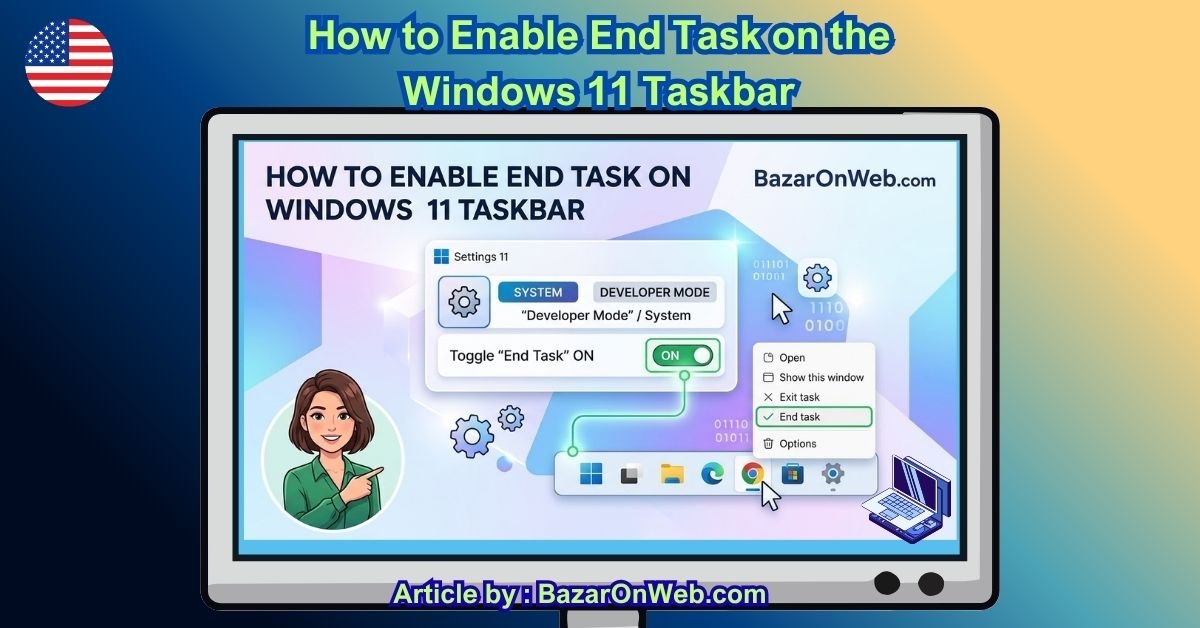
When a Windows application stops responding, the usual solution is to open Task Manager, find the problematic program, select it, and then click End task. It works, but if you frequently deal with frozen applications, opening Task Manager every time can feel like unnecessary extra work.
Windows 11 includes a much more convenient option: End Task directly from the Taskbar.
Once the feature is enabled, you can right-click the icon of a running application on the Windows 11 Taskbar and select End task. Windows will then terminate the application without requiring you to open Task Manager.
The feature is particularly useful when an application becomes completely unresponsive but its Taskbar icon is still visible. Instead of going through several steps in Task Manager, you can deal with the problem directly from the desktop.
However, there is an important distinction to understand. The normal Close window option asks an application to close normally, while End task forcefully terminates the application. Because of that, you should use it when an application is frozen or refusing to close rather than as your normal method of exiting every program.
Here’s how to enable it.
What Is End Task on the Windows 11 Taskbar?
The Taskbar’s End Task feature provides a quick way to terminate an application directly from its Taskbar icon.
Normally, right-clicking an application’s Taskbar icon gives you options such as opening the application, pinning or unpinning it, closing the window, or accessing other application-specific commands.
After enabling End Task, an additional End task option becomes available.
The important part is that you don’t have to open Task Manager first.
For example, imagine you’re working in an application and it suddenly freezes. The window doesn’t respond to clicks, but its icon remains on the Taskbar. Instead of pressing Ctrl + Shift + Esc, locating the application in Task Manager, selecting it, and ending the process, you can simply right-click its Taskbar icon and choose End task.
It’s a small Windows feature, but it can save several clicks when troubleshooting unresponsive applications.
Before You Enable It
There are two things worth knowing before using this feature.
First, End task is different from closing an application normally. It forcefully stops the application rather than allowing it to finish its normal shutdown process.
Second, unsaved work can be lost.
If you’ve been working on a document, spreadsheet, image, video, or another file and the application is still responding, try to save your work and close the program normally first.
Use End task when the application is genuinely stuck or when normal closing isn’t working.
How to Enable End Task in Windows 11
The easiest way to enable the feature is through Windows 11’s Settings app.
Step 1: Open Windows Settings
Press Windows + I on your keyboard.
This opens the Windows 11 Settings application.
You can also open Settings from the Start menu if you prefer.
Step 2: Go to System
In Settings, look at the navigation menu on the left side.
Click System.
Windows 11 will display the various system-related configuration options.
Step 3: Open For Developers
Scroll down through the System settings and select For developers.
This section contains several options intended primarily for developers and advanced users.
Don’t worry if you’re not a developer. The Taskbar End Task option is available here as a convenience feature.
Step 4: Find End Task
Look for the End Task setting.
Depending on your Windows 11 version and build, the wording or exact placement can differ slightly.
You should see a toggle associated with the ability to end tasks directly from the Taskbar.
Step 5: Turn On End Task
Switch the End Task toggle to On.
You don’t normally need to restart your computer after changing this setting.
Once enabled, Windows should allow you to use the End Task command from supported Taskbar application icons.
That’s it.
The feature is now ready to use.
How to Use End Task From the Windows 11 Taskbar
Once you’ve enabled the feature, using it is straightforward.
Step 1: Open an Application
Launch any application that appears on the Windows 11 Taskbar.
For example, you could open File Explorer, a web browser, Notepad, or another desktop application.
Step 2: Right-Click Its Taskbar Icon
Move your mouse to the application’s icon on the Taskbar.
Right-click the icon.
A context menu should appear.
Step 3: Select End Task
Look for End task in the menu.
Click it.
Windows will immediately attempt to terminate the application.
Unlike a normal close command, End Task is designed to force the application to stop.
Step 4: Reopen the Application
If you ended the application because it was frozen, wait a moment and then launch it again.
If the application repeatedly becomes unresponsive, the problem may be related to the application itself, an extension, a driver, corrupted files, insufficient resources, or another Windows issue.
What Happens When You Click End Task?
This is an important question because End task isn’t simply another name for Close.
When you normally close an application, Windows gives the program an opportunity to shut down properly.
For example, an application might:
- Save configuration information
- Finish writing data to disk
- Close files
- Disconnect from services
- Complete background operations
- Release system resources
A forceful End Task operation doesn’t provide the same opportunity.
That’s why Windows treats it as a troubleshooting option rather than a replacement for normal application closing.
If an application is frozen and won’t respond, however, there may be no practical way to close it normally. In that situation, End Task can be considerably more convenient than opening Task Manager.
End Task vs. Close Window
You may notice both Close window and End task when you right-click an application.
They serve different purposes.
Close window is the normal way of closing the application’s window. The application gets an opportunity to handle the shutdown process.
End task, on the other hand, is intended to force the application to terminate.
Think of it this way:
Close window:
“Please close normally.”
End task:
“Stop this application now.”
If an application is behaving normally, use Close window.
If an application has stopped responding and won’t close, End task can be useful.
What If the End Task Option Doesn’t Appear?
If you’ve enabled the setting but don’t see End task when right-clicking an application, don’t panic.
There are several possible reasons.
1. Check That the Setting Is Actually Enabled
Go back to:
Settings → System → For developers
Find End Task and make sure the toggle is switched on.
If it is already enabled, switch it off, wait a few seconds, and turn it back on.
Then test the Taskbar again.
2. Check Your Windows 11 Version
Windows 11 features can vary depending on the specific version and build installed on your computer.
To check your Windows version, press:
Windows + R
Type:
winver
Then press Enter.
Windows will display information about your installed version and OS build.
If you’re using an older Windows 11 release, some newer Taskbar features may not be available or may behave differently.
3. Install Available Windows Updates
Microsoft regularly introduces improvements and fixes through Windows Update.
Open:
Settings → Windows Update
Then select Check for updates.
If updates are available, install them and restart your PC if Windows asks you to.
After restarting, check the Taskbar End Task option again.
4. Restart Windows Explorer
Sometimes the Taskbar itself can behave strangely even when Windows settings are correct.
You can restart Windows Explorer through Task Manager.
Press:
Ctrl + Shift + Esc
Find Windows Explorer in Task Manager.
Right-click it and select Restart.
Your Taskbar and desktop may briefly disappear and then reload.
Once Explorer has restarted, try right-clicking an application icon again.
5. Restart Your PC
It sounds obvious, but restarting Windows can resolve temporary shell or Taskbar problems.
If you’ve just enabled the setting and the option isn’t appearing, restart Windows and test it again.
Why End Task Is Useful
The biggest advantage is convenience.
Suppose you’re working with several applications and one suddenly freezes.
Normally, you might:
- Press Ctrl + Shift + Esc.
- Wait for Task Manager.
- Find the application.
- Select it.
- Click End task.
- Close Task Manager.
With the Taskbar option enabled, the process can be much shorter:
- Right-click the application’s Taskbar icon.
- Select End task.
That’s especially useful if you regularly troubleshoot applications or work with software that occasionally becomes unresponsive.
It also makes the Windows desktop feel more consistent with the way experienced users already manage applications through Task Manager.
When Should You Use End Task?
You don’t need to use End Task every time an application takes a few seconds to respond.
Windows applications can occasionally become temporarily busy.
For example, an application might appear frozen while:
- Opening a large file
- Exporting a video
- Processing a large spreadsheet
- Loading a project
- Installing an update
- Communicating with an external device
- Performing a CPU-intensive operation
If the application eventually responds, forcing it to close could unnecessarily cause you to lose work.
Instead, give it a little time.
If Windows reports that the application isn’t responding and it remains completely stuck, End Task becomes more appropriate.
What About Background Processes?
The Taskbar End Task option is primarily designed for applications represented on the Taskbar.
It shouldn’t be considered a complete replacement for Task Manager.
Task Manager provides much more detailed information about running processes, including CPU, memory, disk, network, and GPU activity.
If a problem involves a background process rather than a normal desktop application, you’ll generally still want to use Task Manager.
Task Manager is also useful when you need to investigate why something is happening rather than simply terminate it.
For example, if your PC suddenly becomes slow, Task Manager can help you identify which process is consuming excessive CPU or memory.
End Task is mainly about quickly stopping an application.
Can End Task Cause Data Loss?
Yes.
Because End Task forcefully terminates the application, anything that hasn’t been saved may be lost.
For example, if you are editing a document and the application becomes unresponsive, ending the task could cause changes made since your last save to disappear.
Some applications have automatic recovery systems, but you shouldn’t depend on them.
That’s why the safest approach is:
Save normally whenever possible. Use End Task only when normal closing isn’t working or the application is genuinely stuck.
This is particularly important with applications that handle large projects, databases, video editing, programming environments, or other data-intensive work.
Is End Task the Same as Restarting the Computer?
No.
End Task only terminates the selected application or task.
Windows itself continues running.
Your other applications should remain open, and your desktop, Taskbar, and system services continue operating.
Restarting the computer is a much broader operation.
If only one application is frozen, End Task can therefore be a much less disruptive troubleshooting step than restarting the entire PC.
A Handy Windows 11 Troubleshooting Shortcut
Once you’ve enabled this feature, it’s worth remembering the combination of:
Right-click application → End task
It can be particularly helpful when an application is visibly frozen but Windows itself is still working normally.
You don’t have to immediately restart your computer or dig through Task Manager.
At the same time, don’t treat End Task as the default way to close applications. Normal closing is still preferable whenever the application is responding.
Conclusion for this
The Windows 11 Taskbar End Task feature is one of those small options that can make everyday troubleshooting noticeably easier.
Instead of opening Task Manager whenever a desktop application becomes unresponsive, you can enable End Task through Settings → System → For developers and then access the command directly from the application’s Taskbar icon.
The feature is especially useful when Windows itself is working normally but one particular application has stopped responding.
Just remember that End Task forcefully terminates the application, so unsaved work can be lost. Use it when normal closing isn’t working, rather than treating it as a replacement for the regular Close command.
If you frequently find yourself opening Task Manager just to terminate frozen applications, enabling this Taskbar option can save you a few steps the next time something stops responding.
Disclaimer
Use End Task carefully and at your own risk. Force-closing an application may result in unsaved work or data loss. Always try to save your work and close the application normally first. Windows 11 settings and features can vary by version/build, so refer to Microsoft’s official Windows documentation if the option is unavailable or behaves differently on your PC.

- How to Enable End Task on the Windows 11 Taskbar
- How to Add a Clock Widget to Your Windows 11 Desktop
- How to Check Battery Health on Android Phones: Samsung, Pixel, OnePlus, Xiaomi and More

- How to Turn Off Auto Capitalization on a Samsung Phone
- How to Fix Windows 11 When You Can’t Eject an External Hard Drive or Pen Drive
Products
-
![Apple Watch Ultra 3 [GPS + Cellular 49mm] Running & Multisport Smartwatch w/Rugged Titanium Case w/Black Titanium Milanese Loop - M. Satellite Communications, Advanced Health & Fitness Tracking](https://bazaronweb.com/retailstores/wp-content/uploads/2025/09/apple-watch-320x320.jpg) Apple Watch Ultra 3 [GPS + Cellular 49mm] Running & Multisport Smartwatch w/Rugged Titanium Case w/Black Titanium Milanese Loop - M. Satellite Communications, Advanced Health & Fitness Tracking
Apple Watch Ultra 3 [GPS + Cellular 49mm] Running & Multisport Smartwatch w/Rugged Titanium Case w/Black Titanium Milanese Loop - M. Satellite Communications, Advanced Health & Fitness Tracking
-
 Apple iPad mini (A17 Pro): Apple Intelligence, 8.3-inch Liquid Retina Display, 256GB, Wi-Fi 6E, 12MP Front/12MP Back Camera, Touch ID, All-Day Battery Life — Purple
-
 Apple AirPods Max Wireless Over-Ear Headphones, Active Noise Cancelling, Transparency Mode, Personalized Spatial Audio, Dolby Atmos, Bluetooth Headphones for iPhone – Space Gray
-
 Apple AirPods Pro 2 Wireless Earbuds, Active Noise Cancellation, Hearing Aid Feature, Bluetooth Headphones, Transparency, Personalized Spatial Audio, High-Fidelity Sound, H2 Chip, USB-C Charging
-
Home Garage 210 TC Cotton King Floral Fitted (Elastic) Bedsheet(Pack of 1, Grey)
Original price was: ₹999.00.₹299.00Current price is: ₹299.00.
Leave a Reply