Discounted Products
-
 Home Garage 210 TC Cotton King Floral Fitted (Elastic) Bedsheet(Pack of 1, Grey)
Original price was: ₹999.00.₹299.00Current price is: ₹299.00.
Home Garage 210 TC Cotton King Floral Fitted (Elastic) Bedsheet(Pack of 1, Grey)
Original price was: ₹999.00.₹299.00Current price is: ₹299.00.
-
 Goodrik 140 TC Cotton Double 3D Printed Flat Bedsheet(Pack of 1, Brown)
Original price was: ₹499.00.₹229.00Current price is: ₹229.00.
Goodrik 140 TC Cotton Double 3D Printed Flat Bedsheet(Pack of 1, Brown)
Original price was: ₹499.00.₹229.00Current price is: ₹229.00.
-
 GLOBALSHOP 350 TC Microfiber Double Floral Flat Bedsheet(Pack of 1, Multicolor)
Original price was: ₹1,250.00.₹263.00Current price is: ₹263.00.
GLOBALSHOP 350 TC Microfiber Double Floral Flat Bedsheet(Pack of 1, Multicolor)
Original price was: ₹1,250.00.₹263.00Current price is: ₹263.00.
-
 RisingStar 250 TC Microfiber King Printed Fitted (Elastic) Bedsheet(Pack of 1, FITTED-ROUND-CIRCLES-PREMIUM)
Original price was: ₹2,299.00.₹299.00Current price is: ₹299.00.
RisingStar 250 TC Microfiber King Printed Fitted (Elastic) Bedsheet(Pack of 1, FITTED-ROUND-CIRCLES-PREMIUM)
Original price was: ₹2,299.00.₹299.00Current price is: ₹299.00.
-
 Home Garage 210 TC Cotton King Floral Fitted (Elastic) Bedsheet(Pack of 1, Fitted Black Green)
Original price was: ₹1,299.00.₹299.00Current price is: ₹299.00.
Home Garage 210 TC Cotton King Floral Fitted (Elastic) Bedsheet(Pack of 1, Fitted Black Green)
Original price was: ₹1,299.00.₹299.00Current price is: ₹299.00.
-
 Home Garage 180 TC Cotton King 3D Printed Flat Bedsheet(Pack of 1, White)
Original price was: ₹999.00.₹229.00Current price is: ₹229.00.
Home Garage 180 TC Cotton King 3D Printed Flat Bedsheet(Pack of 1, White)
Original price was: ₹999.00.₹229.00Current price is: ₹229.00.
-
 Panipat Textile Hub 152.4 cm (5 ft) Polyester Window Curtain (Pack Of 2)(Solid, Aqua)
Original price was: ₹1,899.00.₹299.00Current price is: ₹299.00.
Panipat Textile Hub 152.4 cm (5 ft) Polyester Window Curtain (Pack Of 2)(Solid, Aqua)
Original price was: ₹1,899.00.₹299.00Current price is: ₹299.00.
-
 Home Sizzler 214 cm (7 ft) Polyester Semi Transparent Door Curtain (Pack Of 2)(Floral, Maroon)
Original price was: ₹1,199.00.₹399.00Current price is: ₹399.00.
Home Sizzler 214 cm (7 ft) Polyester Semi Transparent Door Curtain (Pack Of 2)(Floral, Maroon)
Original price was: ₹1,199.00.₹399.00Current price is: ₹399.00.
-
 Home Sizzler 153 cm (5 ft) Polyester Room Darkening Window Curtain (Pack Of 2)(Floral, Brown)
Original price was: ₹799.00.₹299.00Current price is: ₹299.00.
Home Sizzler 153 cm (5 ft) Polyester Room Darkening Window Curtain (Pack Of 2)(Floral, Brown)
Original price was: ₹799.00.₹299.00Current price is: ₹299.00.
-
 Stella Creations 214 cm (7 ft) Polyester Room Darkening Door Curtain (Pack Of 2)(Abstract, Brown)
Original price was: ₹1,299.00.₹449.00Current price is: ₹449.00.
Stella Creations 214 cm (7 ft) Polyester Room Darkening Door Curtain (Pack Of 2)(Abstract, Brown)
Original price was: ₹1,299.00.₹449.00Current price is: ₹449.00.
-
 Homefab India 152.5 cm (5 ft) Polyester Room Darkening Window Curtain (Pack Of 2)(Floral, Light Blue)
Original price was: ₹1,199.00.₹319.00Current price is: ₹319.00.
Homefab India 152.5 cm (5 ft) Polyester Room Darkening Window Curtain (Pack Of 2)(Floral, Light Blue)
Original price was: ₹1,199.00.₹319.00Current price is: ₹319.00.
-
 Urban Home 214 cm (7 ft) PVC Transparent Door Curtain Single Curtain(Solid, Off White)
Original price was: ₹699.00.₹203.00Current price is: ₹203.00.
Urban Home 214 cm (7 ft) PVC Transparent Door Curtain Single Curtain(Solid, Off White)
Original price was: ₹699.00.₹203.00Current price is: ₹203.00.
-
 Panipat Textile Hub 213 cm (7 ft) Polyester Door Curtain (Pack Of 2)(Solid, Brown)
Original price was: ₹1,199.00.₹349.00Current price is: ₹349.00.
Panipat Textile Hub 213 cm (7 ft) Polyester Door Curtain (Pack Of 2)(Solid, Brown)
Original price was: ₹1,199.00.₹349.00Current price is: ₹349.00.
-
 Home Sizzler 214 cm (7 ft) Polyester Semi Transparent Door Curtain (Pack Of 2)(Floral, Brown)
Original price was: ₹999.00.₹349.00Current price is: ₹349.00.
Home Sizzler 214 cm (7 ft) Polyester Semi Transparent Door Curtain (Pack Of 2)(Floral, Brown)
Original price was: ₹999.00.₹349.00Current price is: ₹349.00.
-
 Panipat Textile Hub 213 cm (7 ft) Polyester Semi Transparent Door Curtain (Pack Of 2)(Floral, Brown)
Original price was: ₹899.00.₹299.00Current price is: ₹299.00.
Panipat Textile Hub 213 cm (7 ft) Polyester Semi Transparent Door Curtain (Pack Of 2)(Floral, Brown)
Original price was: ₹899.00.₹299.00Current price is: ₹299.00.
We’ve all been there. You have a video with a song, speech, podcast clip, interview, or some other audio you want to save separately. The problem is that you don’t actually need the entire video—you just want the sound.
The good news is that extracting audio from a video is surprisingly easy. You don’t always need complicated editing software, and depending on the device you’re using, you may not even need to install an app.
There are several ways to extract audio from a video on Windows, Mac, iPhone, Android, and even directly through a web browser. The best method depends on where your video is stored and what audio format you want, such as MP3, WAV, or M4A.
In this guide, I’ll walk you through the easiest ways to extract audio from a video, including methods that use built-in tools, free software, and online services.
Why Extract Audio From a Video?
There are plenty of reasons you might want to separate audio from a video.
For example, you may want to:
- Save music from a video for personal use.
- Extract a voice recording from a video.
- Keep the audio from an interview or presentation.
- Convert a video recording into an audio-only file.
- Reduce the file size by removing the video portion.
- Use an audio track in a video or editing project.
- Listen to a long recording without keeping the screen on.
The process is essentially the same: the video contains both a visual stream and an audio stream, and an audio extraction tool saves the audio separately.
Method 1: Extract Audio From a Video Using VLC Media Player
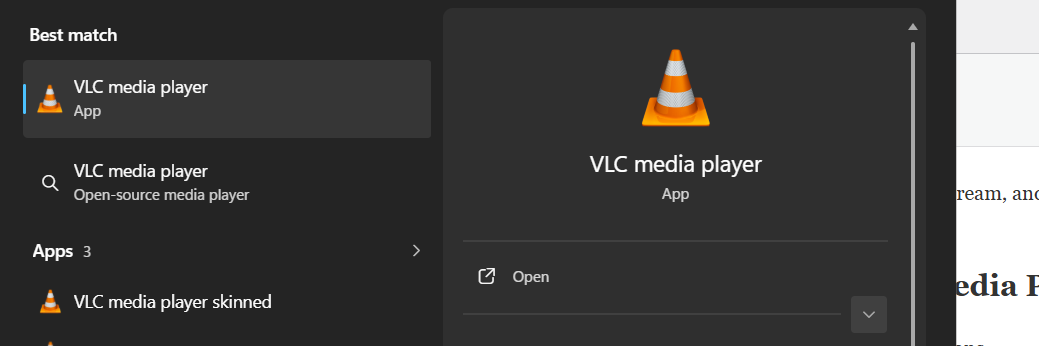
If you’re using Windows, macOS, or Linux, VLC Media Player is one of the easiest free options.
VLC is best known as a video player, but it can also convert media files between different formats.
Step 1: Install VLC Media Player
Download and install VLC Media Player on your computer if you don’t already have it.
Once installed, open VLC.
Step 2: Open the Convert and Save Tool
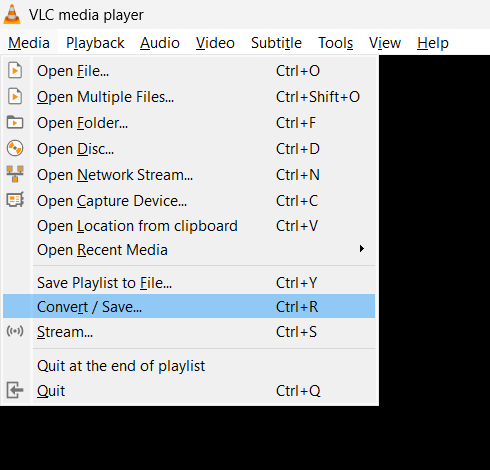
Click Media in the top menu and select Convert / Save.
A new window will appear.
Step 3: Add Your Video
Click Add and select the video file from which you want to extract the audio.
After selecting the file, click Convert / Save.
Step 4: Choose an Audio Format
Under Profile, select an audio format.
For most people, Audio – MP3 is a convenient choice because MP3 files are widely supported.
You can also choose other available audio formats depending on your needs.
Step 5: Choose the Destination
Click Browse next to the destination file field.
Choose where you want to save the extracted audio and give the file an appropriate name.
Make sure the filename has the correct audio extension, such as .mp3.
Step 6: Start the Conversion
Click Start.
VLC will process the video and create an audio file in the location you selected.
The time required depends on the length and size of your video.
Method 2: Extract Audio From a Video Without Installing Software
If you only need to extract audio occasionally, an online video-to-audio converter can be convenient.
The basic process is usually straightforward:
- Open a reputable online video conversion service.
- Upload your video.
- Select an audio format such as MP3 or M4A.
- Start the conversion.
- Save the resulting audio file.
This method is particularly useful if you’re using a computer where you cannot install additional software.
Be Careful With Online Converters
There is one important thing to keep in mind.
Online services require you to upload your video to a third-party server. Avoid uploading private, confidential, sensitive, or personal videos unless you completely trust the service and understand how it handles uploaded files.
For private recordings, using an offline application such as VLC is generally a better approach.
Method 3: Extract Audio From a Video on Windows
Windows users have several options, but VLC is one of the simplest because it handles many common video formats.
Another option is to use dedicated video-editing or media-conversion software.
The general workflow is similar:
- Open the video in the application.
- Choose the export or conversion option.
- Select Audio Only if available.
- Choose your preferred audio format.
- Select the output folder.
- Export the file.
If you’re only doing this once or twice, installing a large video editor may be unnecessary. A lightweight media converter is usually enough.
Method 4: Extract Audio From a Video on Mac
Mac users can also use VLC to convert videos into audio files.
The process is similar to Windows:
- Open VLC.
- Select File or Media, depending on the VLC version.
- Choose the conversion option.
- Add your video.
- Select an audio output format.
- Choose a destination.
- Start the conversion.
You can also use video-editing applications if you already have one installed.
For a simple audio extraction task, however, you don’t need a full professional editing workflow.
Method 5: Extract Audio From a Video on iPhone
Extracting audio from a video on an iPhone can require a slightly different approach because iOS handles files and media differently from Windows and Mac.
One practical option is to use the Shortcuts app if you have a suitable shortcut configured for extracting audio.
You can create or use a shortcut that:
- Lets you select a video.
- Extracts the audio track.
- Converts or saves the audio.
- Stores the resulting file in the Files app.
Once configured, this can be much faster than opening a separate application every time.
Where Is the Extracted Audio Saved?
Depending on the shortcut or app you’re using, the audio may be saved to the Files app or another selected location.
If you plan to use the audio later, saving it to a dedicated folder in Files can make it easier to find.
Method 6: Extract Audio From a Video on Android
Android users can use a number of media converter applications to separate audio from video.
The exact menus depend on the Android version and application, but the process normally looks like this:
- Open the video-to-audio converter.
- Select the video from your phone.
- Choose Extract Audio or Convert to Audio.
- Select an output format.
- Start the conversion.
- Open the output folder when the conversion finishes.
MP3 is usually the easiest format if you want maximum compatibility.
If you only need the audio for editing, another format may be more appropriate depending on the application you’re using.
Which Audio Format Should You Choose?
You may notice several audio formats when converting a video.
Here’s a quick comparison:
| Format | Best For | Main Advantage |
|---|---|---|
| MP3 | General listening | Excellent compatibility |
| M4A | Phones and modern devices | Good quality with relatively small files |
| WAV | Editing | High-quality, usually uncompressed audio |
| AAC | Modern media | Efficient compression and good quality |
For everyday use, MP3 is usually the simplest choice.
If you’re going to edit the audio, however, WAV can be useful because it preserves much more audio information and avoids additional compression.
How to Extract Audio Without Losing Too Much Quality
There’s an important distinction between extracting and converting audio.
If the original video already contains compressed audio, converting it to another lossy format can reduce quality further.
For example, converting compressed audio from a video into MP3 may introduce another round of compression.
If audio quality matters, consider using a format that preserves more of the original audio data where possible.
Also, avoid choosing an unnecessarily low bitrate simply to make the file smaller.
For casual listening, standard MP3 quality is usually more than adequate.
For editing or archival purposes, a higher-quality format may be preferable.
What If the Extracted Audio Has No Sound?
If your extracted file plays but you can’t hear anything, don’t panic.
Try these checks:
Check the Original Video
First, play the original video.
If the original video itself has no sound, the extraction process cannot create audio that wasn’t there.
Try Another Audio Player
Open the extracted file in another media player.
Sometimes the problem is related to codec or compatibility issues rather than the actual audio file.
Check the Output Format
Try converting the file again using a widely supported format such as MP3.
Check the Video’s Audio Track
Some video files contain multiple audio tracks. A conversion tool may select one track by default.
If the expected audio isn’t present, check whether the original video contains multiple audio streams.
Can You Extract Audio From Any Video?
Not necessarily.
Most common video formats can be converted without much trouble, but unusual codecs, damaged files, encrypted media, or files protected by digital rights management may create problems.
You should also make sure you have the right to use the audio you extract.
Extracting audio for personal use is different from downloading and redistributing copyrighted music, movies, or other protected material.
Which Method Should You Use?
If you’re wondering which approach makes the most sense, here’s a simple rule:
- Windows or Mac: Use VLC if you want a free offline solution.
- One-time conversion: An online converter may be convenient.
- iPhone: A suitable Shortcuts workflow can make the process quick.
- Android: A reputable media converter app is usually the easiest option.
- Professional editing: Export to a suitable high-quality format such as WAV when appropriate.
You don’t need an expensive video editor just to separate audio from a video.
Final Thoughts
Extracting audio from a video is one of those tasks that sounds more complicated than it really is. Whether you’re working on Windows, Mac, iPhone, or Android, there are several straightforward ways to get the job done.
For computer users, VLC is a particularly useful option because it can handle both video playback and media conversion without requiring a complicated editing workflow. If you don’t want to install anything, an online converter can also work for non-sensitive files.
The most important thing is to choose the right output format for what you’re planning to do with the audio. MP3 is a convenient choice for everyday listening, while formats such as WAV can make more sense when you’re working with audio in an editor.
So the next time you have a video and only need the sound, you don’t have to keep the entire video file. A few clicks can separate the audio and give you exactly the file you need.
Disclaimer: Make sure you have permission to use and extract audio from the video. Avoid uploading private or sensitive videos to online conversion services, and respect copyright and other applicable laws.





Products
-
![Apple Watch Ultra 3 [GPS + Cellular 49mm] Running & Multisport Smartwatch w/Rugged Titanium Case w/Black Titanium Milanese Loop - M. Satellite Communications, Advanced Health & Fitness Tracking](https://bazaronweb.com/retailstores/wp-content/uploads/2025/09/apple-watch-320x320.jpg) Apple Watch Ultra 3 [GPS + Cellular 49mm] Running & Multisport Smartwatch w/Rugged Titanium Case w/Black Titanium Milanese Loop - M. Satellite Communications, Advanced Health & Fitness Tracking
Apple Watch Ultra 3 [GPS + Cellular 49mm] Running & Multisport Smartwatch w/Rugged Titanium Case w/Black Titanium Milanese Loop - M. Satellite Communications, Advanced Health & Fitness Tracking
-
 Apple iPad mini (A17 Pro): Apple Intelligence, 8.3-inch Liquid Retina Display, 256GB, Wi-Fi 6E, 12MP Front/12MP Back Camera, Touch ID, All-Day Battery Life — Purple
-
 Apple AirPods Max Wireless Over-Ear Headphones, Active Noise Cancelling, Transparency Mode, Personalized Spatial Audio, Dolby Atmos, Bluetooth Headphones for iPhone – Space Gray
-
 Apple AirPods Pro 2 Wireless Earbuds, Active Noise Cancellation, Hearing Aid Feature, Bluetooth Headphones, Transparency, Personalized Spatial Audio, High-Fidelity Sound, H2 Chip, USB-C Charging
-
Home Garage 210 TC Cotton King Floral Fitted (Elastic) Bedsheet(Pack of 1, Grey)
Original price was: ₹999.00.₹299.00Current price is: ₹299.00.
Leave a Reply