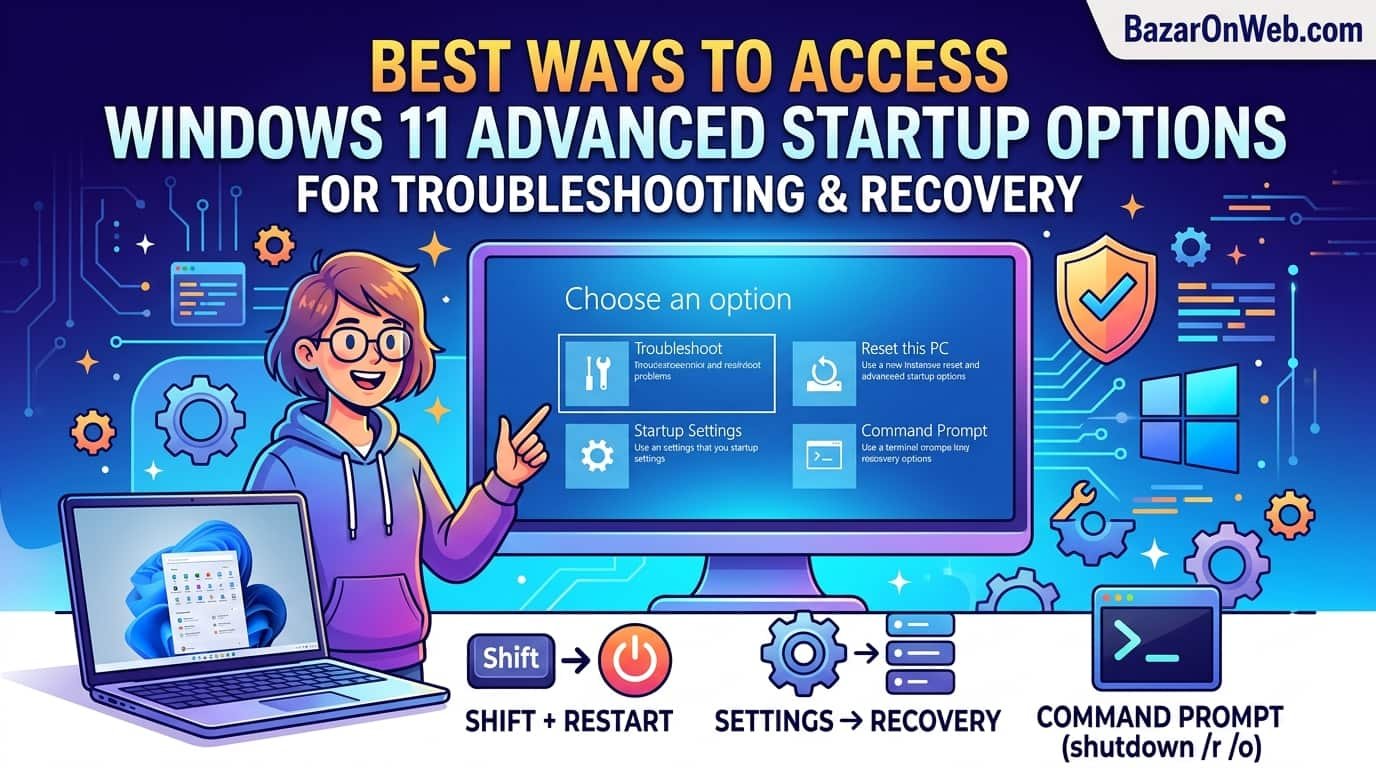
Best Ways to Access Advanced Startup Options in Windows 11 for Troubleshooting and Recovery

Best Ways to Access Advanced Startup Options in Windows 11 for Troubleshooting and Recovery

Hi, I’m Jessica, and one thing I’ve learned after dealing with multiple Windows laptops over the years is that system problems rarely happen at a convenient time. A few months ago, my personal laptop suddenly got stuck in a boot loop right before an important work deadline. The screen kept restarting, Safe Mode wouldn’t load normally, and I honestly thought I might lose important files. Thankfully, Windows 11 includes a powerful recovery environment called Advanced Startup Options that helped me diagnose the issue and restore the system without reinstalling everything from scratch.

Advanced Startup Options in Windows 11 provide tools for repairing startup problems, restoring system backups, uninstalling updates, accessing Safe Mode, running Command Prompt utilities, and even resetting the operating system when things go badly wrong. The best part is that there are several ways to access these recovery tools, whether your computer is working normally or refusing to boot entirely.

In this guide, I’ll walk through the best and most practical methods to open Advanced Startup Options in Windows 11. These methods are useful for beginners, students, professionals, gamers, and anyone who wants to troubleshoot Windows problems safely and effectively before considering expensive repairs or a full system reinstall.

What Are Advanced Startup Options in Windows 11?

Advanced Startup Options in Windows 11 are a special recovery environment designed to help users diagnose and repair operating system problems. Microsoft built this feature into Windows so users can recover from startup failures, corrupted updates, driver issues, system crashes, and software conflicts without immediately reinstalling the operating system. Many people never realize these tools exist until their computer refuses to boot properly.

When you access the Advanced Startup menu, Windows opens a blue recovery screen with multiple troubleshooting utilities. These include Startup Repair, Safe Mode, System Restore, Uninstall Updates, UEFI Firmware Settings, Command Prompt access, and Reset This PC. Each tool serves a specific recovery purpose depending on the type of issue affecting your computer.

One of the biggest advantages of Advanced Startup Options is that they work even when Windows itself cannot load correctly. For example, if your computer keeps restarting endlessly or freezes during startup, the recovery environment may still be accessible. This makes it extremely valuable during emergencies.

Windows 11 also improved the recovery interface compared to older versions of Windows by making the menus easier to navigate and more user-friendly. Whether you are troubleshooting driver problems, fixing corrupted system files, or restoring your computer after a failed update, Advanced Startup Options can often save hours of frustration and prevent unnecessary data loss.

Access Advanced Startup Through Windows Settings

The easiest and safest method for most users is accessing Advanced Startup through the Windows Settings application. This method works perfectly when your computer is still functioning normally and you simply want to troubleshoot an issue proactively or prepare for system repairs.

To begin, click the Start menu and open Settings. From there, select the System category and scroll down until you find Recovery. Inside the Recovery section, you’ll see an option called Advanced Startup along with a Restart Now button. Clicking this button tells Windows to reboot directly into the recovery environment instead of loading the normal desktop.

After restarting, your system will display a blue screen with recovery choices. Select Troubleshoot to access repair tools, Safe Mode, startup settings, and reset options. This process is simple enough for beginners and doesn’t require technical expertise.

One reason I personally prefer this method is that it reduces the risk of interrupting the operating system incorrectly. Forced shutdown methods should usually be reserved for emergencies, but the Settings approach keeps everything controlled and safe.

This method is especially useful before installing major drivers, modifying BIOS settings, troubleshooting startup applications, or repairing corrupted Windows files. It’s also the best option for users who want to enter Safe Mode without relying on keyboard shortcuts or complicated commands.

Use the Shift + Restart Shortcut Method

One of the fastest ways to access Advanced Startup Options in Windows 11 is by using the Shift + Restart shortcut. This method is incredibly convenient because it works directly from the Start menu and only takes a few seconds to trigger the recovery environment.

To use this method, click the Start button and then select the Power icon. Before clicking Restart, hold down the Shift key on your keyboard. While continuing to hold Shift, click Restart. Your computer will reboot and automatically open the Advanced Startup recovery screen instead of launching Windows normally.

I’ve used this shortcut countless times while troubleshooting driver conflicts and startup issues because it eliminates the need to navigate deeply through Settings menus. It’s particularly helpful when Windows is partially functional but unstable.

Another advantage is that the Shift + Restart trick also works from the Windows sign-in screen. If you cannot fully log into your account due to system errors, you can still hold Shift while selecting Restart from the login page power menu. This gives you access to repair tools even when the desktop environment won’t load correctly.

For many users, this becomes the preferred recovery method because it is fast, reliable, and easy to remember. Whether you need Safe Mode, Startup Repair, or System Restore, this shortcut provides immediate access to Windows recovery tools without requiring installation media or advanced technical knowledge.

Open Advanced Startup Using Command Prompt

For users comfortable with command-line tools, Command Prompt offers another efficient way to access Advanced Startup Options in Windows 11. This method is particularly useful for IT professionals, developers, advanced users, and system administrators who prefer keyboard-based system management.

To begin, open Command Prompt as an administrator. You can do this by searching for CMD in the Start menu, right-clicking Command Prompt, and selecting Run as Administrator. Once the terminal window appears, type the following command:

shutdown /r /o /f /t 0

After pressing Enter, Windows immediately restarts and opens the Advanced Startup recovery menu. Each part of the command has a purpose. The “/r” parameter restarts the computer, “/o” opens advanced boot options, “/f” forces running applications to close, and “/t 0” removes any delay timer.

This approach is extremely useful when graphical menus are unresponsive or partially broken. I once used this exact command when a corrupted driver caused the Settings application to crash repeatedly. Since the desktop still partially worked, Command Prompt became the fastest recovery path.

The command-line method is also valuable for remote troubleshooting situations where administrators guide users through recovery steps. Because the process is direct and precise, many advanced users consider it one of the most dependable ways to enter recovery mode in Windows 11 systems experiencing software instability or startup problems.

Trigger Recovery Mode After Multiple Failed Boot Attempts

Windows 11 includes an automatic recovery detection system that activates Advanced Startup Options after repeated failed boot attempts. This feature is designed for situations where the operating system cannot load normally due to severe corruption, hardware conflicts, startup failures, or damaged system files.

When Windows fails to boot several times consecutively, it assumes the system may require repair. Eventually, it displays a message such as “Preparing Automatic Repair” followed by recovery options. From there, users can access Startup Repair, Safe Mode, System Restore, and other troubleshooting tools.

To intentionally trigger this recovery behavior, many users force shutdown the computer during startup multiple times. Typically, this involves turning on the PC and holding the power button to interrupt booting before Windows fully loads. Repeating this process around two or three times usually activates the recovery environment automatically.

Although this method works effectively during emergencies, it should not become a routine habit. Forced shutdowns can occasionally increase the risk of file corruption if performed excessively. However, when Windows refuses to boot entirely, this recovery trigger can become a lifesaver.

I’ve personally seen this feature rescue laptops stuck in endless update failures. Instead of reinstalling Windows immediately, users often gain access to repair tools that restore normal functionality within minutes. It remains one of the most important built-in safety mechanisms in Windows 11 recovery architecture.

Access Advanced Startup from the Sign-In Screen

Many users don’t realize that Advanced Startup Options can also be accessed directly from the Windows 11 sign-in screen. This method is extremely helpful when you cannot successfully log into your account because of corrupted user profiles, login loops, software crashes, or startup errors affecting the desktop environment.

To use this approach, start your computer until the login screen appears. In the lower-right corner, you’ll see the Power icon. Hold down the Shift key on your keyboard and click Restart while continuing to hold Shift. Windows will immediately reboot into the Advanced Startup recovery environment instead of loading the standard desktop.

This method is particularly useful because it bypasses the need to access Settings or the Start menu inside Windows. If the operating system partially loads but crashes after login, the sign-in screen method may still function perfectly.

I remember helping a family member whose laptop constantly froze immediately after entering their password. Because the desktop never stabilized long enough to open Settings, the login screen shortcut became the only reliable way to reach Safe Mode and remove problematic startup software.

The sign-in recovery option is also valuable for troubleshooting user account issues, damaged startup applications, and graphics driver conflicts. Since it requires no installation media or technical setup, it remains one of the simplest emergency recovery methods available in Windows 11.

Use Windows Installation Media for Recovery Access

When Windows 11 becomes severely damaged and none of the normal recovery methods work, installation media provides another powerful way to access Advanced Startup Options. This method is especially useful for completely unbootable systems or computers stuck on black screens, boot loops, or severe startup corruption.

To begin, you need a Windows 11 bootable USB drive. Microsoft allows users to create installation media using the Media Creation Tool on another working computer. Once the USB drive is prepared, insert it into the problematic computer and boot from the USB device through BIOS or boot menu settings.

After the Windows setup screen appears, do not click Install Now immediately. Instead, choose the Repair your computer option located near the bottom of the screen. This opens the Windows Recovery Environment where Advanced Startup troubleshooting tools become available.

One major advantage of this method is that it works independently from your installed Windows environment. Even if system files are badly corrupted, the recovery tools stored on the installation media can still perform repairs.

I’ve seen this approach successfully restore computers that users believed were permanently broken. Startup Repair, Command Prompt repairs, and System Restore often become accessible again through installation media even when the main operating system fails entirely.

For serious troubleshooting situations, having a Windows 11 recovery USB prepared in advance can save enormous time and stress during emergencies.

Boot Into Safe Mode Through Advanced Startup

One of the most important features inside Advanced Startup Options is the ability to enter Safe Mode. Safe Mode starts Windows with only essential drivers and services, making it easier to diagnose software conflicts, malware infections, driver problems, and startup crashes.

After entering Advanced Startup Options, select Troubleshoot, then Advanced Options, and finally Startup Settings. From there, click Restart. Once the system reboots, Windows displays several startup mode choices. Press the corresponding number key to select Safe Mode, Safe Mode with Networking, or Safe Mode with Command Prompt.

Safe Mode is incredibly valuable because it prevents unnecessary applications and problematic drivers from loading during startup. If your computer crashes normally but works fine in Safe Mode, the issue is often related to recently installed software, drivers, or startup programs.

I once fixed a laptop that continuously showed blue screen errors after a graphics driver update. By entering Safe Mode through Advanced Startup, I was able to uninstall the faulty driver and restore the system without reinstalling Windows.

Windows 11 continues to rely heavily on Safe Mode as a primary troubleshooting environment because it simplifies diagnostics significantly. Whether you are removing malware, uninstalling updates, or testing system stability, Safe Mode remains one of the most practical recovery tools available through Advanced Startup Options.

Important Recovery Tools Inside Advanced Startup Options

Advanced Startup Options contain several powerful recovery tools that many users overlook until a major problem occurs. Understanding what each tool does can help you choose the right solution quickly during troubleshooting situations.

Startup Repair is often the first tool users try because it automatically scans and fixes common boot problems. It can repair corrupted startup files, damaged boot configuration data, and certain update-related startup failures. System Restore allows users to roll back Windows to a previous restore point without affecting personal documents.

Another extremely useful feature is Uninstall Updates. Sometimes Windows updates introduce compatibility issues or startup failures. This tool allows you to remove recent quality updates or major feature updates safely.

The Command Prompt recovery tool provides advanced repair capabilities for experienced users. Commands like SFC, DISM, CHKDSK, and BOOTREC can repair corrupted system files, damaged disks, and bootloader problems. UEFI Firmware Settings also allow direct BIOS access without needing special keyboard shortcuts during startup.

Finally, Reset This PC gives users the option to reinstall Windows while optionally keeping personal files intact. This becomes useful when corruption is too severe for normal repair methods.

Learning these tools before disaster strikes can dramatically reduce panic during system emergencies and improve your chances of recovering Windows 11 successfully without professional repair costs.

Tips to Avoid Startup Problems in Windows 11

While Advanced Startup Options are incredibly useful, preventing startup problems in the first place is always the better strategy. Windows 11 systems tend to remain more stable when users follow good maintenance habits and avoid risky software behavior.

One of the most important habits is keeping regular backups of important files. External drives and cloud storage services can protect documents, photos, and work files if system corruption occurs unexpectedly. System Restore should also remain enabled because restore points provide an easy rollback solution after problematic updates or driver installations.

Avoid downloading unknown software from untrusted websites. Many startup failures originate from malware infections, poorly designed applications, or unofficial driver installers. Using reputable antivirus protection significantly reduces these risks.

Driver management is another critical factor. Instead of installing random third-party driver packages, rely on Windows Update or official manufacturer websites. Faulty graphics, storage, or chipset drivers frequently cause boot instability.

Keeping adequate free storage space also helps Windows operate smoothly. Extremely full drives can contribute to update failures and performance problems. Additionally, avoid force-shutting down your computer repeatedly unless absolutely necessary during recovery situations.

Personally, I’ve found that creating recovery USB drives ahead of time provides extra peace of mind. When unexpected problems appear, having recovery tools ready can turn a stressful situation into a manageable repair process within minutes.

Why Every Windows 11 User Should Learn Recovery Methods

Many people assume they only need recovery tools if they work in IT or repair computers professionally, but that simply isn’t true anymore. Modern computers store work files, personal memories, financial documents, school projects, and critical online accounts. When Windows fails unexpectedly, understanding recovery options becomes an essential digital skill for everyday users.

Learning how to access Advanced Startup Options can save both money and time. Instead of immediately paying repair shops or reinstalling the operating system from scratch, users often solve problems themselves using Safe Mode, Startup Repair, or System Restore. Even basic familiarity with recovery tools increases confidence dramatically during stressful technical situations.

I personally believe every Windows 11 user should practice entering the recovery environment at least once while their system is healthy. Doing this removes uncertainty during future emergencies. The first time I encountered a major startup failure years ago, I wasted hours searching for solutions because I had never explored Windows recovery tools beforehand.

Technology problems rarely arrive with warning signs. Updates fail unexpectedly, drivers conflict, malware attacks occur, and hardware issues develop over time. Advanced Startup Options act as a built-in emergency toolkit designed specifically for those moments.

By understanding the different ways to access these tools, users become more prepared, more independent, and far less likely to panic when Windows 11 suddenly refuses to work correctly.

Disclaimer

This article is for informational and educational purposes only. Windows 11 recovery methods and system repair tools may behave differently depending on hardware configuration, system updates, manufacturer settings, and software environments. Always back up important files before performing major troubleshooting, reset, or recovery operations. The author and publisher are not responsible for data loss, hardware issues, software corruption, or unintended system changes resulting from the use of the methods discussed in this article.

Leave a Reply

Your email address will not be published. Required fields are marked *

Select the fields to be shown. Others will be hidden. Drag and drop to rearrange the order.
  • Image
  • SKU
  • Rating
  • Price
  • Stock
  • Availability
  • Add to cart
  • Description
  • Content
  • Weight
  • Dimensions
  • Additional information
Click outside to hide the comparison bar
Compare