Discounted Products
-
 Home Garage 210 TC Cotton King Floral Fitted (Elastic) Bedsheet(Pack of 1, Grey)
Original price was: ₹999.00.₹299.00Current price is: ₹299.00.
Home Garage 210 TC Cotton King Floral Fitted (Elastic) Bedsheet(Pack of 1, Grey)
Original price was: ₹999.00.₹299.00Current price is: ₹299.00.
-
 Goodrik 140 TC Cotton Double 3D Printed Flat Bedsheet(Pack of 1, Brown)
Original price was: ₹499.00.₹229.00Current price is: ₹229.00.
Goodrik 140 TC Cotton Double 3D Printed Flat Bedsheet(Pack of 1, Brown)
Original price was: ₹499.00.₹229.00Current price is: ₹229.00.
-
 GLOBALSHOP 350 TC Microfiber Double Floral Flat Bedsheet(Pack of 1, Multicolor)
Original price was: ₹1,250.00.₹263.00Current price is: ₹263.00.
GLOBALSHOP 350 TC Microfiber Double Floral Flat Bedsheet(Pack of 1, Multicolor)
Original price was: ₹1,250.00.₹263.00Current price is: ₹263.00.
-
 RisingStar 250 TC Microfiber King Printed Fitted (Elastic) Bedsheet(Pack of 1, FITTED-ROUND-CIRCLES-PREMIUM)
Original price was: ₹2,299.00.₹299.00Current price is: ₹299.00.
RisingStar 250 TC Microfiber King Printed Fitted (Elastic) Bedsheet(Pack of 1, FITTED-ROUND-CIRCLES-PREMIUM)
Original price was: ₹2,299.00.₹299.00Current price is: ₹299.00.
-
 Home Garage 210 TC Cotton King Floral Fitted (Elastic) Bedsheet(Pack of 1, Fitted Black Green)
Original price was: ₹1,299.00.₹299.00Current price is: ₹299.00.
Home Garage 210 TC Cotton King Floral Fitted (Elastic) Bedsheet(Pack of 1, Fitted Black Green)
Original price was: ₹1,299.00.₹299.00Current price is: ₹299.00.
-
 Home Garage 180 TC Cotton King 3D Printed Flat Bedsheet(Pack of 1, White)
Original price was: ₹999.00.₹229.00Current price is: ₹229.00.
Home Garage 180 TC Cotton King 3D Printed Flat Bedsheet(Pack of 1, White)
Original price was: ₹999.00.₹229.00Current price is: ₹229.00.
-
 Panipat Textile Hub 152.4 cm (5 ft) Polyester Window Curtain (Pack Of 2)(Solid, Aqua)
Original price was: ₹1,899.00.₹299.00Current price is: ₹299.00.
Panipat Textile Hub 152.4 cm (5 ft) Polyester Window Curtain (Pack Of 2)(Solid, Aqua)
Original price was: ₹1,899.00.₹299.00Current price is: ₹299.00.
-
 Home Sizzler 214 cm (7 ft) Polyester Semi Transparent Door Curtain (Pack Of 2)(Floral, Maroon)
Original price was: ₹1,199.00.₹399.00Current price is: ₹399.00.
Home Sizzler 214 cm (7 ft) Polyester Semi Transparent Door Curtain (Pack Of 2)(Floral, Maroon)
Original price was: ₹1,199.00.₹399.00Current price is: ₹399.00.
-
 Home Sizzler 153 cm (5 ft) Polyester Room Darkening Window Curtain (Pack Of 2)(Floral, Brown)
Original price was: ₹799.00.₹299.00Current price is: ₹299.00.
Home Sizzler 153 cm (5 ft) Polyester Room Darkening Window Curtain (Pack Of 2)(Floral, Brown)
Original price was: ₹799.00.₹299.00Current price is: ₹299.00.
-
 Stella Creations 214 cm (7 ft) Polyester Room Darkening Door Curtain (Pack Of 2)(Abstract, Brown)
Original price was: ₹1,299.00.₹449.00Current price is: ₹449.00.
Stella Creations 214 cm (7 ft) Polyester Room Darkening Door Curtain (Pack Of 2)(Abstract, Brown)
Original price was: ₹1,299.00.₹449.00Current price is: ₹449.00.
-
 Homefab India 152.5 cm (5 ft) Polyester Room Darkening Window Curtain (Pack Of 2)(Floral, Light Blue)
Original price was: ₹1,199.00.₹319.00Current price is: ₹319.00.
Homefab India 152.5 cm (5 ft) Polyester Room Darkening Window Curtain (Pack Of 2)(Floral, Light Blue)
Original price was: ₹1,199.00.₹319.00Current price is: ₹319.00.
-
 Urban Home 214 cm (7 ft) PVC Transparent Door Curtain Single Curtain(Solid, Off White)
Original price was: ₹699.00.₹203.00Current price is: ₹203.00.
Urban Home 214 cm (7 ft) PVC Transparent Door Curtain Single Curtain(Solid, Off White)
Original price was: ₹699.00.₹203.00Current price is: ₹203.00.
-
 Panipat Textile Hub 213 cm (7 ft) Polyester Door Curtain (Pack Of 2)(Solid, Brown)
Original price was: ₹1,199.00.₹349.00Current price is: ₹349.00.
Panipat Textile Hub 213 cm (7 ft) Polyester Door Curtain (Pack Of 2)(Solid, Brown)
Original price was: ₹1,199.00.₹349.00Current price is: ₹349.00.
-
 Home Sizzler 214 cm (7 ft) Polyester Semi Transparent Door Curtain (Pack Of 2)(Floral, Brown)
Original price was: ₹999.00.₹349.00Current price is: ₹349.00.
Home Sizzler 214 cm (7 ft) Polyester Semi Transparent Door Curtain (Pack Of 2)(Floral, Brown)
Original price was: ₹999.00.₹349.00Current price is: ₹349.00.
-
 Panipat Textile Hub 213 cm (7 ft) Polyester Semi Transparent Door Curtain (Pack Of 2)(Floral, Brown)
Original price was: ₹899.00.₹299.00Current price is: ₹299.00.
Panipat Textile Hub 213 cm (7 ft) Polyester Semi Transparent Door Curtain (Pack Of 2)(Floral, Brown)
Original price was: ₹899.00.₹299.00Current price is: ₹299.00.
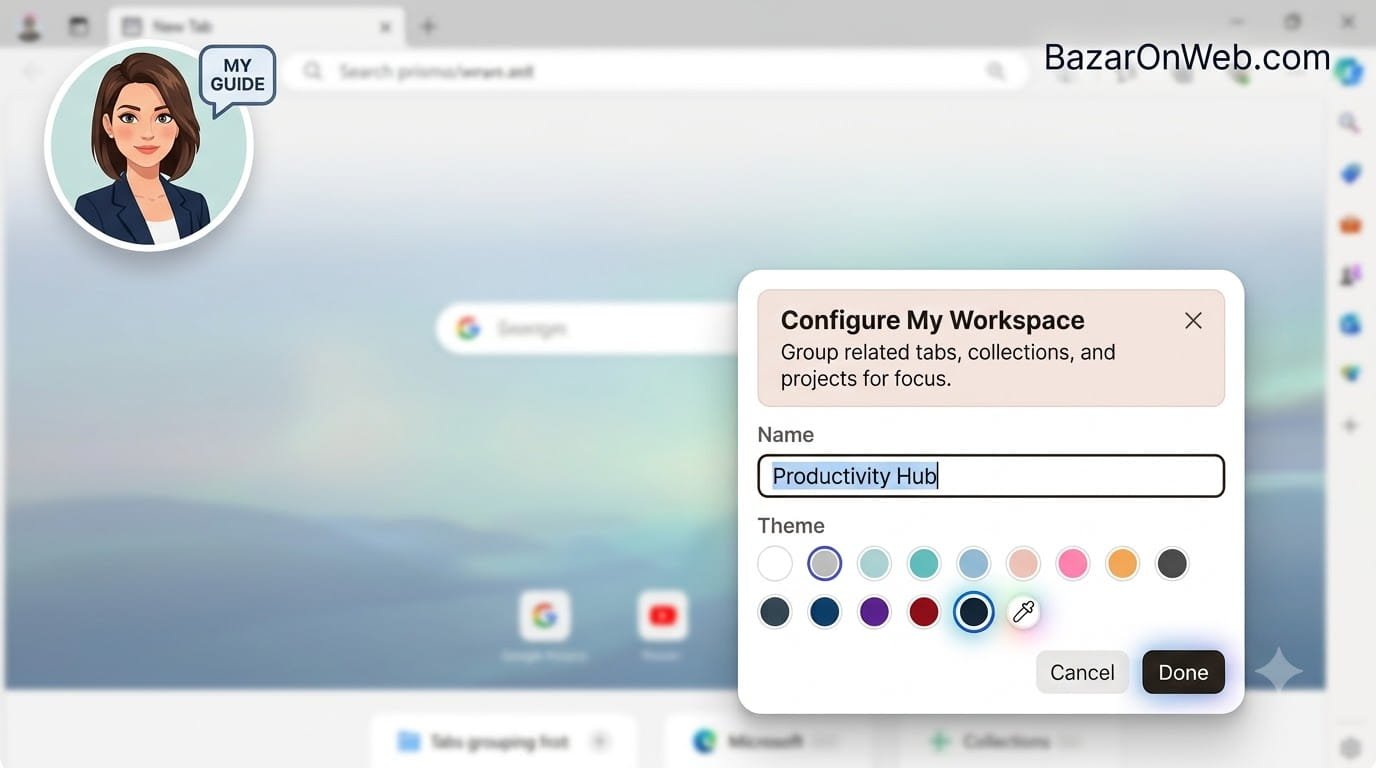
If you spend most of your workday inside a web browser like I do, you probably know how quickly tabs can get out of control. One moment you’re researching a topic, the next you have forty open tabs, three different projects mixed together, and no idea where that important website disappeared.
For years, I tried bookmarking everything, pinning tabs, and even switching between multiple browser windows. While those methods helped temporarily, they never truly solved the problem of staying organized across different projects.
Then I started using Microsoft Edge Workspaces, along with Tab Groups and Collections, and it completely changed how I manage my daily workflow.
These three features work together surprisingly well. Instead of treating my browser as one giant workspace, I now separate everything by project, save research in an organized way, and switch between tasks without feeling overwhelmed.
In this article, I’ll show you exactly how I organize my browser using these built-in Microsoft Edge features, with screenshots so you can easily follow along.
Why Browser Organization Matters
Modern work happens almost entirely inside a browser.
Whether you’re:
- Writing blog articles
- Researching products
- Managing clients
- Learning new skills
- Shopping online
- Watching tutorials
- Managing social media
- Using web applications
…your browser effectively becomes your office.
The problem is that most people treat every website as part of one huge browsing session.
By lunchtime, you might have tabs related to work, vacation planning, YouTube videos, online shopping, documentation, emails, and AI tools all mixed together.
Finding the right tab becomes frustrating, and productivity suffers.
That’s exactly why Microsoft introduced several organizational features inside Edge.
What Are Microsoft Edge Workspaces?
One of my favorite Edge features is Workspaces.
Think of a Workspace as a separate browser dedicated to a specific project.
Instead of opening dozens of unrelated tabs inside one window, you can create individual workspaces for different purposes.
For example, I have workspaces like:
- Content Writing
- Client Projects
- SEO Research
- AI Tools
- Personal Reading
- Shopping
Each workspace remembers its own tabs, making it easy to jump back into a project exactly where I left off.
It feels almost like having multiple computers inside one browser.
Microsoft Edge Workspaces | Organize Browser Tabs by Project
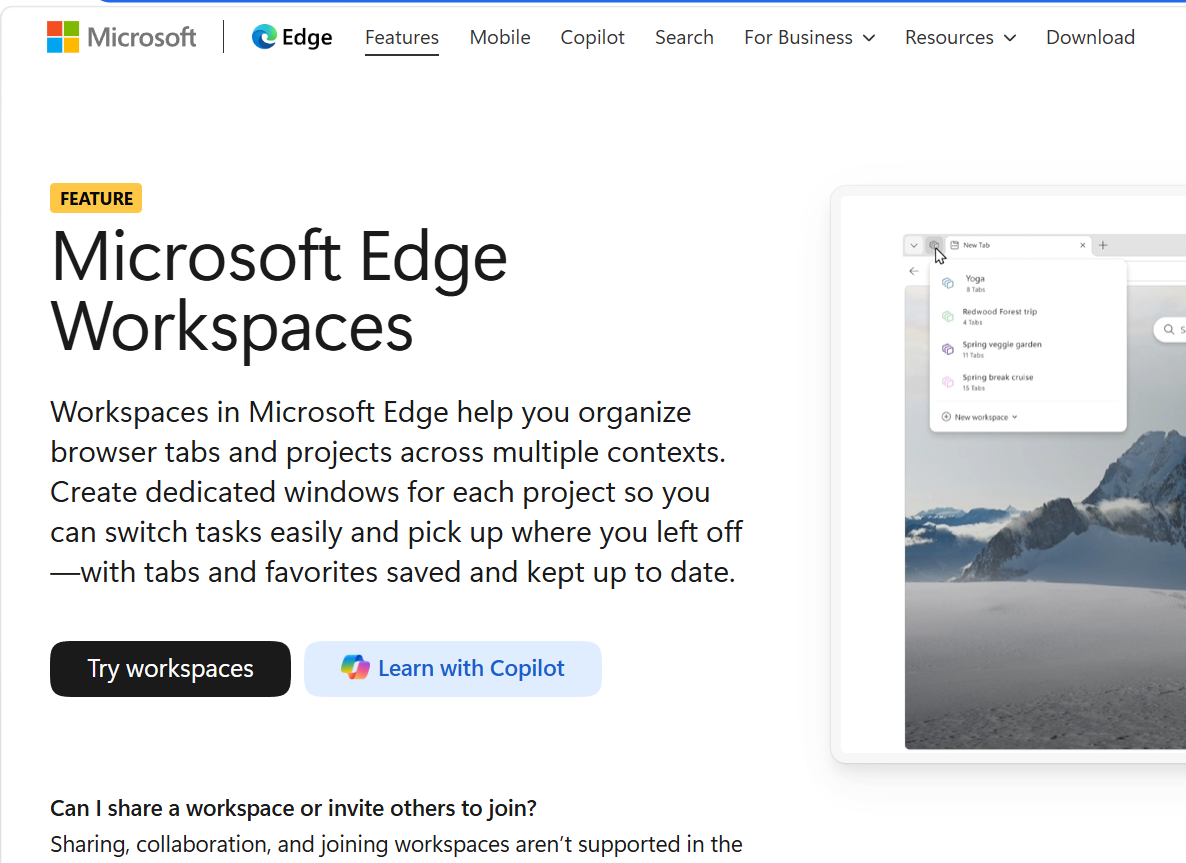
This is where everything starts. Creating separate workspaces immediately makes your browser feel less cluttered and far more organized.
Why I Love Workspaces
The biggest advantage isn’t just reducing clutter.
It’s improving focus.
When I open my Content Writing workspace, I only see websites related to writing.
There are no shopping websites.
No random YouTube tabs.
No travel planning.
No distractions.
That simple separation helps me concentrate much better than keeping every website open together.
Another benefit is that I don’t have to remember which tabs belonged to which project.
Everything stays exactly where I left it.
Organize Tabs Inside Each Workspace
Once you’ve created a workspace, the next step is organizing your tabs.
Even inside one project, you can easily accumulate dozens of websites.
Instead of leaving them scattered across the tab bar, Microsoft Edge allows you to group related tabs together.
For example, inside my Content Writing workspace I might create groups like:
Research
- Industry reports
- News websites
- Statistics
- Reference articles
Writing
- Google Docs
- Grammarly
- WordPress
- SEO tools
Images
- Stock photo websites
- AI image generators
- Design inspiration
Publishing
- CMS dashboard
- Social scheduling tools
- Analytics
This simple organization makes navigating between related websites much faster.
Here after opening 3 Tabs we group them in A Workspace called Images( In my case ). You can use any name.
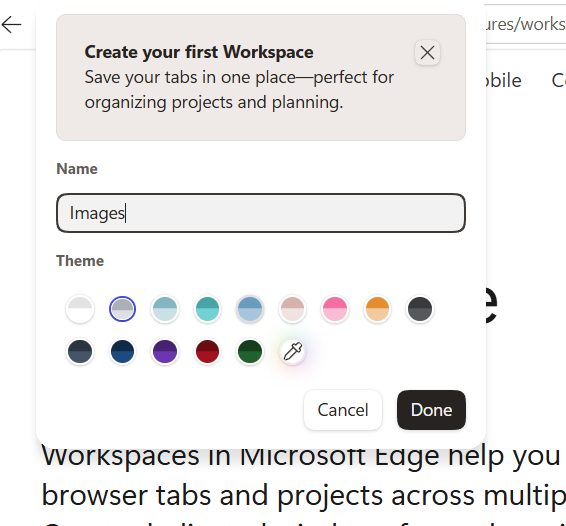
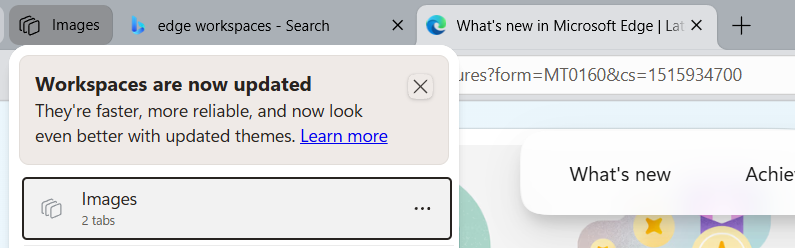
Grouping tabs doesn’t just make the browser look cleaner—it also reduces the time spent searching for the page you need.
Use Collections for Research
If Workspaces organize your projects and Tabs organize your browsing session, then Collections organize your research.
Collections are one of Microsoft’s most underrated productivity features.
Instead of bookmarking dozens of websites that you’ll probably never revisit, Collections let you save pages into visual folders dedicated to a particular topic.
For example, when I’m researching an article, I create a Collection with the article title.
As I browse, I save useful pages into that Collection instead of leaving every tab open.
This keeps my workspace clean while ensuring I don’t lose valuable sources or inspiration.
Unlike traditional bookmarks, Collections feel more like a research notebook where everything related to one topic stays together.
Collections Help Beyond Research
I also use Collections for:
- Product comparisons
- Travel planning
- Gift ideas
- Software evaluations
- Learning resources
- Recipe ideas
- Project references
Since each Collection is separated by topic, it’s much easier to return later without digging through hundreds of bookmarks.

- How to Add Multiple Email Accounts on Windows 11

- How to Fix Wi-Fi Disconnecting Automatically on Windows 11

- How to Remotely Control Another Computer Using Windows Quick Assist

- 5 Must-Have Electronics Gadgets for a More Comfortable Living Room

- How to Create a Windows 11 System Backup on an External Hard Drive

Products
-
 Samsung Galaxy S26 Ultra Unlocked Android Smartphone, 256GB, Black, Privacy Display, 200MP Camera, 5000mAh Battery, US 1 Year Warranty
-
![Apple Watch Ultra 3 [GPS + Cellular 49mm] Running & Multisport Smartwatch w/Rugged Titanium Case w/Black Titanium Milanese Loop - M. Satellite Communications, Advanced Health & Fitness Tracking](https://bazaronweb.com/retailstores/wp-content/uploads/2025/09/apple-watch-320x320.jpg) Apple Watch Ultra 3 [GPS + Cellular 49mm] Running & Multisport Smartwatch w/Rugged Titanium Case w/Black Titanium Milanese Loop - M. Satellite Communications, Advanced Health & Fitness Tracking
Apple Watch Ultra 3 [GPS + Cellular 49mm] Running & Multisport Smartwatch w/Rugged Titanium Case w/Black Titanium Milanese Loop - M. Satellite Communications, Advanced Health & Fitness Tracking
-
 Apple iPad mini (A17 Pro): Apple Intelligence, 8.3-inch Liquid Retina Display, 256GB, Wi-Fi 6E, 12MP Front/12MP Back Camera, Touch ID, All-Day Battery Life — Purple
-
 Apple AirPods Max Wireless Over-Ear Headphones, Active Noise Cancelling, Transparency Mode, Personalized Spatial Audio, Dolby Atmos, Bluetooth Headphones for iPhone – Space Gray
-
 Apple AirPods Pro 2 Wireless Earbuds, Active Noise Cancellation, Hearing Aid Feature, Bluetooth Headphones, Transparency, Personalized Spatial Audio, High-Fidelity Sound, H2 Chip, USB-C Charging
Leave a Reply