Discounted Products
-
 Home Garage 210 TC Cotton King Floral Fitted (Elastic) Bedsheet(Pack of 1, Grey)
Original price was: ₹999.00.₹299.00Current price is: ₹299.00.
Home Garage 210 TC Cotton King Floral Fitted (Elastic) Bedsheet(Pack of 1, Grey)
Original price was: ₹999.00.₹299.00Current price is: ₹299.00.
-
 Goodrik 140 TC Cotton Double 3D Printed Flat Bedsheet(Pack of 1, Brown)
Original price was: ₹499.00.₹229.00Current price is: ₹229.00.
Goodrik 140 TC Cotton Double 3D Printed Flat Bedsheet(Pack of 1, Brown)
Original price was: ₹499.00.₹229.00Current price is: ₹229.00.
-
 GLOBALSHOP 350 TC Microfiber Double Floral Flat Bedsheet(Pack of 1, Multicolor)
Original price was: ₹1,250.00.₹263.00Current price is: ₹263.00.
GLOBALSHOP 350 TC Microfiber Double Floral Flat Bedsheet(Pack of 1, Multicolor)
Original price was: ₹1,250.00.₹263.00Current price is: ₹263.00.
-
 RisingStar 250 TC Microfiber King Printed Fitted (Elastic) Bedsheet(Pack of 1, FITTED-ROUND-CIRCLES-PREMIUM)
Original price was: ₹2,299.00.₹299.00Current price is: ₹299.00.
RisingStar 250 TC Microfiber King Printed Fitted (Elastic) Bedsheet(Pack of 1, FITTED-ROUND-CIRCLES-PREMIUM)
Original price was: ₹2,299.00.₹299.00Current price is: ₹299.00.
-
 Home Garage 210 TC Cotton King Floral Fitted (Elastic) Bedsheet(Pack of 1, Fitted Black Green)
Original price was: ₹1,299.00.₹299.00Current price is: ₹299.00.
Home Garage 210 TC Cotton King Floral Fitted (Elastic) Bedsheet(Pack of 1, Fitted Black Green)
Original price was: ₹1,299.00.₹299.00Current price is: ₹299.00.
-
 Home Garage 180 TC Cotton King 3D Printed Flat Bedsheet(Pack of 1, White)
Original price was: ₹999.00.₹229.00Current price is: ₹229.00.
Home Garage 180 TC Cotton King 3D Printed Flat Bedsheet(Pack of 1, White)
Original price was: ₹999.00.₹229.00Current price is: ₹229.00.
-
 Panipat Textile Hub 152.4 cm (5 ft) Polyester Window Curtain (Pack Of 2)(Solid, Aqua)
Original price was: ₹1,899.00.₹299.00Current price is: ₹299.00.
Panipat Textile Hub 152.4 cm (5 ft) Polyester Window Curtain (Pack Of 2)(Solid, Aqua)
Original price was: ₹1,899.00.₹299.00Current price is: ₹299.00.
-
 Home Sizzler 214 cm (7 ft) Polyester Semi Transparent Door Curtain (Pack Of 2)(Floral, Maroon)
Original price was: ₹1,199.00.₹399.00Current price is: ₹399.00.
Home Sizzler 214 cm (7 ft) Polyester Semi Transparent Door Curtain (Pack Of 2)(Floral, Maroon)
Original price was: ₹1,199.00.₹399.00Current price is: ₹399.00.
-
 Home Sizzler 153 cm (5 ft) Polyester Room Darkening Window Curtain (Pack Of 2)(Floral, Brown)
Original price was: ₹799.00.₹299.00Current price is: ₹299.00.
Home Sizzler 153 cm (5 ft) Polyester Room Darkening Window Curtain (Pack Of 2)(Floral, Brown)
Original price was: ₹799.00.₹299.00Current price is: ₹299.00.
-
 Stella Creations 214 cm (7 ft) Polyester Room Darkening Door Curtain (Pack Of 2)(Abstract, Brown)
Original price was: ₹1,299.00.₹449.00Current price is: ₹449.00.
Stella Creations 214 cm (7 ft) Polyester Room Darkening Door Curtain (Pack Of 2)(Abstract, Brown)
Original price was: ₹1,299.00.₹449.00Current price is: ₹449.00.
-
 Homefab India 152.5 cm (5 ft) Polyester Room Darkening Window Curtain (Pack Of 2)(Floral, Light Blue)
Original price was: ₹1,199.00.₹319.00Current price is: ₹319.00.
Homefab India 152.5 cm (5 ft) Polyester Room Darkening Window Curtain (Pack Of 2)(Floral, Light Blue)
Original price was: ₹1,199.00.₹319.00Current price is: ₹319.00.
-
 Urban Home 214 cm (7 ft) PVC Transparent Door Curtain Single Curtain(Solid, Off White)
Original price was: ₹699.00.₹203.00Current price is: ₹203.00.
Urban Home 214 cm (7 ft) PVC Transparent Door Curtain Single Curtain(Solid, Off White)
Original price was: ₹699.00.₹203.00Current price is: ₹203.00.
-
 Panipat Textile Hub 213 cm (7 ft) Polyester Door Curtain (Pack Of 2)(Solid, Brown)
Original price was: ₹1,199.00.₹349.00Current price is: ₹349.00.
Panipat Textile Hub 213 cm (7 ft) Polyester Door Curtain (Pack Of 2)(Solid, Brown)
Original price was: ₹1,199.00.₹349.00Current price is: ₹349.00.
-
 Home Sizzler 214 cm (7 ft) Polyester Semi Transparent Door Curtain (Pack Of 2)(Floral, Brown)
Original price was: ₹999.00.₹349.00Current price is: ₹349.00.
Home Sizzler 214 cm (7 ft) Polyester Semi Transparent Door Curtain (Pack Of 2)(Floral, Brown)
Original price was: ₹999.00.₹349.00Current price is: ₹349.00.
-
 Panipat Textile Hub 213 cm (7 ft) Polyester Semi Transparent Door Curtain (Pack Of 2)(Floral, Brown)
Original price was: ₹899.00.₹299.00Current price is: ₹299.00.
Panipat Textile Hub 213 cm (7 ft) Polyester Semi Transparent Door Curtain (Pack Of 2)(Floral, Brown)
Original price was: ₹899.00.₹299.00Current price is: ₹299.00.
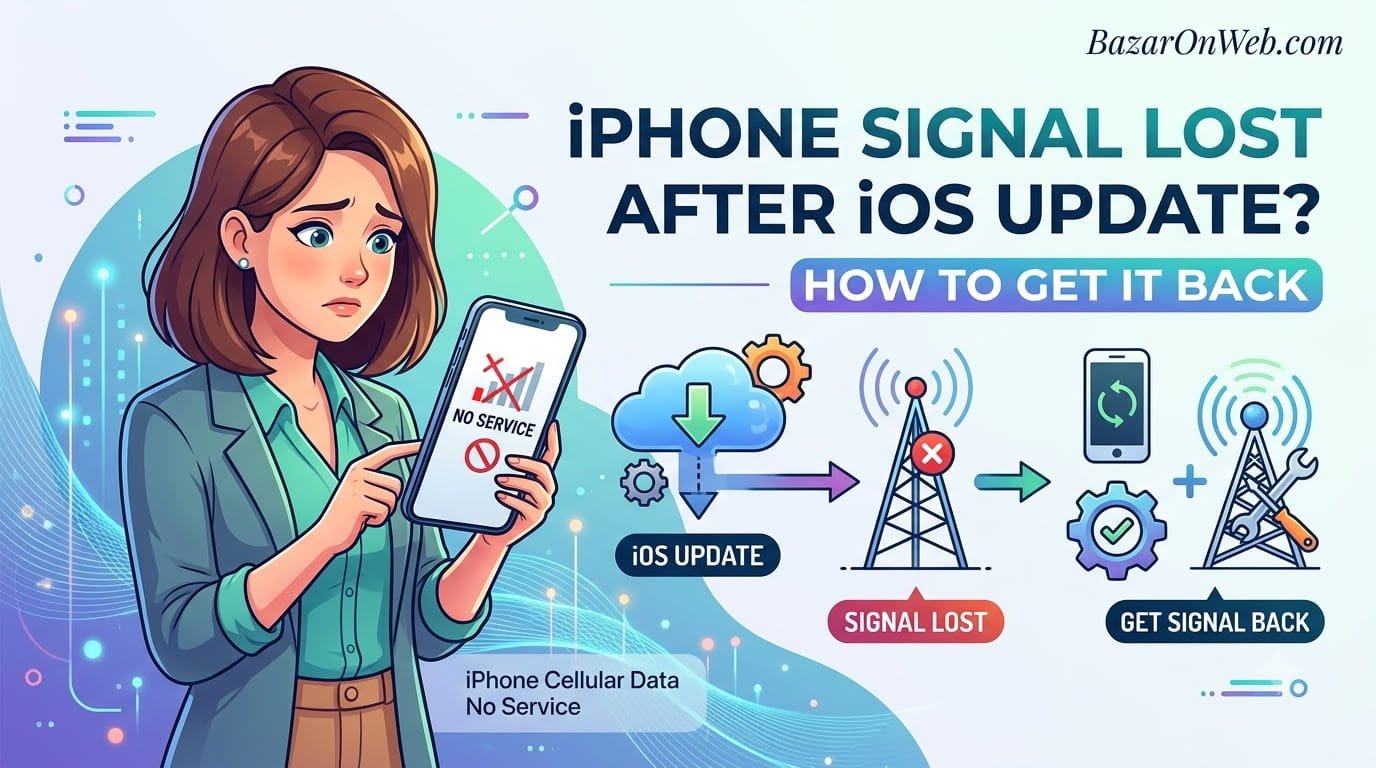
I updated to the latest iOS. Standard procedure. Phone restarted. Everything seemed fine. Then I went to make a call and got nothing. No cellular signal. No data. The signal bars were completely empty.
When My iPhone Became a WiFi-Only Device
I checked the status bar. “No Service.” That’s it. Just those two ominous words where signal bars should be.
I waited. Sometimes it takes a minute for the phone to reconnect to cellular networks after an update. Five minutes passed. Still nothing. Ten minutes. Still nothing. My phone had cellular service this morning. Now it was acting like it was a WiFi-only device.
Panic set in. Did the iOS update break my phone’s cellular modem? Is the hardware failing? Did I need to contact my carrier or Apple?
I tried restarting. Nothing. I tried airplane mode toggle. Nothing. I checked my carrier’s website to see if there were outages. Nothing in my area. Service was available everywhere except my phone.
After hours of trying various fixes, I eventually got cellular service back. But it took multiple attempts and trying different solutions before finding what actually worked.
The frustrating part wasn’t that cellular service failed. It’s that there are dozens of potential causes, and nothing tells you which one is actually your problem. Is it the iOS update? Your phone’s hardware? Your carrier? Your network settings? You have no idea.
Most people in this situation contact their carrier or Apple support and get told to factory reset their phone. That’s nuclear. There are easier fixes worth trying first.
Understanding No Service Errors (And Why They’re Vague)
“No Service” is one of the most frustrating error messages because it tells you nothing useful.
Your iPhone communicates with cellular towers through its modem hardware. It connects using the settings and carrier information stored in your phone’s system files. If any part of this chain breaks, you get “No Service.”
Possible breaking points:
Carrier settings outdated: Your carrier information might not match what your carrier currently offers. An iOS update doesn’t always update carrier settings. You need manual update.
Network settings corrupted: After an iOS update, network settings sometimes get corrupted or reset to broken defaults.
Airplane mode stuck: Airplane mode somehow gets stuck on, even though the toggle says it’s off. Your phone can’t connect to cellular networks.
SIM card issue: Your SIM card isn’t properly detected or isn’t being read correctly.
Modem firmware issue: Your phone’s cellular modem has outdated or corrupted firmware that doesn’t work with the new iOS version.
Actual network outage: Your carrier actually has outages in your area (less common but possible).
Phone in wrong network mode: Your phone is stuck trying to connect to network type your carrier doesn’t support (e.g., 5G-only mode when your carrier doesn’t have 5G in your area).
Hardware failure: The cellular modem hardware is failing. This is rare but possible.
Each of these requires different solutions. The frustrating part is that your phone doesn’t tell you which one is actually happening.
Quick Diagnosis: Is It Really No Service?
First, verify you actually have no service and aren’t misunderstanding what you’re seeing.
Check the status bar at the top of your screen. Do the cellular signal bars show empty or show “No Service” text?
Try making a phone call. Does it fail to dial?
Try sending a text message. Does it fail to send?
Try using mobile data. Does it fail to load websites or apps?
If all of these fail, you genuinely have no cellular service. If some work, you might have partial service or a specific data issue rather than complete no service.
Also check if you’re in airplane mode. Swipe down from top-right to open Control Center. If Airplane Mode toggle is highlighted/active, tap it to disable.
If you were in airplane mode, that’s your problem. Disable it and cellular service returns.
Cause 1: Carrier Settings Need Updating
After iOS updates, your carrier settings sometimes don’t update automatically even though they should.
Check if a carrier settings update is available.
Go to Settings > General > About. Your phone automatically checks for carrier updates when you open this screen.
Look for a message saying “Carrier settings update available.” If shown, tap it to install.
If a carrier settings update is available, install it. After installation, your phone restarts and reconnects to cellular networks.
This is the most common fix for no service after iOS updates. Carrier settings don’t update correctly, and manual update resolves it immediately.
Cause 2: Network Settings Corrupted
iOS updates sometimes corrupt network settings, leaving your phone unable to connect to networks.
The most thorough fix is resetting network settings completely.
Settings > General > Reset > Reset Network Settings.
Your phone warns that this erases all network settings including saved WiFi networks, VPN settings, and cellular configuration.
Confirm the reset. Your phone restarts and resets all network settings to defaults.
After restart, your phone reconnects to cellular networks using fresh default settings.
Warning: You’ll lose saved WiFi networks and need to reconnect to them. But this often fixes no service issues.
This is more aggressive than other fixes but very effective for corrupted settings.
Cause 3: SIM Card Not Detected Properly
Sometimes after an iOS update, your SIM card isn’t properly detected or recognized.
Check if your SIM card is showing as recognized.
Settings > Cellular > Cellular Plans. Your SIM card information should display here.
If your SIM card isn’t listed or shows as “No SIM,” the card isn’t being detected.
Try reseating the SIM card. Power off your iPhone. Eject the SIM tray (use the eject tool that came with your phone or a straightened paperclip). Remove the SIM card. Inspect it for damage.
Reinsert the SIM card making sure it’s fully inserted with the correct orientation. Close the tray.
Power on your iPhone.
Check Settings > Cellular to see if SIM is now detected.
If SIM is damaged (visibly broken, bent, or corroded), you need a replacement SIM from your carrier.
Cause 4: Airplane Mode Stuck
Rarely, airplane mode gets stuck on even though the toggle shows it’s off.
Check airplane mode status in Control Center (swipe down from top-right).
If airplane mode is on, toggle it off. Wait 10 seconds. Toggle it on. Wait 10 seconds. Toggle it off again.
This cycle sometimes unsticks airplane mode if it’s stuck in a weird state.
After toggling, check if cellular service returns.
If airplane mode still appears stuck, restart your phone completely.
Cause 5: Phone Stuck in Wrong Network Mode
Your phone might be stuck trying to connect to a specific network type (5G-only, LTE-only, etc.) that your carrier doesn’t support in your area.
Settings > Cellular > Cellular Data Options > Voice & Data.
Check what network type is selected. Options might include:
- 5G Auto
- 5G On
- LTE
- 4G
- Auto
If you’re in 5G-only mode but your carrier doesn’t have 5G in your area, you won’t get service.
Try changing to “Auto” mode, which lets your phone use whatever network type is available.
If that doesn’t work, try LTE mode specifically to see if LTE service is available.
After changing network mode, wait 30 seconds for your phone to reconnect.
Cause 6: Restart Your iPhone
Simple but effective. Sometimes a restart clears temporary glitches preventing cellular connection.
For Face ID iPhones: Press and hold either Volume button and the Side button until the power-off slider appears. Drag to power off. Wait 30 seconds. Press Side button to power on.
For Home Button iPhones: Press and hold the Top (or Side) button until the power-off slider appears. Drag to power off. Wait 30 seconds. Press the button again to power on.
After restart, check if cellular service returns.
This is basic troubleshooting but fixes many temporary issues.
Method 1: Force Restart (Different From Normal Restart)
A force restart is more aggressive than normal restart.
For iPhone 8 and later with Face ID:
- Quickly press Volume Up button
- Quickly press Volume Down button
- Press and hold Side button until Apple logo appears (about 10 seconds)
- Don’t release until Apple logo shows
For iPhone 7/7 Plus:
- Press and hold Volume Down + Power button together until Apple logo appears
For iPhone 6s and earlier:
- Press and hold Home + Top button together until Apple logo appears
Force restart clears more stuck processes than normal restart.
After force restart, check if cellular service is restored.
Method 2: Check for Actual Network Outages
Before assuming your phone is broken, verify your carrier doesn’t have actual outages.
Visit your carrier’s website or app. Check their service status page.
Search your city/area for reported outages. If widespread outages are happening, that’s why you have no service.
Contact your carrier’s customer service to confirm outages.
If there are actual outages, your phone isn’t broken—you just need to wait for service to be restored.
Method 3: Contact Your Carrier
If you’ve tried basic fixes and service still isn’t working, contact your carrier.
Call your carrier’s customer service (number on your bill or on their website).
Explain that you have no cellular service after iOS update.
They can:
- Check if your account has issues
- Verify your SIM card is activated properly
- Check for known network issues
- Potentially reset your account remotely
- Send you a replacement SIM if yours is defective
Carrier-side issues sometimes require carrier intervention to resolve.
Method 4: Update iOS to Latest Version
If you updated to a new iOS but didn’t update to the latest point release, that might be the issue.
Settings > General > Software Update > Check for updates.
If an iOS update is available (even a minor point update), install it.
Minor updates often fix bugs from major releases, including cellular connectivity issues.
After updating, restart your phone and check if service is restored.
Method 5: Backup and Restore
If simpler fixes don’t work, backing up and restoring your phone sometimes fixes deep issues.
Connect your iPhone to a computer with iTunes or Finder. Backup your phone completely.
In iTunes/Finder, select Restore iPhone. This erases everything and reinstalls iOS fresh.
Restore from your backup after iOS reinstallation completes.
This gives you a clean iOS installation while preserving your data.
Warning: This takes significant time and erases everything before restoring.
Method 6: Factory Reset (Last Resort)
If everything else fails, factory reset removes all data and settings, starting completely fresh.
Settings > General > Reset > Erase All Content and Settings.
Warning: This completely erases your phone. You lose all data unless you have a backup.
Backup your phone completely before doing this.
After factory reset, your phone boots as if brand new. Set it up again with your Apple ID.
This fixes almost any software issues including no service problems.
When It’s Actually Hardware Failure
Sometimes no service indicates actual hardware failure, not software issues.
Signs of hardware problems:
- No service persists after trying all software fixes
- Your carrier confirms service is available but you can’t access it
- You get no service on multiple carriers (if you have multiple SIM cards)
- Airplane mode toggle doesn’t affect service status
- SIM card isn’t detected at all despite being properly seated
Hardware failure is rare but possible. Cellular modem hardware can fail.
If hardware failure is suspected, your phone needs professional service through Apple or carrier.
Temporary Workarounds While Troubleshooting
While fixing the issue, these temporary workarounds let you stay connected.
Use WiFi calling:
Settings > Phone > WiFi Calling. Toggle on.
With WiFi calling, you can make phone calls and send texts over WiFi even without cellular service.
This requires your carrier and phone to support WiFi calling, and you need WiFi connection.
Use messaging apps:
WhatsApp, iMessage (over WiFi), Signal, or other messaging apps work over WiFi.
Use these for communication while cellular service is down.
Tether to another device:
If you have another phone with working service, create a personal hotspot and tether to it for data.
Use WiFi for internet:
Connect to available WiFi for internet access. You won’t have cellular data, but you’ll have internet connectivity for most tasks.
When to Contact Apple Support
If you’ve tried multiple fixes and cellular service still doesn’t work, contact Apple.
Settings > General > About > scroll to bottom > Regulatory.
You’ll find Apple Support contact information.
Or visit apple.com/support and describe your issue.
Apple support can:
- Help diagnose hardware vs software issues
- Process warranty claims if hardware is failing
- Arrange service or replacement if your device is defective
- Provide more advanced troubleshooting
Prevention: Avoiding No Service After Updates
After fixing your service, prevent it from happening again.
Don’t immediately update:
Don’t update to new iOS the very day it releases. Wait 3-5 days. Let other users discover bugs. If major bugs exist, Apple usually releases point updates quickly.
Backup before updating:
Always backup your iPhone before updating iOS. If something goes wrong, you can restore from backup.
Don’t update in poor service areas:
Update iOS when you have strong signal and are on WiFi. Some updates need strong signal to complete properly.
Keep carrier settings updated:
Periodically check Settings > General > About to see if carrier settings updates are available. Install them when offered.
Check iOS release notes:
Read release notes for new iOS versions. If known cellular issues exist, they’re usually mentioned. You might wait for next update that fixes them.
The Frustrating Reality
No Service errors after iOS updates are surprisingly common but usually fixable. Most are software issues, not hardware failure.
The frustrating part is that your iPhone doesn’t tell you what’s actually wrong. It just says “No Service” regardless of whether it’s a corrupted setting, outdated carrier settings, or actual hardware failure.
Systematic troubleshooting—restart, update carrier settings, reset network settings, try different network modes—identifies and fixes most issues.
Your cellular service will almost certainly return with patience and trying these fixes.
Only if nothing works after multiple attempts should you assume hardware failure and contact Apple.
Quick Priority List: iPhone No Service After iOS Update
Cellular service gone after iOS update?
- Check if in airplane mode (Control Center > toggle airplane mode off)
- Restart iPhone normally
- Go to Settings > General > About to install carrier settings updates
- Try changing network mode (Settings > Cellular > Voice & Data > try different options)
- Reset network settings (Settings > General > Reset > Reset Network Settings)
- Force restart iPhone (hold power + volume buttons)
- Check for iOS updates (Settings > General > Software Update)
- Reseat SIM card (power off, remove and reinsert SIM)
- Contact your carrier to verify no outages
- Backup and restore iPhone through computer
- Factory reset as last resort (Settings > General > Reset > Erase All Content and Settings)
- Contact Apple Support if nothing works
One of these will almost certainly restore service.
Disclaimer: This article provides troubleshooting guidance for iPhone cellular service issues after iOS updates. Results vary by iPhone model, iOS version, carrier, and actual cause of service loss. Some fixes require erasing data—backup before attempting factory reset or restore. Network settings reset erases saved WiFi networks and VPN configurations. SIM card issues require contacting your carrier for potential replacement. Cellular service availability depends on carrier network status in your area. Users assume responsibility for troubleshooting steps. Professional service may be required if hardware failure is suspected. Seek Apple Support or carrier support if issues persist despite multiple troubleshooting attempts. Contact your carrier if outages are occurring in your area.

- How to Add Multiple Email Accounts on Windows 11

- How to Fix Wi-Fi Disconnecting Automatically on Windows 11
- How to Remotely Control Another Computer Using Windows Quick Assist

- 5 Must-Have Electronics Gadgets for a More Comfortable Living Room

- How to Create a Windows 11 System Backup on an External Hard Drive

Products
-
 Samsung Galaxy S26 Ultra Unlocked Android Smartphone, 256GB, Black, Privacy Display, 200MP Camera, 5000mAh Battery, US 1 Year Warranty
-
![Apple Watch Ultra 3 [GPS + Cellular 49mm] Running & Multisport Smartwatch w/Rugged Titanium Case w/Black Titanium Milanese Loop - M. Satellite Communications, Advanced Health & Fitness Tracking](https://bazaronweb.com/retailstores/wp-content/uploads/2025/09/apple-watch-320x320.jpg) Apple Watch Ultra 3 [GPS + Cellular 49mm] Running & Multisport Smartwatch w/Rugged Titanium Case w/Black Titanium Milanese Loop - M. Satellite Communications, Advanced Health & Fitness Tracking
Apple Watch Ultra 3 [GPS + Cellular 49mm] Running & Multisport Smartwatch w/Rugged Titanium Case w/Black Titanium Milanese Loop - M. Satellite Communications, Advanced Health & Fitness Tracking
-
 Apple iPad mini (A17 Pro): Apple Intelligence, 8.3-inch Liquid Retina Display, 256GB, Wi-Fi 6E, 12MP Front/12MP Back Camera, Touch ID, All-Day Battery Life — Purple
-
 Apple AirPods Max Wireless Over-Ear Headphones, Active Noise Cancelling, Transparency Mode, Personalized Spatial Audio, Dolby Atmos, Bluetooth Headphones for iPhone – Space Gray
-
 Apple AirPods Pro 2 Wireless Earbuds, Active Noise Cancellation, Hearing Aid Feature, Bluetooth Headphones, Transparency, Personalized Spatial Audio, High-Fidelity Sound, H2 Chip, USB-C Charging
Leave a Reply