Discounted Products
-
 Home Garage 210 TC Cotton King Floral Fitted (Elastic) Bedsheet(Pack of 1, Grey)
Original price was: ₹999.00.₹299.00Current price is: ₹299.00.
Home Garage 210 TC Cotton King Floral Fitted (Elastic) Bedsheet(Pack of 1, Grey)
Original price was: ₹999.00.₹299.00Current price is: ₹299.00.
-
 Goodrik 140 TC Cotton Double 3D Printed Flat Bedsheet(Pack of 1, Brown)
Original price was: ₹499.00.₹229.00Current price is: ₹229.00.
Goodrik 140 TC Cotton Double 3D Printed Flat Bedsheet(Pack of 1, Brown)
Original price was: ₹499.00.₹229.00Current price is: ₹229.00.
-
 GLOBALSHOP 350 TC Microfiber Double Floral Flat Bedsheet(Pack of 1, Multicolor)
Original price was: ₹1,250.00.₹263.00Current price is: ₹263.00.
GLOBALSHOP 350 TC Microfiber Double Floral Flat Bedsheet(Pack of 1, Multicolor)
Original price was: ₹1,250.00.₹263.00Current price is: ₹263.00.
-
 RisingStar 250 TC Microfiber King Printed Fitted (Elastic) Bedsheet(Pack of 1, FITTED-ROUND-CIRCLES-PREMIUM)
Original price was: ₹2,299.00.₹299.00Current price is: ₹299.00.
RisingStar 250 TC Microfiber King Printed Fitted (Elastic) Bedsheet(Pack of 1, FITTED-ROUND-CIRCLES-PREMIUM)
Original price was: ₹2,299.00.₹299.00Current price is: ₹299.00.
-
 Home Garage 210 TC Cotton King Floral Fitted (Elastic) Bedsheet(Pack of 1, Fitted Black Green)
Original price was: ₹1,299.00.₹299.00Current price is: ₹299.00.
Home Garage 210 TC Cotton King Floral Fitted (Elastic) Bedsheet(Pack of 1, Fitted Black Green)
Original price was: ₹1,299.00.₹299.00Current price is: ₹299.00.
-
 Home Garage 180 TC Cotton King 3D Printed Flat Bedsheet(Pack of 1, White)
Original price was: ₹999.00.₹229.00Current price is: ₹229.00.
Home Garage 180 TC Cotton King 3D Printed Flat Bedsheet(Pack of 1, White)
Original price was: ₹999.00.₹229.00Current price is: ₹229.00.
-
 Panipat Textile Hub 152.4 cm (5 ft) Polyester Window Curtain (Pack Of 2)(Solid, Aqua)
Original price was: ₹1,899.00.₹299.00Current price is: ₹299.00.
Panipat Textile Hub 152.4 cm (5 ft) Polyester Window Curtain (Pack Of 2)(Solid, Aqua)
Original price was: ₹1,899.00.₹299.00Current price is: ₹299.00.
-
 Home Sizzler 214 cm (7 ft) Polyester Semi Transparent Door Curtain (Pack Of 2)(Floral, Maroon)
Original price was: ₹1,199.00.₹399.00Current price is: ₹399.00.
Home Sizzler 214 cm (7 ft) Polyester Semi Transparent Door Curtain (Pack Of 2)(Floral, Maroon)
Original price was: ₹1,199.00.₹399.00Current price is: ₹399.00.
-
 Home Sizzler 153 cm (5 ft) Polyester Room Darkening Window Curtain (Pack Of 2)(Floral, Brown)
Original price was: ₹799.00.₹299.00Current price is: ₹299.00.
Home Sizzler 153 cm (5 ft) Polyester Room Darkening Window Curtain (Pack Of 2)(Floral, Brown)
Original price was: ₹799.00.₹299.00Current price is: ₹299.00.
-
 Stella Creations 214 cm (7 ft) Polyester Room Darkening Door Curtain (Pack Of 2)(Abstract, Brown)
Original price was: ₹1,299.00.₹449.00Current price is: ₹449.00.
Stella Creations 214 cm (7 ft) Polyester Room Darkening Door Curtain (Pack Of 2)(Abstract, Brown)
Original price was: ₹1,299.00.₹449.00Current price is: ₹449.00.
-
 Homefab India 152.5 cm (5 ft) Polyester Room Darkening Window Curtain (Pack Of 2)(Floral, Light Blue)
Original price was: ₹1,199.00.₹319.00Current price is: ₹319.00.
Homefab India 152.5 cm (5 ft) Polyester Room Darkening Window Curtain (Pack Of 2)(Floral, Light Blue)
Original price was: ₹1,199.00.₹319.00Current price is: ₹319.00.
-
 Urban Home 214 cm (7 ft) PVC Transparent Door Curtain Single Curtain(Solid, Off White)
Original price was: ₹699.00.₹203.00Current price is: ₹203.00.
Urban Home 214 cm (7 ft) PVC Transparent Door Curtain Single Curtain(Solid, Off White)
Original price was: ₹699.00.₹203.00Current price is: ₹203.00.
-
 Panipat Textile Hub 213 cm (7 ft) Polyester Door Curtain (Pack Of 2)(Solid, Brown)
Original price was: ₹1,199.00.₹349.00Current price is: ₹349.00.
Panipat Textile Hub 213 cm (7 ft) Polyester Door Curtain (Pack Of 2)(Solid, Brown)
Original price was: ₹1,199.00.₹349.00Current price is: ₹349.00.
-
 Home Sizzler 214 cm (7 ft) Polyester Semi Transparent Door Curtain (Pack Of 2)(Floral, Brown)
Original price was: ₹999.00.₹349.00Current price is: ₹349.00.
Home Sizzler 214 cm (7 ft) Polyester Semi Transparent Door Curtain (Pack Of 2)(Floral, Brown)
Original price was: ₹999.00.₹349.00Current price is: ₹349.00.
-
 Panipat Textile Hub 213 cm (7 ft) Polyester Semi Transparent Door Curtain (Pack Of 2)(Floral, Brown)
Original price was: ₹899.00.₹299.00Current price is: ₹299.00.
Panipat Textile Hub 213 cm (7 ft) Polyester Semi Transparent Door Curtain (Pack Of 2)(Floral, Brown)
Original price was: ₹899.00.₹299.00Current price is: ₹299.00.
I was working on a document. Hours of work. Detailed information I’d spent all day researching and organizing. I saved it. Closed it. Everything seemed fine.
Then my hard drive made a clicking sound. That terrible mechanical clicking sound that computer people dread. My heart sank.
I restarted my computer. The drive wouldn’t even initialize. It wasn’t recognized by BIOS. My drive was dead. Completely dead. And three months of work—documents, photos, spreadsheets, everything—was gone.
I sat there staring at my computer, numb. I had no backup. I’d never set up any backup system. I just assumed my drive would work forever. Most people assume that.
Data recovery services quoted me $3,000 to recover the drive. That wasn’t happening. My data was gone.
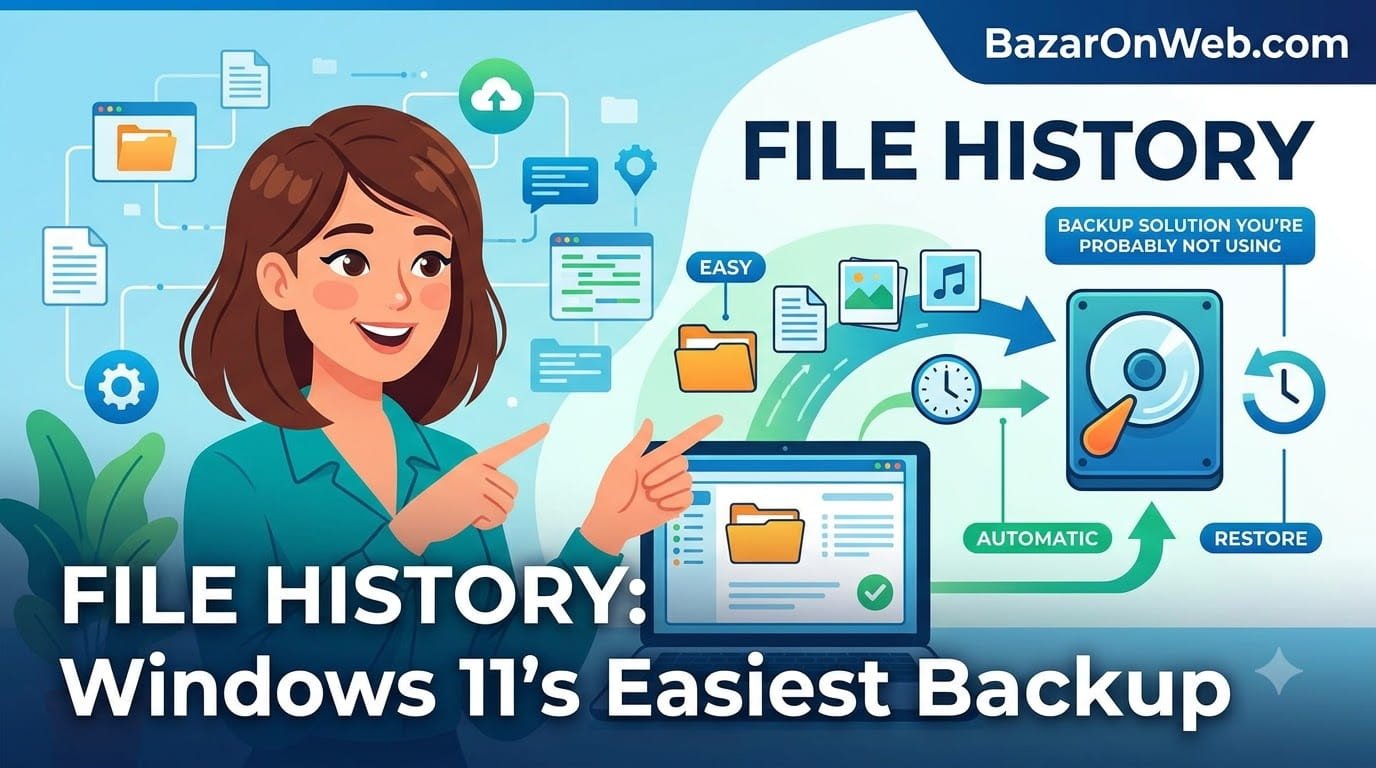
That’s when I discovered File History. Windows has a built-in backup system that’s so simple I couldn’t believe I’d never used it. You just plug in an external drive and enable one setting. That’s it. Windows automatically backs up your files.
If I’d had File History enabled, my drive failure would have been an inconvenience, not a catastrophe. I would have lost maybe a day’s work from between the last backup and the drive failure. Instead, I lost months.
I spent the next week setting up File History. Now I never think about backups. It just works. Files are automatically backed up to an external drive every hour. If something goes wrong, I have versions of my files from multiple points in time.
Most Windows users don’t know File History exists or how to use it. They’re one drive failure away from losing everything, just like I was.
Understanding File History: What It Actually Does
Before setting up File History, understanding what it does and what it doesn’t do prevents disappointment.
File History is Windows’s built-in backup feature. It continuously monitors your important folders—Documents, Pictures, Music, Videos, Desktop—and backs up files to an external drive.
Here’s what makes it different from other backup methods:
Versioning: File History keeps multiple versions of your files. You can restore not just the current version, but previous versions from days or weeks ago. Changed a document and realized the old version was better? Restore the old version from File History.
Automatic: Once enabled, File History runs automatically in the background. You don’t need to remember to back up. It just happens.
Simple: No complex configuration. No encryption options to understand. No scheduling to figure out. Plug in a drive, enable File History, done.
Continuous: File History backs up regularly (default every hour). This means you never lose more than an hour’s worth of work.
Not full system backup: File History backs up your personal files (Documents, Pictures, etc.). It doesn’t back up your Windows installation, programs, or system configuration. It’s not a complete system image. It’s specifically for file backup.
This distinction matters. File History won’t help you recover from a corrupted Windows installation. But for lost or damaged files, it’s excellent.
What File History Actually Backs Up
File History monitors specific folders by default. Understanding what’s included helps you know what’s protected.
Backed up by default:
- Documents folder
- Pictures folder
- Music folder
- Videos folder
- Desktop folder
- Downloads folder
- Your user profile folder (with some exceptions)
Not backed up by default:
- System files and Windows installation
- Installed applications
- Program files
- External drives (unless you specifically add them)
- Some system-level configuration files
You can add additional folders to File History. If you have important files outside the default folders, you can include them in backups.
Method 1: Set Up File History (The Easy Way)
Setting up File History is straightforward. Seriously, it takes maybe 5 minutes total.
First, connect your external drive (USB drive, external hard drive, network drive—anything File History can write to).
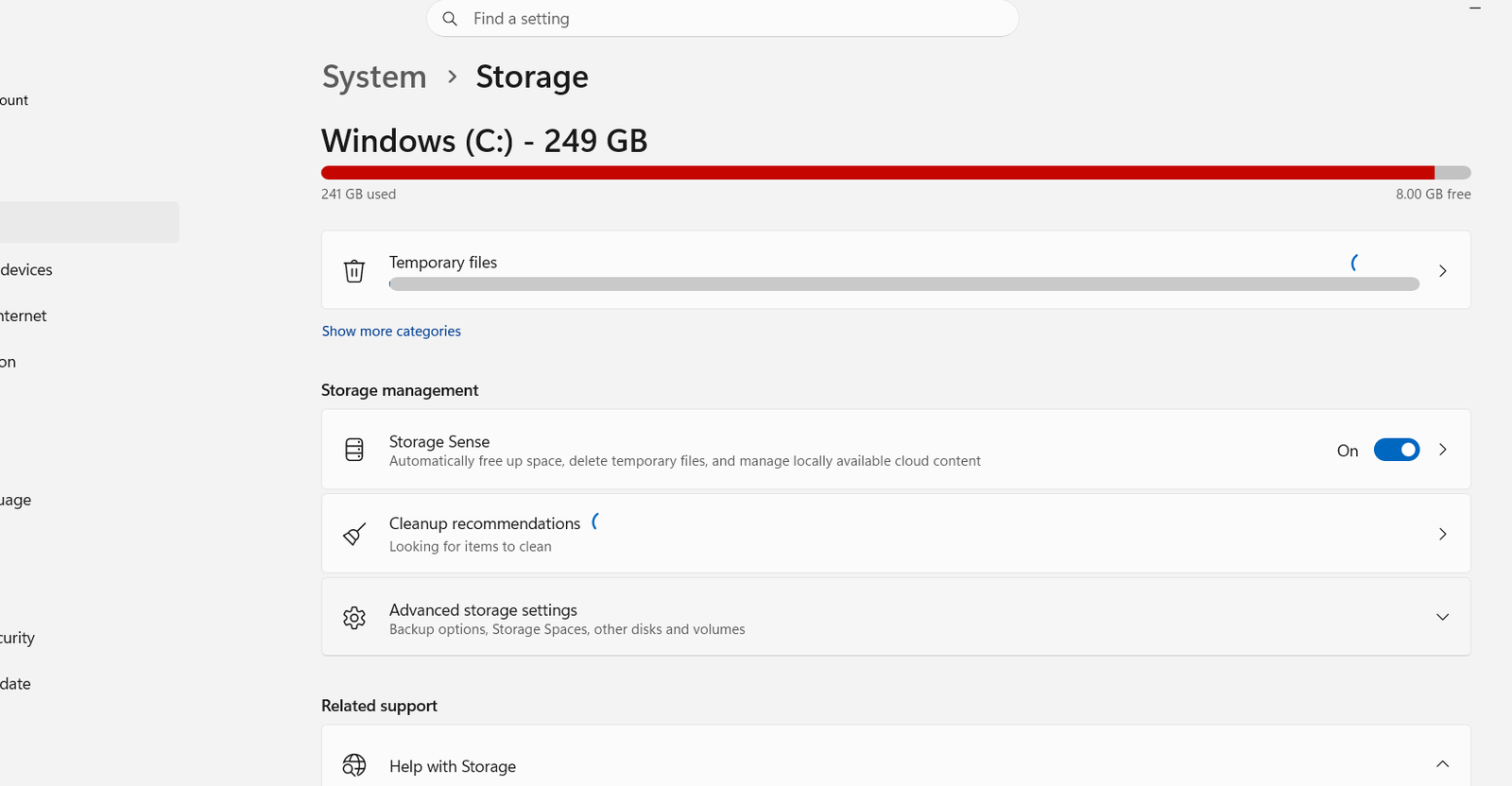
Open Settings (Windows Key + I). Navigate to System > Storage > Advanced storage options > Backup options.
You’ll see “Back up your files” section. Click “Set up backup now” or similar button.
Windows shows a list of available drives to back up to. Select your external drive.
Click “Set up backup” or “Start backup” (wording varies by build).
That’s literally it. File History is now enabled. It starts backing up your files immediately.
Windows will back up files now, then continue backing up every hour. You can leave your external drive connected, or disconnect it after backups complete. File History will back up again next time the drive is connected.
Method 2: Configure File History Settings (Advanced)
After initial setup, you might want to adjust settings.
Settings > System > Storage > Backup options > Backup settings (or “More options”).
Here you can configure:
Backup frequency: How often File History backs up (default is hourly). You can change to more frequent (every 10 minutes) or less frequent (daily, weekly).
Which folders to backup: Add or remove folders from backup. If you have files in unusual locations, add them here.
How long to keep backups: How long File History keeps old versions of files (default is unlimited, keeping as much as your external drive can hold).
Advanced options: More detailed configuration depending on your Windows build.
Most people leave default settings alone. Hourly backups work fine for most users.
Restoring Files From File History
The whole point of backing up is being able to restore files when needed.
Restore a recent version:
Open File Explorer. Navigate to the folder containing the file you need to restore.
Right-click the file. Select “Restore previous versions” or similar option.
A window shows backup versions of that file from different points in time. Select the version you want. Click “Restore.”
The file is restored to that version.
Restore an entire folder:
Right-click the folder. Select “Restore previous versions.”
Choose the folder version from a specific time. Click “Restore.”
The entire folder is restored with all files from that time.
Restore from File History window:
Open Settings > System > Storage > Backup options > “See your backups” or “View backup history.”
This opens the File History window showing all your backed-up files.
Browse through folders and files. Right-click any file or folder. Select “Restore.”
This method lets you browse all backed-up files and selectively restore specific ones.
Cause 1: File History Won’t Enable
Sometimes File History refuses to enable. The setting won’t toggle on.
Common reasons:
No external drive connected. File History requires an external drive to back up to. Connect an external drive first.
External drive isn’t accessible. If your drive is corrupted or has permission issues, File History can’t use it. Try a different drive.
Windows permissions issue. You need administrator privileges to enable File History. Make sure you’re logged in with an administrator account.
External drive is write-protected. Some external drives have physical write-protect switches. Check if the switch is preventing writes.
Corrupted File History service. Restart Windows. If File History still won’t enable, restart again.
Solutions:
Connect a different external drive and try enabling File History on that drive.
Ensure you’re running as administrator (right-click Settings > Run as administrator).
Check external drive write-protect status.
Restart Windows completely.
Cause 2: File History Stops Backing Up
File History starts working, but then backups stop. No errors, it just stops.
Common reasons:
External drive disconnected. File History can’t back up if the drive isn’t connected. Reconnect it.
External drive failed. The drive might have died or become corrupted. File History can’t use a failed drive.
Insufficient space. External drive ran out of space. File History stops backing up when no space remains.
File History service disabled. Some system updates or configuration changes disable File History. Check settings to verify it’s still enabled.
Solutions:
Check if external drive is connected. Reconnect if needed.
Test external drive in File Explorer. If it’s not accessible, it needs replacement.
Check how much free space remains on external drive. Delete old backups or replace with larger drive if running out of space.
Verify File History is still enabled in Settings > Backup options.
Cause 3: Can’t Restore Files
You need to restore a file but the restore option doesn’t appear or doesn’t work.
Common reasons:
File wasn’t included in backup. Files in folders outside default backup locations aren’t backed up unless you explicitly added them.
Restore previous versions option missing. This option might not appear if File History doesn’t have backups for that file yet (if file is newer than first backup).
External drive with backups disconnected. You can’t restore without connecting the drive containing backups.
File History corrupted. Backup data might be corrupted, preventing restoration.
Solutions:
Verify file is in a folder that File History backs up (Documents, Pictures, Desktop, etc.). If not, check if you added it to backup list.
Wait for File History to complete at least one backup cycle (up to 1 hour) before expecting restore option to appear.
Connect the external drive containing backups.
Try restoring a different file to see if it’s a specific file corruption or general issue.
Cause 4: External Drive Running Out of Space
After months of backups, your external drive gets full. File History stops backing up.
Solutions:
Delete old backups you don’t need. File History window lets you delete older versions of files.
Replace external drive with larger capacity drive.
Configure File History to keep fewer backup versions (Settings > Backup options > “Keep all versions” vs “Keep these versions”).
Move some files to cloud storage or archival drive if external drive is permanently full.
Best Practices for File History
Using File History effectively requires understanding best practices.
Keep external drive connected:
For continuous backups, keep your external drive connected. This ensures backups happen automatically every hour.
If keeping drive connected isn’t practical, connect it regularly (weekly at minimum). File History will back up when drive is connected.
Use a dedicated external drive:
Don’t share the File History drive with other purposes. Dedicate the entire drive to File History backups.
Monitor remaining space:
Occasionally check how much free space remains on external drive. File History stops working if drive is full.
Test restoration occasionally:
Verify File History actually works by restoring a test file. Don’t assume backups work until you’ve tested them.
Keep external drive safe:
Store your backup drive somewhere safe. If your main drive fails, you need the backup drive to recover files. Protect it from theft, damage, or loss.
Don’t rely only on File History:
File History is excellent for file recovery, but it’s not a complete backup solution. Consider also using:
- Cloud storage (OneDrive, Google Drive) for important files
- Full system image backups for complete system recovery
- Multiple backup copies in different locations
Keep external drive updated:
Your backup drive has a limited lifespan. External drives eventually fail. Replace the drive every 3-5 years even if it still works.
File History vs Other Backup Methods
File History is convenient but isn’t the best solution for every situation. Understanding alternatives helps you choose the right backup approach.
File History:
- Pros: Simple, automatic, keeps file versions, easy restoration
- Cons: Requires external drive connected or nearby, doesn’t back up system files or programs, only backs up specific folders
Cloud storage (OneDrive, Google Drive):
- Pros: Automatic, accessible from anywhere, redundant copies, always available
- Cons: Requires internet, privacy concerns, potential cost for large amounts
- Best for: Important documents you need everywhere
Full system image (Acronis, Macrium Reflect):
- Pros: Complete backup including system and all programs, can restore entire system quickly
- Cons: Complex setup, requires large external drive, backups take significant time
- Best for: Complete system recovery after drive failure or corruption
Combination approach:
Use File History for frequent file backups, cloud storage for important files, and occasional full system images for complete disaster recovery.
When File History Isn’t Enough
Recognize situations where File History alone isn’t sufficient.
Business-critical data: If data loss could cost significant money or impact business, use multiple backup methods and store backups in different locations.
Large media libraries: If you have terabytes of photos or videos, File History might fill external drive quickly. Use additional storage or more frequent archival.
System corruption: If your Windows installation becomes corrupted, File History won’t help. You need system image backups.
Ransomware attacks: If malware encrypts your files, File History backups might also be encrypted if the backup drive is accessible to malware. Use offline backups for critical data.
The Reality
File History is the easiest backup solution Windows offers. It requires almost no understanding to set up. You plug in a drive and enable one setting. That’s it.
Most people don’t use it because they don’t know it exists. They assume their computer will work forever. Then when something goes wrong—drive failure, accidental deletion, file corruption—they lose everything.
File History won’t prevent all data loss. It won’t back up your system files. It won’t help if both your main drive and backup drive fail simultaneously. But it will protect against the most common data loss scenarios.
For the five minutes of setup effort, File History provides enormous value. You’ll never lose months of work to a drive failure again.
Seriously, go enable File History right now. Plug in an external drive. Open Settings. Enable File History. It’ll take less time than reading this article.
Quick Setup Steps:
- Connect external USB drive
- Open Settings > System > Storage > Backup options
- Click “Set up backup now”
- Select external drive
- Click “Set up backup”
- Done
Backups start immediately and continue automatically every hour.
Also read:
Disclaimer: This article provides guidance on setting up and using Windows 11 File History. File History is effective for file-level backup but has limitations. It does not back up system files, installed programs, or Windows configuration. File History requires an external drive that remains functional. External drive failure will make backups inaccessible. File History keeps backup versions until your external drive fills, which may happen faster than expected with large file collections. Users assume responsibility for regular backup drive maintenance and testing restoration functionality. For critical data or complete system recovery, File History should be supplemented with additional backup methods. Seek professional data recovery service if external drive fails.

- How to Add Multiple Email Accounts on Windows 11

- How to Fix Wi-Fi Disconnecting Automatically on Windows 11

- How to Remotely Control Another Computer Using Windows Quick Assist

- 5 Must-Have Electronics Gadgets for a More Comfortable Living Room

- How to Create a Windows 11 System Backup on an External Hard Drive

Products
-
 Samsung Galaxy S26 Ultra Unlocked Android Smartphone, 256GB, Black, Privacy Display, 200MP Camera, 5000mAh Battery, US 1 Year Warranty
-
![Apple Watch Ultra 3 [GPS + Cellular 49mm] Running & Multisport Smartwatch w/Rugged Titanium Case w/Black Titanium Milanese Loop - M. Satellite Communications, Advanced Health & Fitness Tracking](https://bazaronweb.com/retailstores/wp-content/uploads/2025/09/apple-watch-320x320.jpg) Apple Watch Ultra 3 [GPS + Cellular 49mm] Running & Multisport Smartwatch w/Rugged Titanium Case w/Black Titanium Milanese Loop - M. Satellite Communications, Advanced Health & Fitness Tracking
Apple Watch Ultra 3 [GPS + Cellular 49mm] Running & Multisport Smartwatch w/Rugged Titanium Case w/Black Titanium Milanese Loop - M. Satellite Communications, Advanced Health & Fitness Tracking
-
 Apple iPad mini (A17 Pro): Apple Intelligence, 8.3-inch Liquid Retina Display, 256GB, Wi-Fi 6E, 12MP Front/12MP Back Camera, Touch ID, All-Day Battery Life — Purple
-
 Apple AirPods Max Wireless Over-Ear Headphones, Active Noise Cancelling, Transparency Mode, Personalized Spatial Audio, Dolby Atmos, Bluetooth Headphones for iPhone – Space Gray
-
 Apple AirPods Pro 2 Wireless Earbuds, Active Noise Cancellation, Hearing Aid Feature, Bluetooth Headphones, Transparency, Personalized Spatial Audio, High-Fidelity Sound, H2 Chip, USB-C Charging
Leave a Reply