Discounted Products
-
 Home Garage 210 TC Cotton King Floral Fitted (Elastic) Bedsheet(Pack of 1, Grey)
Original price was: ₹999.00.₹299.00Current price is: ₹299.00.
Home Garage 210 TC Cotton King Floral Fitted (Elastic) Bedsheet(Pack of 1, Grey)
Original price was: ₹999.00.₹299.00Current price is: ₹299.00.
-
 Goodrik 140 TC Cotton Double 3D Printed Flat Bedsheet(Pack of 1, Brown)
Original price was: ₹499.00.₹229.00Current price is: ₹229.00.
Goodrik 140 TC Cotton Double 3D Printed Flat Bedsheet(Pack of 1, Brown)
Original price was: ₹499.00.₹229.00Current price is: ₹229.00.
-
 GLOBALSHOP 350 TC Microfiber Double Floral Flat Bedsheet(Pack of 1, Multicolor)
Original price was: ₹1,250.00.₹263.00Current price is: ₹263.00.
GLOBALSHOP 350 TC Microfiber Double Floral Flat Bedsheet(Pack of 1, Multicolor)
Original price was: ₹1,250.00.₹263.00Current price is: ₹263.00.
-
 RisingStar 250 TC Microfiber King Printed Fitted (Elastic) Bedsheet(Pack of 1, FITTED-ROUND-CIRCLES-PREMIUM)
Original price was: ₹2,299.00.₹299.00Current price is: ₹299.00.
RisingStar 250 TC Microfiber King Printed Fitted (Elastic) Bedsheet(Pack of 1, FITTED-ROUND-CIRCLES-PREMIUM)
Original price was: ₹2,299.00.₹299.00Current price is: ₹299.00.
-
 Home Garage 210 TC Cotton King Floral Fitted (Elastic) Bedsheet(Pack of 1, Fitted Black Green)
Original price was: ₹1,299.00.₹299.00Current price is: ₹299.00.
Home Garage 210 TC Cotton King Floral Fitted (Elastic) Bedsheet(Pack of 1, Fitted Black Green)
Original price was: ₹1,299.00.₹299.00Current price is: ₹299.00.
-
 Home Garage 180 TC Cotton King 3D Printed Flat Bedsheet(Pack of 1, White)
Original price was: ₹999.00.₹229.00Current price is: ₹229.00.
Home Garage 180 TC Cotton King 3D Printed Flat Bedsheet(Pack of 1, White)
Original price was: ₹999.00.₹229.00Current price is: ₹229.00.
-
 Panipat Textile Hub 152.4 cm (5 ft) Polyester Window Curtain (Pack Of 2)(Solid, Aqua)
Original price was: ₹1,899.00.₹299.00Current price is: ₹299.00.
Panipat Textile Hub 152.4 cm (5 ft) Polyester Window Curtain (Pack Of 2)(Solid, Aqua)
Original price was: ₹1,899.00.₹299.00Current price is: ₹299.00.
-
 Home Sizzler 214 cm (7 ft) Polyester Semi Transparent Door Curtain (Pack Of 2)(Floral, Maroon)
Original price was: ₹1,199.00.₹399.00Current price is: ₹399.00.
Home Sizzler 214 cm (7 ft) Polyester Semi Transparent Door Curtain (Pack Of 2)(Floral, Maroon)
Original price was: ₹1,199.00.₹399.00Current price is: ₹399.00.
-
 Home Sizzler 153 cm (5 ft) Polyester Room Darkening Window Curtain (Pack Of 2)(Floral, Brown)
Original price was: ₹799.00.₹299.00Current price is: ₹299.00.
Home Sizzler 153 cm (5 ft) Polyester Room Darkening Window Curtain (Pack Of 2)(Floral, Brown)
Original price was: ₹799.00.₹299.00Current price is: ₹299.00.
-
 Stella Creations 214 cm (7 ft) Polyester Room Darkening Door Curtain (Pack Of 2)(Abstract, Brown)
Original price was: ₹1,299.00.₹449.00Current price is: ₹449.00.
Stella Creations 214 cm (7 ft) Polyester Room Darkening Door Curtain (Pack Of 2)(Abstract, Brown)
Original price was: ₹1,299.00.₹449.00Current price is: ₹449.00.
-
 Homefab India 152.5 cm (5 ft) Polyester Room Darkening Window Curtain (Pack Of 2)(Floral, Light Blue)
Original price was: ₹1,199.00.₹319.00Current price is: ₹319.00.
Homefab India 152.5 cm (5 ft) Polyester Room Darkening Window Curtain (Pack Of 2)(Floral, Light Blue)
Original price was: ₹1,199.00.₹319.00Current price is: ₹319.00.
-
 Urban Home 214 cm (7 ft) PVC Transparent Door Curtain Single Curtain(Solid, Off White)
Original price was: ₹699.00.₹203.00Current price is: ₹203.00.
Urban Home 214 cm (7 ft) PVC Transparent Door Curtain Single Curtain(Solid, Off White)
Original price was: ₹699.00.₹203.00Current price is: ₹203.00.
-
 Panipat Textile Hub 213 cm (7 ft) Polyester Door Curtain (Pack Of 2)(Solid, Brown)
Original price was: ₹1,199.00.₹349.00Current price is: ₹349.00.
Panipat Textile Hub 213 cm (7 ft) Polyester Door Curtain (Pack Of 2)(Solid, Brown)
Original price was: ₹1,199.00.₹349.00Current price is: ₹349.00.
-
 Home Sizzler 214 cm (7 ft) Polyester Semi Transparent Door Curtain (Pack Of 2)(Floral, Brown)
Original price was: ₹999.00.₹349.00Current price is: ₹349.00.
Home Sizzler 214 cm (7 ft) Polyester Semi Transparent Door Curtain (Pack Of 2)(Floral, Brown)
Original price was: ₹999.00.₹349.00Current price is: ₹349.00.
-
 Panipat Textile Hub 213 cm (7 ft) Polyester Semi Transparent Door Curtain (Pack Of 2)(Floral, Brown)
Original price was: ₹899.00.₹299.00Current price is: ₹299.00.
Panipat Textile Hub 213 cm (7 ft) Polyester Semi Transparent Door Curtain (Pack Of 2)(Floral, Brown)
Original price was: ₹899.00.₹299.00Current price is: ₹299.00.
Artificial intelligence has made video creation dramatically easier, but knowing which settings to choose is just as important as writing a good prompt. Google Flow, powered by Google’s latest AI video generation technology, allows creators to generate cinematic videos from simple text prompts without needing professional editing software.
Whether you’re creating Instagram Reels, YouTube Shorts, TikTok videos, or long-form YouTube content, Google Flow provides built-in options to select the correct aspect ratio, video duration, generation model, and number of variations.
After spending several hours experimenting with Google Flow, I found that most beginners don’t struggle with prompting—they struggle with choosing the right settings. Selecting the wrong format often results in videos that require unnecessary cropping or editing later.
In this guide, I’ll walk you through the complete process of creating videos in Google Flow, using real screenshots to help you understand every step.
Step 1: Open Google Flow
The first step is simply visiting Google Flow through your browser.
Once you log in using your Google account, you’ll land on the Flow homepage. The interface is intentionally minimal, making it approachable even if you’ve never used AI video tools before.
Your dashboard usually displays:
- Featured projects
- Community tools
- Your previous creations
- A large New Project button
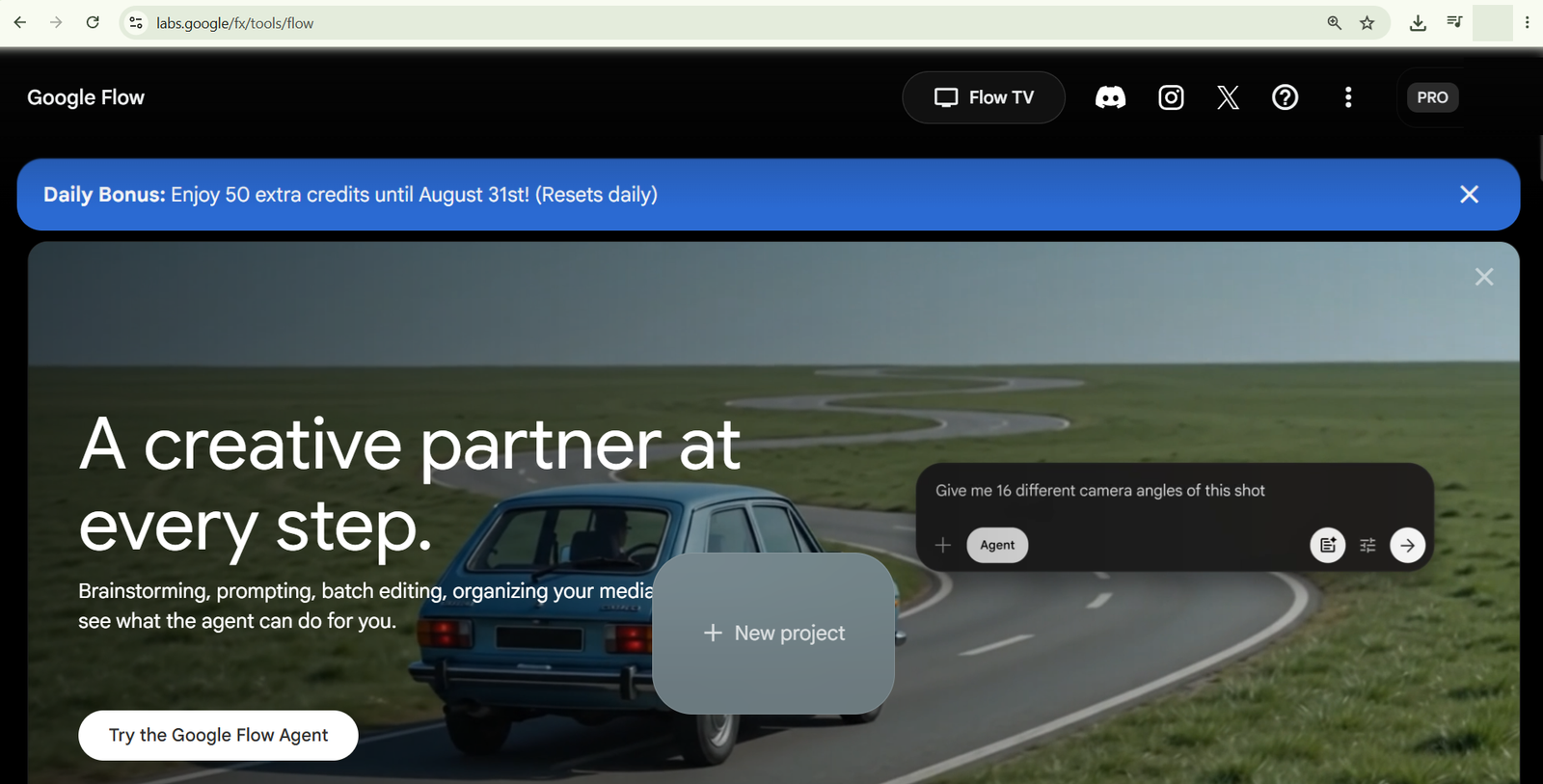
The New Project button is where every AI-generated video begins.
If this is your first time using Flow, don’t worry about the extra menus. Everything you need for basic video generation is contained inside a single workspace.
Step 2: Create a New Project
Click the large New Project button.
Google Flow opens an empty workspace where you’ll eventually generate images or videos.
Unlike traditional video editors, Flow doesn’t ask you to create timelines first.
Instead, everything starts with a prompt.
Think of it as giving directions to a filmmaker.
Step 3: Choose Video Instead of Image
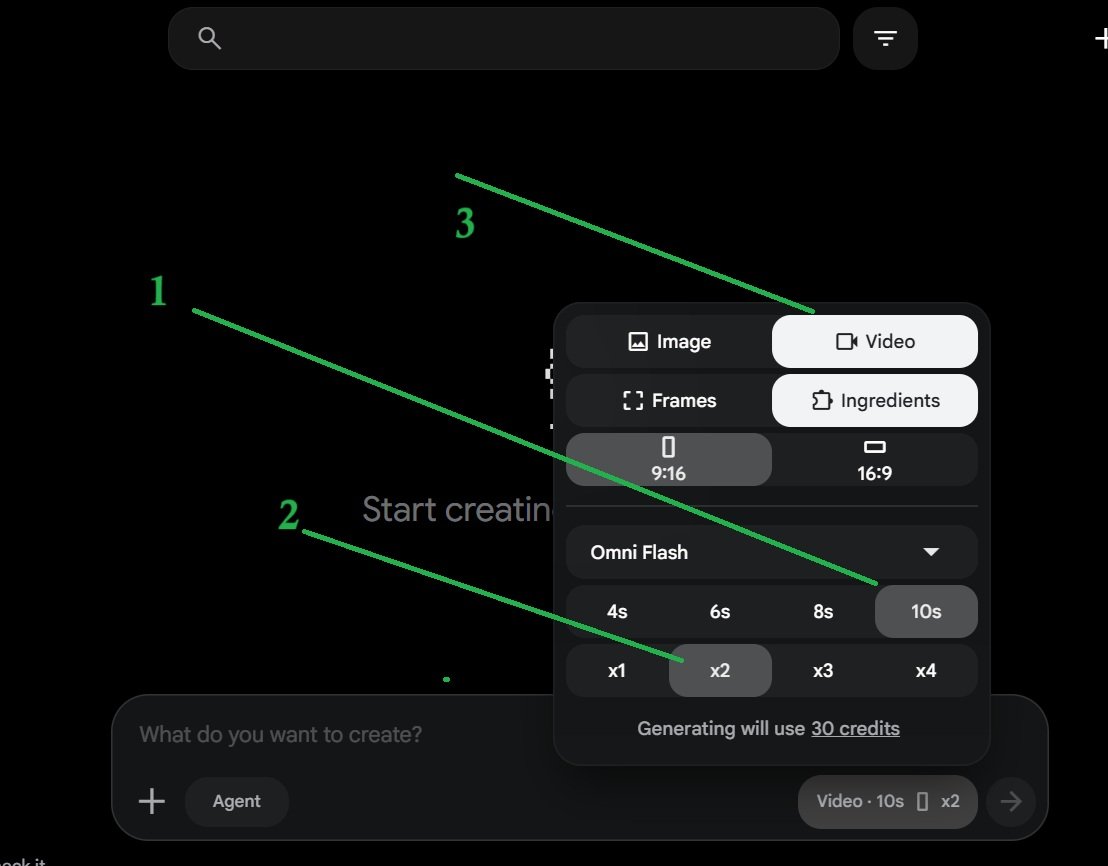
Before typing anything, click the settings icon.
Google Flow lets you create:
- Images
- Videos
- Frames
- Ingredients
Since we’re creating videos, select Video.
This is an important step because many beginners accidentally leave Image selected and wonder why they receive only still images.
Step 4: Choose the Correct Aspect Ratio
This is probably the most important setting inside Google Flow.
The aspect ratio determines where your finished video will look best.
9:16 (Vertical)
Choose 9:16 if you’re creating content for:
- Instagram Reels
- YouTube Shorts
- TikTok
- Facebook Reels
- Snapchat Spotlight
Vertical videos fill an entire smartphone screen, making them ideal for mobile-first platforms.
16:9 (Landscape)
Choose 16:9 for:
- Traditional YouTube videos
- Tutorials
- Product demonstrations
- Presentations
- Documentary-style content
Landscape videos provide significantly more horizontal space, making them better suited for desktop viewing.
Many creators make the mistake of generating everything in 16:9 and then cropping later. While this works, generating directly in the correct aspect ratio usually produces better framing because the AI composes scenes specifically for that format.
Step 5: Select Video Duration
Google Flow currently provides several duration options.
Common choices include:
- 4 seconds
- 6 seconds
- 8 seconds
- 10 seconds
Longer clips consume more credits.
For social media, I usually recommend beginning with 6 or 8 seconds because they’re easier to combine during editing.
For cinematic establishing shots or storytelling, 10-second clips provide smoother motion.
Step 6: Choose the Number of Variations
Another useful feature inside Google Flow is the ability to generate multiple versions of the same prompt simultaneously.
You can often choose:
- x1
- x2
- x3
- x4
Generating multiple versions increases your chances of getting the perfect camera angle or character movement.
Yes, it uses more credits.
But spending credits on multiple variations is often cheaper than repeatedly generating one video over and over.
Step 7: Select the AI Model
Google periodically introduces newer generation models inside Flow.
You’ll typically see models such as Omni Flash or newer experimental versions.
Different models emphasize different strengths:
- Faster generation
- Better motion
- Improved lighting
- More realistic people
- Better cinematic movement
If you’re just starting, the default model is usually sufficient.
As Google releases newer models, it’s worth experimenting to compare quality differences.
Video Generation Settings
This settings panel controls almost everything about your output. Spending an extra minute here can save multiple failed generations later.
Step 8: Write Your Prompt
Now comes the creative part.
Google Flow works surprisingly well with natural language.
For example:
Deer eating grapes in the orchard.
That simple sentence is enough for Flow to understand:
- Subject
- Environment
- Action
Prompt Box
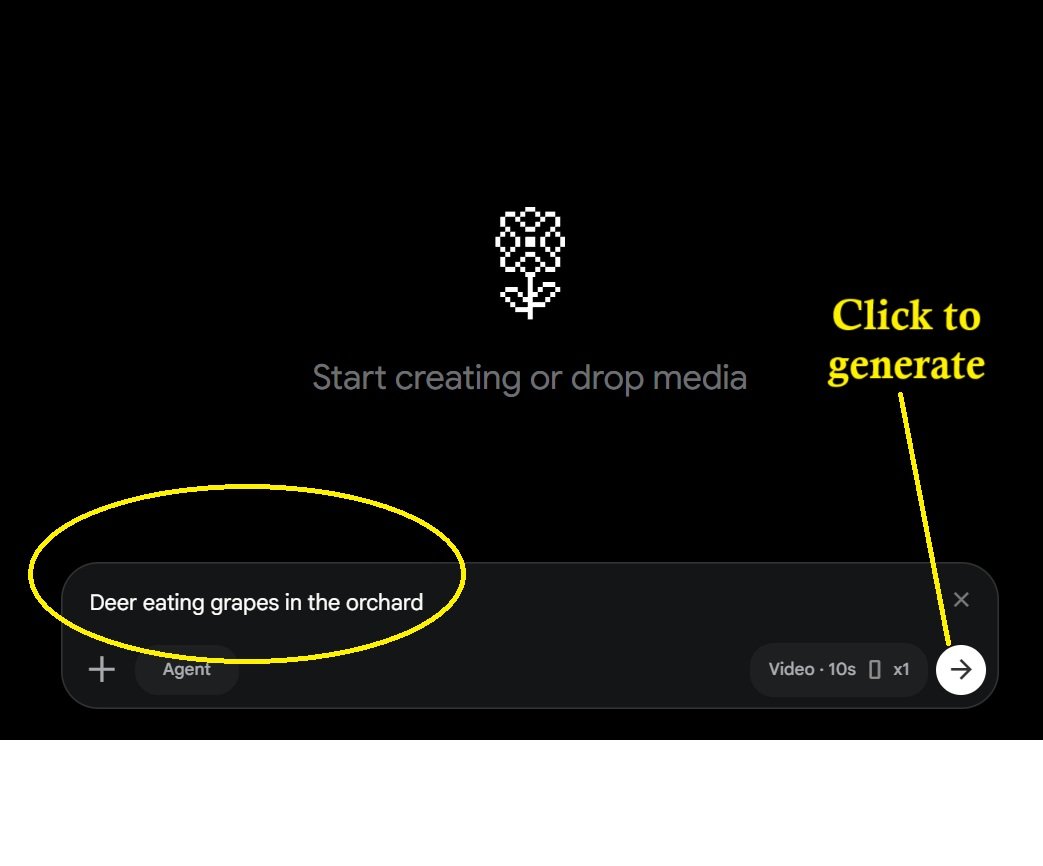
Although short prompts often work, adding more descriptive details usually produces better results.
Instead of writing:
Deer eating grapes.
Try something like:
A young deer peacefully eating ripe purple grapes in a sunlit vineyard during golden hour, cinematic camera movement, shallow depth of field, realistic wildlife documentary style, ultra detailed.
The additional context helps the AI understand lighting, mood, camera movement, and visual style more accurately.

- How to Add Multiple Email Accounts on Windows 11

- How to Fix Wi-Fi Disconnecting Automatically on Windows 11

- How to Remotely Control Another Computer Using Windows Quick Assist

- 5 Must-Have Electronics Gadgets for a More Comfortable Living Room

- How to Create a Windows 11 System Backup on an External Hard Drive

Products
-
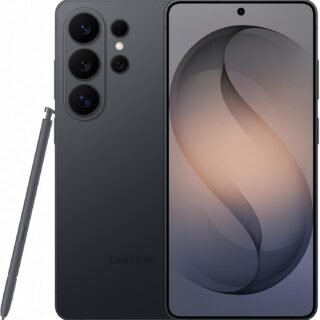 Samsung Galaxy S26 Ultra Unlocked Android Smartphone, 256GB, Black, Privacy Display, 200MP Camera, 5000mAh Battery, US 1 Year Warranty
-
![Apple Watch Ultra 3 [GPS + Cellular 49mm] Running & Multisport Smartwatch w/Rugged Titanium Case w/Black Titanium Milanese Loop - M. Satellite Communications, Advanced Health & Fitness Tracking](https://bazaronweb.com/retailstores/wp-content/uploads/2025/09/apple-watch-320x320.jpg) Apple Watch Ultra 3 [GPS + Cellular 49mm] Running & Multisport Smartwatch w/Rugged Titanium Case w/Black Titanium Milanese Loop - M. Satellite Communications, Advanced Health & Fitness Tracking
Apple Watch Ultra 3 [GPS + Cellular 49mm] Running & Multisport Smartwatch w/Rugged Titanium Case w/Black Titanium Milanese Loop - M. Satellite Communications, Advanced Health & Fitness Tracking
-
 Apple iPad mini (A17 Pro): Apple Intelligence, 8.3-inch Liquid Retina Display, 256GB, Wi-Fi 6E, 12MP Front/12MP Back Camera, Touch ID, All-Day Battery Life — Purple
-
 Apple AirPods Max Wireless Over-Ear Headphones, Active Noise Cancelling, Transparency Mode, Personalized Spatial Audio, Dolby Atmos, Bluetooth Headphones for iPhone – Space Gray
-
 Apple AirPods Pro 2 Wireless Earbuds, Active Noise Cancellation, Hearing Aid Feature, Bluetooth Headphones, Transparency, Personalized Spatial Audio, High-Fidelity Sound, H2 Chip, USB-C Charging
Leave a Reply