Discounted Products
-
 Home Garage 210 TC Cotton King Floral Fitted (Elastic) Bedsheet(Pack of 1, Grey)
Original price was: ₹999.00.₹299.00Current price is: ₹299.00.
Home Garage 210 TC Cotton King Floral Fitted (Elastic) Bedsheet(Pack of 1, Grey)
Original price was: ₹999.00.₹299.00Current price is: ₹299.00.
-
 Goodrik 140 TC Cotton Double 3D Printed Flat Bedsheet(Pack of 1, Brown)
Original price was: ₹499.00.₹229.00Current price is: ₹229.00.
Goodrik 140 TC Cotton Double 3D Printed Flat Bedsheet(Pack of 1, Brown)
Original price was: ₹499.00.₹229.00Current price is: ₹229.00.
-
 GLOBALSHOP 350 TC Microfiber Double Floral Flat Bedsheet(Pack of 1, Multicolor)
Original price was: ₹1,250.00.₹263.00Current price is: ₹263.00.
GLOBALSHOP 350 TC Microfiber Double Floral Flat Bedsheet(Pack of 1, Multicolor)
Original price was: ₹1,250.00.₹263.00Current price is: ₹263.00.
-
 RisingStar 250 TC Microfiber King Printed Fitted (Elastic) Bedsheet(Pack of 1, FITTED-ROUND-CIRCLES-PREMIUM)
Original price was: ₹2,299.00.₹299.00Current price is: ₹299.00.
RisingStar 250 TC Microfiber King Printed Fitted (Elastic) Bedsheet(Pack of 1, FITTED-ROUND-CIRCLES-PREMIUM)
Original price was: ₹2,299.00.₹299.00Current price is: ₹299.00.
-
 Home Garage 210 TC Cotton King Floral Fitted (Elastic) Bedsheet(Pack of 1, Fitted Black Green)
Original price was: ₹1,299.00.₹299.00Current price is: ₹299.00.
Home Garage 210 TC Cotton King Floral Fitted (Elastic) Bedsheet(Pack of 1, Fitted Black Green)
Original price was: ₹1,299.00.₹299.00Current price is: ₹299.00.
-
 Home Garage 180 TC Cotton King 3D Printed Flat Bedsheet(Pack of 1, White)
Original price was: ₹999.00.₹229.00Current price is: ₹229.00.
Home Garage 180 TC Cotton King 3D Printed Flat Bedsheet(Pack of 1, White)
Original price was: ₹999.00.₹229.00Current price is: ₹229.00.
-
 Panipat Textile Hub 152.4 cm (5 ft) Polyester Window Curtain (Pack Of 2)(Solid, Aqua)
Original price was: ₹1,899.00.₹299.00Current price is: ₹299.00.
Panipat Textile Hub 152.4 cm (5 ft) Polyester Window Curtain (Pack Of 2)(Solid, Aqua)
Original price was: ₹1,899.00.₹299.00Current price is: ₹299.00.
-
 Home Sizzler 214 cm (7 ft) Polyester Semi Transparent Door Curtain (Pack Of 2)(Floral, Maroon)
Original price was: ₹1,199.00.₹399.00Current price is: ₹399.00.
Home Sizzler 214 cm (7 ft) Polyester Semi Transparent Door Curtain (Pack Of 2)(Floral, Maroon)
Original price was: ₹1,199.00.₹399.00Current price is: ₹399.00.
-
 Home Sizzler 153 cm (5 ft) Polyester Room Darkening Window Curtain (Pack Of 2)(Floral, Brown)
Original price was: ₹799.00.₹299.00Current price is: ₹299.00.
Home Sizzler 153 cm (5 ft) Polyester Room Darkening Window Curtain (Pack Of 2)(Floral, Brown)
Original price was: ₹799.00.₹299.00Current price is: ₹299.00.
-
 Stella Creations 214 cm (7 ft) Polyester Room Darkening Door Curtain (Pack Of 2)(Abstract, Brown)
Original price was: ₹1,299.00.₹449.00Current price is: ₹449.00.
Stella Creations 214 cm (7 ft) Polyester Room Darkening Door Curtain (Pack Of 2)(Abstract, Brown)
Original price was: ₹1,299.00.₹449.00Current price is: ₹449.00.
-
 Homefab India 152.5 cm (5 ft) Polyester Room Darkening Window Curtain (Pack Of 2)(Floral, Light Blue)
Original price was: ₹1,199.00.₹319.00Current price is: ₹319.00.
Homefab India 152.5 cm (5 ft) Polyester Room Darkening Window Curtain (Pack Of 2)(Floral, Light Blue)
Original price was: ₹1,199.00.₹319.00Current price is: ₹319.00.
-
 Urban Home 214 cm (7 ft) PVC Transparent Door Curtain Single Curtain(Solid, Off White)
Original price was: ₹699.00.₹203.00Current price is: ₹203.00.
Urban Home 214 cm (7 ft) PVC Transparent Door Curtain Single Curtain(Solid, Off White)
Original price was: ₹699.00.₹203.00Current price is: ₹203.00.
-
 Panipat Textile Hub 213 cm (7 ft) Polyester Door Curtain (Pack Of 2)(Solid, Brown)
Original price was: ₹1,199.00.₹349.00Current price is: ₹349.00.
Panipat Textile Hub 213 cm (7 ft) Polyester Door Curtain (Pack Of 2)(Solid, Brown)
Original price was: ₹1,199.00.₹349.00Current price is: ₹349.00.
-
 Home Sizzler 214 cm (7 ft) Polyester Semi Transparent Door Curtain (Pack Of 2)(Floral, Brown)
Original price was: ₹999.00.₹349.00Current price is: ₹349.00.
Home Sizzler 214 cm (7 ft) Polyester Semi Transparent Door Curtain (Pack Of 2)(Floral, Brown)
Original price was: ₹999.00.₹349.00Current price is: ₹349.00.
-
 Panipat Textile Hub 213 cm (7 ft) Polyester Semi Transparent Door Curtain (Pack Of 2)(Floral, Brown)
Original price was: ₹899.00.₹299.00Current price is: ₹299.00.
Panipat Textile Hub 213 cm (7 ft) Polyester Semi Transparent Door Curtain (Pack Of 2)(Floral, Brown)
Original price was: ₹899.00.₹299.00Current price is: ₹299.00.
Windows Security is one of the most important built-in apps in Windows 11. It provides access to Microsoft Defender Antivirus, firewall settings, device security, account protection, and other features designed to keep your computer protected. Microsoft describes Windows Security as the central place for several of Windows’ built-in security features.
But what happens when you open Windows Security and see nothing?
A blank Windows Security screen can be confusing, especially because the application is responsible for protecting your computer. Sometimes the problem is relatively simple, such as a temporary app glitch. In other cases, it can be connected to corrupted Windows components, damaged system files, a problematic update, third-party antivirus software, or even malware.
The good news is that you do not necessarily need to reset Windows immediately. There are several troubleshooting steps you can try, starting with the simplest options and gradually moving toward more advanced repairs.
Why Is Windows Security Showing a Blank Screen?
There isn’t one single reason why Windows Security may appear blank.
A temporary Windows process failure can prevent the interface from loading correctly. The Windows Security application itself may also have corrupted data. If Windows system components are damaged, applications that depend on those components can behave unexpectedly.
Another possibility is interference from third-party security software. Windows can automatically turn Microsoft Defender Antivirus off when another antivirus application is installed and active.
A recent Windows update can also introduce compatibility problems, while malware may deliberately interfere with security tools to make it harder for you to detect or remove an infection.
Therefore, I recommend working through the fixes in order rather than immediately jumping to a major Windows repair.
Disclaimer: This guide is for general informational purposes. Windows settings and troubleshooting options can vary by version and device. Before making system-level changes, back up important files and create a restore point where possible.
1. Restart Your Computer First
This sounds almost too simple, but it is worth doing before anything complicated.
If Windows Security was working normally and suddenly started displaying a blank screen, restart Windows 11 and try opening it again.
Click Start > Power > Restart.
After Windows starts again, search for Windows Security from the Start menu and open the application.
A restart can clear temporary processes and reload Windows services that may not have initialized correctly.
If Windows Security opens normally after the restart, you probably don’t need to perform any additional repairs.
If the screen is still blank, continue with the next method.
2. Install Pending Windows Updates
An outdated Windows installation can sometimes cause compatibility problems with built-in applications.
Open:
Settings > Windows Update
Select Check for updates.
If Windows finds updates, install them and restart the computer when prompted.
It is especially worth checking for updates if the Windows Security problem started immediately after a Windows update or system change. Microsoft recommends keeping Windows and its security components updated, and its Windows Security documentation also recommends having the latest Windows and Defender updates installed for the best experience.
After restarting, open Windows Security again.
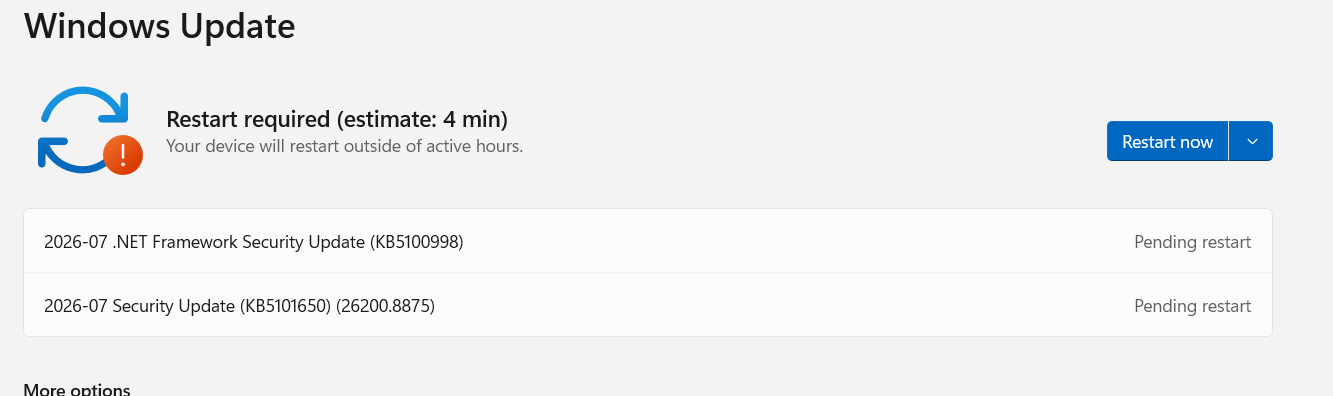
If Windows Security remains blank, move on to repairing the application itself.
3. Repair the Windows Security App
Windows 11 provides built-in options for repairing certain applications without reinstalling Windows.
Go to:
Settings > Apps > Installed apps
Use the search box to find Windows Security.
Click the three-dot menu beside it and select Advanced options, if available.
You may see options such as:
- Terminate
- Repair
- Reset
Start with Repair.
The Repair option is designed to fix application problems while avoiding a complete reset of the app. Microsoft recommends using Repair when available and trying Reset if Repair doesn’t resolve the problem.
After the repair finishes, open Windows Security again.
If the application is still blank, return to the same screen and select Reset, if the option is available.
Keep in mind that Reset can remove the application’s stored data and restore its settings to their defaults.
This is one of the easiest fixes to try because it doesn’t require Command Prompt or complicated system changes.
4. Restart Windows Security Related Processes
Sometimes the problem is not the visible application but a Windows process or service that isn’t responding correctly.
Press:
Ctrl + Shift + Esc
to open Task Manager.
Look through the running processes for Windows-related security components. You can also restart Windows Explorer if the Windows interface itself appears to be behaving strangely.
If Windows Explorer isn’t listed correctly, Microsoft recommends using Task Manager’s File > Run new task option and entering explorer.exe when troubleshooting certain blank-screen problems.
After restarting Explorer, try launching Windows Security again.
If other Windows interfaces are also appearing blank or failing to load, that is a useful clue that the issue may be larger than the Windows Security app itself.
5. Check for Third Party Antivirus Software
Do you have another antivirus or internet security program installed?
If yes, temporarily investigate whether it is interfering with Windows Security.
Third-party security applications can modify Windows security settings and services. Microsoft notes that when another antivirus application is installed and active, Microsoft Defender Antivirus can automatically turn itself off.
Examples include third-party antivirus, endpoint security, firewall, system optimization, and security management utilities.
You should not randomly delete security software. Instead, check whether the software is compatible with your current Windows 11 version and whether it recently received an update.
If you decide to uninstall a third-party security product for troubleshooting, make sure you know how to reinstall it and have any required license information available. Microsoft similarly recommends being prepared to reinstall third-party software before removing it during troubleshooting.
Once the software is removed, restart Windows and test Windows Security.
6. Run System File Checker
If Windows Security is still blank, corrupted Windows system files could be responsible.
Windows includes a tool called System File Checker, commonly known as SFC.
Open Start and search for:
Command Prompt
Right-click it and select:
Run as administrator
Then enter:
sfc /scannowPress Enter.
Windows will scan protected system files and attempt to replace corrupted files with cached copies. Microsoft recommends allowing the scan to reach 100 percent before closing the Command Prompt window.
The scan can take some time, so don’t worry if the percentage appears to stop for a while.
When the scan finishes, Windows will display a result.
If it reports that corrupted files were repaired, restart your computer and check Windows Security again.
If it says that no integrity violations were found, the problem may be elsewhere.
7. Use DISM to Repair the Windows Image
If SFC doesn’t solve the problem, the Windows component store itself may need repair.
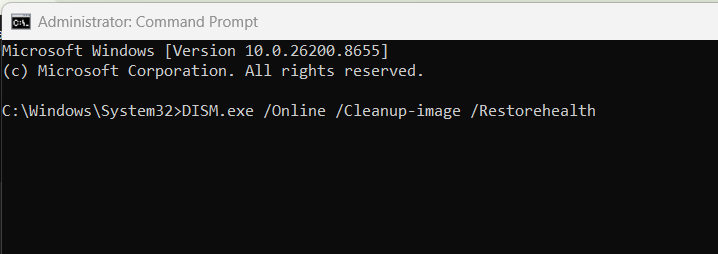
Open Command Prompt as administrator again.
Run:
DISM.exe /Online /Cleanup-image /RestorehealthPress Enter and wait for the process to complete.
DISM is designed to repair the Windows image that SFC relies on when restoring damaged system files. Microsoft recommends using DISM and then running SFC when Windows components or system files are corrupted.
Once DISM finishes, run:
sfc /scannowagain.
Restart your PC afterward.
Then launch Windows Security.
This combination is particularly useful when multiple Windows features are behaving strangely rather than just Windows Security.
8. Scan Your Computer for Malware
A blank Windows Security interface does not automatically mean your computer has malware.
However, malware is one possibility worth considering, particularly if the problem appeared alongside other suspicious behavior.
For example, you may notice:
- Unexpected browser redirects
- Unknown applications
- New browser extensions
- Unusual pop-ups
- Significant performance changes
- Security settings changing unexpectedly
- Programs refusing to open
- Unknown processes running in the background
If Windows Security is accessible enough to start a scan, Microsoft recommends running a Quick Scan when you suspect malware.
You can also use Microsoft Defender Offline when you suspect a more persistent infection.
Microsoft’s current instructions provide the option under:
Windows Security > Virus & threat protection > Scan options > Microsoft Defender Offline scan
The computer will restart before the offline scan begins, so save your work first.
An offline scan is useful because it runs outside the normal Windows environment, making it harder for certain persistent threats to interfere with the scan.
9. Check Windows Security Protection History
If Windows Security becomes partially accessible, check Protection history.
Protection History shows actions Microsoft Defender has taken, including detected threats, potentially unwanted applications, and certain security events. Microsoft says these records are retained for two weeks.
Look for recent red or yellow alerts.
Don’t automatically assume every warning means your computer is infected. Read the detection name and action carefully.
If you find a recent malware detection that coincides with the Windows Security problem, take the warning seriously and complete the recommended remediation steps.
10. Try Safe Mode
If Windows Security remains blank and you suspect another application is interfering with it, Safe Mode can help identify the problem.
Safe Mode starts Windows with a limited set of drivers and services.
Microsoft’s blank-screen troubleshooting guidance recommends entering Windows Recovery Environment and using:
Troubleshoot > Advanced options > Startup Settings > Restart
You can then select the appropriate Safe Mode option.
Once Windows starts in Safe Mode, test whether the underlying Windows components behave normally.
If the problem disappears in Safe Mode, a third-party application, driver, or startup component becomes a stronger suspect.
This is particularly useful if the blank Windows Security screen appeared after installing a new utility, antivirus program, driver, or system customization tool.
11. Use System Restore If the Problem Started Recently
Think about when the problem first appeared.
Did Windows Security work correctly last week?
Did the blank screen appear immediately after installing software or a driver?
If the problem is recent, System Restore may help.
Windows provides recovery options including System Restore, Reset, Startup Repair, and other recovery methods. Microsoft recommends choosing the recovery option based on the type of problem you’re experiencing.
System Restore can be useful when a recent software installation or system change caused the problem.
Before using recovery tools, make sure important files are backed up.
12. Consider Resetting Windows as a Last Resort
If you have tried repairing Windows Security, updating Windows, scanning for malware, repairing system files, and checking third-party software, but the problem continues, you may need to consider a larger Windows repair.
Windows 11 includes recovery options that can reinstall or reset the operating system.
Microsoft’s recovery guidance explains that Reset can be appropriate when the PC isn’t working properly and other troubleshooting methods haven’t solved the issue.
However, I wouldn’t start here.
Resetting Windows is a much bigger step than repairing the Windows Security app or running SFC and DISM.
Before doing it, back up important documents, photographs, project files, browser data, and other information you cannot afford to lose.
If malware is suspected, be particularly careful about restoring files from backups. Microsoft recommends using backups created before an infection whenever possible.
What Should You Try First?
If I were troubleshooting a Windows 11 PC with a blank Windows Security screen, I would follow this order:
- Restart the computer.
- Install pending Windows updates.
- Repair Windows Security.
- Reset Windows Security if Repair doesn’t work.
- Check third-party antivirus or security software.
- Run
DISM.exe /Online /Cleanup-image /Restorehealth. - Run
sfc /scannow. - Perform a malware scan.
- Try Safe Mode.
- Use System Restore if the problem started recently.
- Consider Windows recovery or reset only when other options fail.
This approach starts with low-risk fixes and gradually moves toward more significant changes.
Reference: Microsoft Support
Final Thoughts
A blank Windows Security screen can look alarming, but it doesn’t automatically mean that your computer has been hacked or infected.
In many cases, the cause can be a temporary Windows problem, damaged application data, corrupted system files, an incomplete update, or interference from another security application.
The important thing is not to ignore the problem. Windows Security gives you access to important protection features, including Microsoft Defender Antivirus, firewall controls, and other security tools.
Start with the simple solutions, such as restarting Windows, installing updates, and repairing the app. If those don’t work, move on to DISM and SFC, followed by malware scanning and Safe Mode troubleshooting.
If you recently noticed suspicious activity on your PC as well as the blank Windows Security screen, prioritize the malware investigation. And if none of the troubleshooting methods work, Windows’ built-in recovery options provide additional ways to repair the installation.
Most importantly, don’t immediately assume that you need to reinstall Windows. A blank Windows Security window is often something you can troubleshoot without wiping your PC.

- How to Remotely Control Another Computer Using Windows Quick Assist

- 5 Must-Have Electronics Gadgets for a More Comfortable Living Room

- How to Create a Windows 11 System Backup on an External Hard Drive

- 10 Smart Home Ideas That Make Everyday Life Easier

- Gemini Live Avatar: How to Talk to Gemini Face-to-Face

Products
-
![Apple Watch Ultra 3 [GPS + Cellular 49mm] Running & Multisport Smartwatch w/Rugged Titanium Case w/Black Titanium Milanese Loop - M. Satellite Communications, Advanced Health & Fitness Tracking](https://bazaronweb.com/retailstores/wp-content/uploads/2025/09/apple-watch-320x320.jpg) Apple Watch Ultra 3 [GPS + Cellular 49mm] Running & Multisport Smartwatch w/Rugged Titanium Case w/Black Titanium Milanese Loop - M. Satellite Communications, Advanced Health & Fitness Tracking
Apple Watch Ultra 3 [GPS + Cellular 49mm] Running & Multisport Smartwatch w/Rugged Titanium Case w/Black Titanium Milanese Loop - M. Satellite Communications, Advanced Health & Fitness Tracking
-
 Apple iPad mini (A17 Pro): Apple Intelligence, 8.3-inch Liquid Retina Display, 256GB, Wi-Fi 6E, 12MP Front/12MP Back Camera, Touch ID, All-Day Battery Life — Purple
-
 Apple AirPods Max Wireless Over-Ear Headphones, Active Noise Cancelling, Transparency Mode, Personalized Spatial Audio, Dolby Atmos, Bluetooth Headphones for iPhone – Space Gray
-
 Apple AirPods Pro 2 Wireless Earbuds, Active Noise Cancellation, Hearing Aid Feature, Bluetooth Headphones, Transparency, Personalized Spatial Audio, High-Fidelity Sound, H2 Chip, USB-C Charging
-
Home Garage 210 TC Cotton King Floral Fitted (Elastic) Bedsheet(Pack of 1, Grey)
Original price was: ₹999.00.₹299.00Current price is: ₹299.00.
Leave a Reply