Discounted Products
-
 Home Garage 210 TC Cotton King Floral Fitted (Elastic) Bedsheet(Pack of 1, Grey)
Original price was: ₹999.00.₹299.00Current price is: ₹299.00.
Home Garage 210 TC Cotton King Floral Fitted (Elastic) Bedsheet(Pack of 1, Grey)
Original price was: ₹999.00.₹299.00Current price is: ₹299.00.
-
 Goodrik 140 TC Cotton Double 3D Printed Flat Bedsheet(Pack of 1, Brown)
Original price was: ₹499.00.₹229.00Current price is: ₹229.00.
Goodrik 140 TC Cotton Double 3D Printed Flat Bedsheet(Pack of 1, Brown)
Original price was: ₹499.00.₹229.00Current price is: ₹229.00.
-
 GLOBALSHOP 350 TC Microfiber Double Floral Flat Bedsheet(Pack of 1, Multicolor)
Original price was: ₹1,250.00.₹263.00Current price is: ₹263.00.
GLOBALSHOP 350 TC Microfiber Double Floral Flat Bedsheet(Pack of 1, Multicolor)
Original price was: ₹1,250.00.₹263.00Current price is: ₹263.00.
-
 RisingStar 250 TC Microfiber King Printed Fitted (Elastic) Bedsheet(Pack of 1, FITTED-ROUND-CIRCLES-PREMIUM)
Original price was: ₹2,299.00.₹299.00Current price is: ₹299.00.
RisingStar 250 TC Microfiber King Printed Fitted (Elastic) Bedsheet(Pack of 1, FITTED-ROUND-CIRCLES-PREMIUM)
Original price was: ₹2,299.00.₹299.00Current price is: ₹299.00.
-
 Home Garage 210 TC Cotton King Floral Fitted (Elastic) Bedsheet(Pack of 1, Fitted Black Green)
Original price was: ₹1,299.00.₹299.00Current price is: ₹299.00.
Home Garage 210 TC Cotton King Floral Fitted (Elastic) Bedsheet(Pack of 1, Fitted Black Green)
Original price was: ₹1,299.00.₹299.00Current price is: ₹299.00.
-
 Home Garage 180 TC Cotton King 3D Printed Flat Bedsheet(Pack of 1, White)
Original price was: ₹999.00.₹229.00Current price is: ₹229.00.
Home Garage 180 TC Cotton King 3D Printed Flat Bedsheet(Pack of 1, White)
Original price was: ₹999.00.₹229.00Current price is: ₹229.00.
-
 Panipat Textile Hub 152.4 cm (5 ft) Polyester Window Curtain (Pack Of 2)(Solid, Aqua)
Original price was: ₹1,899.00.₹299.00Current price is: ₹299.00.
Panipat Textile Hub 152.4 cm (5 ft) Polyester Window Curtain (Pack Of 2)(Solid, Aqua)
Original price was: ₹1,899.00.₹299.00Current price is: ₹299.00.
-
 Home Sizzler 214 cm (7 ft) Polyester Semi Transparent Door Curtain (Pack Of 2)(Floral, Maroon)
Original price was: ₹1,199.00.₹399.00Current price is: ₹399.00.
Home Sizzler 214 cm (7 ft) Polyester Semi Transparent Door Curtain (Pack Of 2)(Floral, Maroon)
Original price was: ₹1,199.00.₹399.00Current price is: ₹399.00.
-
 Home Sizzler 153 cm (5 ft) Polyester Room Darkening Window Curtain (Pack Of 2)(Floral, Brown)
Original price was: ₹799.00.₹299.00Current price is: ₹299.00.
Home Sizzler 153 cm (5 ft) Polyester Room Darkening Window Curtain (Pack Of 2)(Floral, Brown)
Original price was: ₹799.00.₹299.00Current price is: ₹299.00.
-
 Stella Creations 214 cm (7 ft) Polyester Room Darkening Door Curtain (Pack Of 2)(Abstract, Brown)
Original price was: ₹1,299.00.₹449.00Current price is: ₹449.00.
Stella Creations 214 cm (7 ft) Polyester Room Darkening Door Curtain (Pack Of 2)(Abstract, Brown)
Original price was: ₹1,299.00.₹449.00Current price is: ₹449.00.
-
 Homefab India 152.5 cm (5 ft) Polyester Room Darkening Window Curtain (Pack Of 2)(Floral, Light Blue)
Original price was: ₹1,199.00.₹319.00Current price is: ₹319.00.
Homefab India 152.5 cm (5 ft) Polyester Room Darkening Window Curtain (Pack Of 2)(Floral, Light Blue)
Original price was: ₹1,199.00.₹319.00Current price is: ₹319.00.
-
 Urban Home 214 cm (7 ft) PVC Transparent Door Curtain Single Curtain(Solid, Off White)
Original price was: ₹699.00.₹203.00Current price is: ₹203.00.
Urban Home 214 cm (7 ft) PVC Transparent Door Curtain Single Curtain(Solid, Off White)
Original price was: ₹699.00.₹203.00Current price is: ₹203.00.
-
 Panipat Textile Hub 213 cm (7 ft) Polyester Door Curtain (Pack Of 2)(Solid, Brown)
Original price was: ₹1,199.00.₹349.00Current price is: ₹349.00.
Panipat Textile Hub 213 cm (7 ft) Polyester Door Curtain (Pack Of 2)(Solid, Brown)
Original price was: ₹1,199.00.₹349.00Current price is: ₹349.00.
-
 Home Sizzler 214 cm (7 ft) Polyester Semi Transparent Door Curtain (Pack Of 2)(Floral, Brown)
Original price was: ₹999.00.₹349.00Current price is: ₹349.00.
Home Sizzler 214 cm (7 ft) Polyester Semi Transparent Door Curtain (Pack Of 2)(Floral, Brown)
Original price was: ₹999.00.₹349.00Current price is: ₹349.00.
-
 Panipat Textile Hub 213 cm (7 ft) Polyester Semi Transparent Door Curtain (Pack Of 2)(Floral, Brown)
Original price was: ₹899.00.₹299.00Current price is: ₹299.00.
Panipat Textile Hub 213 cm (7 ft) Polyester Semi Transparent Door Curtain (Pack Of 2)(Floral, Brown)
Original price was: ₹899.00.₹299.00Current price is: ₹299.00.
Using a webcam is common on Windows 11 PCs. Video calls, online meetings, virtual classrooms, social media apps, and even some websites may request access to your camera. While webcam access is useful, you may not want every app installed on your computer to use it.
The good news is that Windows 11 gives you built-in privacy controls that let you decide which apps can access your webcam. You do not necessarily need to cover your camera or physically disconnect it to improve your privacy. By changing a few settings, you can prevent apps from accessing the webcam while keeping the camera available when you actually need it.
This can be particularly useful if you have installed many applications over time and are unsure which ones have camera permissions. Reviewing these permissions can also help you follow a simple privacy practice: only allow camera access to apps that genuinely need it.
In this guide, I’ll show you how to stop apps from using your webcam on Windows 11, how to disable camera access completely, and what you should check if an app continues to access the camera.
Why Should You Control Webcam Access?
Your webcam can capture video from your surroundings, so it makes sense to treat camera permissions as a privacy setting rather than something you configure once and forget.
Many legitimate applications require camera access. For example, Microsoft Teams, Zoom, Google Meet through a browser, and camera applications may need permission to use your webcam. However, other applications may request camera access even when it isn’t obvious why they need it.
Windows 11 allows you to control camera permissions at the operating-system level. This means you can review which apps have access and turn off access when you don’t need it.
It is also worth remembering that webcam privacy is only one part of overall computer security. Keeping Windows updated, installing applications from trusted sources, and avoiding suspicious downloads are equally important.
How to Stop Apps From Using Your Webcam in Windows 11
The easiest way to manage webcam permissions is through Windows 11’s Privacy & security settings.
Step 1: Open Windows Settings
First, open the Windows 11 Settings app.
You can do this in several ways. The quickest method is to press Windows + I on your keyboard.
Alternatively, right-click the Start button and select Settings.
Once Settings opens, look at the navigation menu on the left side.
Step 2: Open Privacy & security
In Settings, click Privacy & security.
This section contains many of Windows 11’s privacy controls, including permissions for your location, microphone, camera, notifications, account information, and other features.
Scroll down until you find the App permissions section.
Step 3: Select Camera
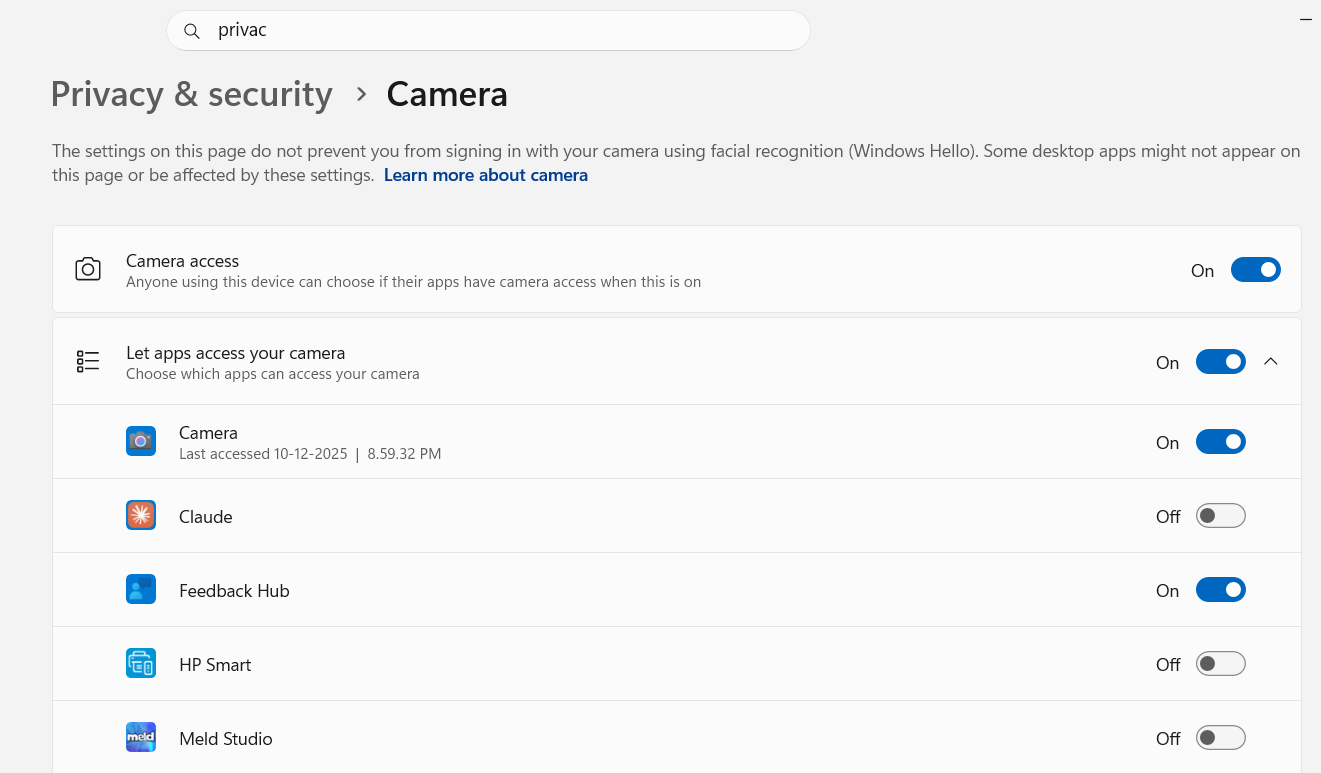
Under App permissions, click Camera.
Windows will open the camera privacy settings page.
Here, you can control whether camera access is available and review the applications that are allowed to use your camera.
Step 4: Turn Off Camera Access for Apps
Look for the setting that allows apps to access your camera.
If you want to prevent apps from using the webcam, turn the relevant permission switch Off.
Depending on your Windows 11 version and account configuration, you may see separate controls for camera access and individual app permissions.
If you only want to block certain applications, keep camera access enabled and turn off permission for the specific apps you don’t want to use the webcam.
This is generally the better option if you regularly use your webcam for meetings or other activities.
How to Disable Webcam Access Completely
If you don’t want any apps to access your webcam, Windows 11 also provides a broader camera permission control.
Go to:
Settings → Privacy & security → Camera
Look for the option that controls Camera access.
Turn it Off.
This prevents applications from accessing the camera through Windows’ camera permission system.
This option is useful when you rarely use your webcam or want to temporarily block camera access without physically covering or disconnecting the camera.
When you need the webcam again, return to the same page and enable camera access.
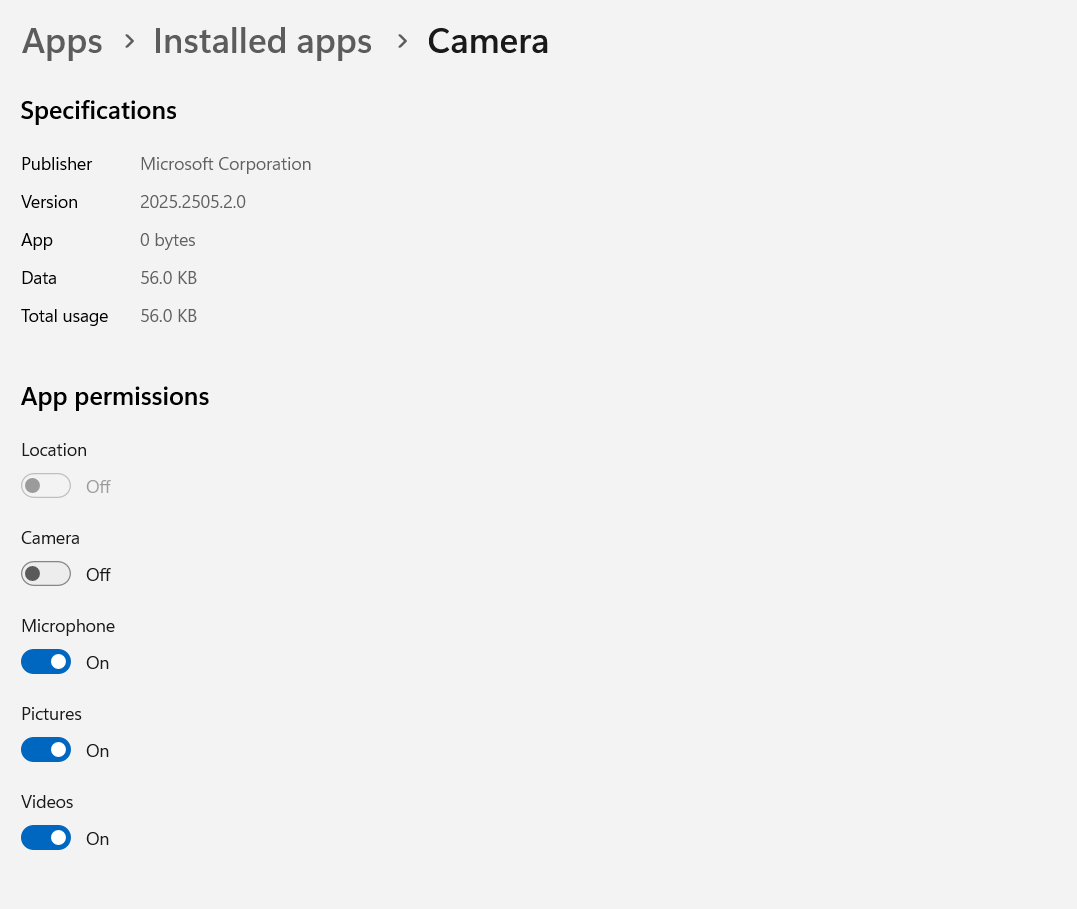
How to Stop Specific Apps From Accessing the Webcam
You may not want to completely disable your webcam.
For example, suppose you frequently use your camera for Microsoft Teams but don’t want another application to have access. In that situation, you can leave camera access enabled and manage permissions for individual applications.
Open:
Settings → Privacy & security → Camera
Review the available app permissions.
If Windows displays a list of applications that can access the camera, find the application you want to restrict and turn its permission off.
This gives you more control without affecting applications you actually use for video calls.
For privacy-conscious users, this is a good approach because it follows the principle of giving applications only the permissions they need.
What About Desktop Apps?
One important detail is that Windows distinguishes between Microsoft Store apps and traditional desktop applications.
You may see a setting related to allowing desktop apps to access your camera.
Desktop applications include many conventional Windows programs that you download and install outside the Microsoft Store.
If you turn off desktop-app camera access, those applications may no longer be able to use the webcam through Windows’ camera privacy controls.
However, don’t assume that every program behaves identically. Some software may have its own privacy settings, drivers, services, or other mechanisms related to camera functionality.
For this reason, Windows’ camera privacy settings should be considered one layer of protection rather than the only security measure.
How to Check Whether Your Webcam Is Being Used
Windows 11 can provide an indication when your camera is active.
Depending on your hardware, you may notice a camera indicator light when the webcam is operating. Some laptops have a physical LED connected to the camera hardware.
You may also see a camera indicator in Windows when an application is accessing the camera.
If you notice unexpected camera activity, don’t ignore it.
First, check which application is currently using the camera. Then review your camera permissions and close applications that shouldn’t have access.
If the behavior continues, consider uninstalling suspicious software and running a security scan.
What If an App Still Uses the Webcam?
Sometimes users change Windows permissions but continue to experience camera activity. There are several possible explanations.
Check the App’s Own Privacy Settings
Some applications have their own camera controls.
Open the application’s settings and look for options related to:
- Camera
- Video
- Privacy
- Permissions
- Devices
Disable camera access if the application provides such an option.
Close Background Applications
An application may continue running in the background even after you close its main window.
Open Task Manager by pressing:
Ctrl + Shift + Esc
Review the applications and processes currently running.
If you recognize an application that uses the camera, close it and check whether the camera indicator disappears.
Be careful when ending processes. Avoid terminating Windows system processes unless you know exactly what they do.
Review Recently Installed Applications
If webcam activity started after installing a particular application, consider whether that software actually needs camera access.
Go to:
Settings → Apps → Installed apps
Review recently installed programs and remove software you don’t recognize or no longer need.
Only uninstall applications when you’re confident about what they are. Some unfamiliar entries may be legitimate drivers or components supplied by your computer manufacturer.
Use Windows Security for Additional Protection
Camera privacy settings help control permissions, but they don’t replace malware protection.
Windows 11 includes Windows Security, which can help detect potentially unwanted applications and malicious software.
Open the Windows Security application and review the available protection options.
If you suspect that an unknown application is accessing your webcam, run a security scan.
For serious or persistent concerns, consider performing a more comprehensive scan and checking whether your Windows installation and security definitions are fully updated.
Should You Cover Your Webcam?
Physically covering your webcam is still a valid privacy measure, particularly if you want a simple hardware-level precaution.
However, it isn’t always necessary.
If your laptop has a built-in camera privacy shutter, using it can be convenient. Some computers also include a dedicated camera switch that disconnects or disables the camera.
If you don’t want to cover your webcam, Windows 11’s privacy settings provide a convenient software-based way to control camera access.
For stronger privacy, you can combine both approaches when appropriate.
Webcam Privacy Tips for Windows 11
Here are a few simple habits that can help you maintain better webcam privacy:
1. Review Camera Permissions Regularly
Don’t simply configure camera permissions once and forget about them.
Whenever you install several new applications, return to Settings → Privacy & security → Camera and review the available permissions.
2. Only Give Access When Necessary
If an application doesn’t need your camera, there is little reason to give it access.
For example, a simple text editor generally has no reason to use your webcam.
3. Keep Windows Updated
Windows updates frequently include security improvements and bug fixes. Installing available updates helps keep your computer protected against known security issues.
4. Download Apps From Trusted Sources
Avoid downloading unknown programs from suspicious websites.
Untrusted applications can create security and privacy risks, especially when they request unnecessary permissions.
5. Don’t Ignore Unexpected Camera Activity
If your camera appears to activate unexpectedly, investigate it.
Check running applications, camera permissions, recently installed software, and Windows Security.
6. Secure Your User Account
Use a strong password or another secure sign-in method for your Windows account.
If another person can access your computer while you’re logged in, they may be able to use applications that already have camera permission.
What Is the Best Webcam Privacy Setting?
There isn’t one setting that is ideal for everyone.
If you never use your webcam, disabling camera access completely is the simplest approach.
If you occasionally use video calls, keep camera access enabled but restrict access for applications that don’t need it.
If you regularly use several video conferencing applications, you may want to leave camera access enabled and review individual permissions instead.
The important thing is to understand which applications can use your webcam and remove access when it isn’t necessary.
Summary
You don’t have to physically cover your webcam every time you want better camera privacy on Windows 11. The operating system includes built-in controls that allow you to manage which applications can access your camera.
The easiest method is to open Settings → Privacy & security → Camera and review your camera permissions. From there, you can disable camera access entirely or restrict access for specific applications, depending on your needs.
For everyday privacy, I recommend checking these permissions periodically, especially after installing new applications. If you notice unexpected camera activity, investigate the application responsible, review your installed software, and run a Windows Security scan if necessary.
Webcam privacy ultimately comes down to controlling access. By keeping unnecessary permissions disabled and installing software carefully, you can continue using your webcam when you need it without giving every application unrestricted access to your camera.

- How to Remotely Control Another Computer Using Windows Quick Assist

- 5 Must-Have Electronics Gadgets for a More Comfortable Living Room

- How to Create a Windows 11 System Backup on an External Hard Drive

- 10 Smart Home Ideas That Make Everyday Life Easier

- Gemini Live Avatar: How to Talk to Gemini Face-to-Face

Products
-
![Apple Watch Ultra 3 [GPS + Cellular 49mm] Running & Multisport Smartwatch w/Rugged Titanium Case w/Black Titanium Milanese Loop - M. Satellite Communications, Advanced Health & Fitness Tracking](https://bazaronweb.com/retailstores/wp-content/uploads/2025/09/apple-watch-320x320.jpg) Apple Watch Ultra 3 [GPS + Cellular 49mm] Running & Multisport Smartwatch w/Rugged Titanium Case w/Black Titanium Milanese Loop - M. Satellite Communications, Advanced Health & Fitness Tracking
Apple Watch Ultra 3 [GPS + Cellular 49mm] Running & Multisport Smartwatch w/Rugged Titanium Case w/Black Titanium Milanese Loop - M. Satellite Communications, Advanced Health & Fitness Tracking
-
 Apple iPad mini (A17 Pro): Apple Intelligence, 8.3-inch Liquid Retina Display, 256GB, Wi-Fi 6E, 12MP Front/12MP Back Camera, Touch ID, All-Day Battery Life — Purple
-
 Apple AirPods Max Wireless Over-Ear Headphones, Active Noise Cancelling, Transparency Mode, Personalized Spatial Audio, Dolby Atmos, Bluetooth Headphones for iPhone – Space Gray
-
 Apple AirPods Pro 2 Wireless Earbuds, Active Noise Cancellation, Hearing Aid Feature, Bluetooth Headphones, Transparency, Personalized Spatial Audio, High-Fidelity Sound, H2 Chip, USB-C Charging
-
Home Garage 210 TC Cotton King Floral Fitted (Elastic) Bedsheet(Pack of 1, Grey)
Original price was: ₹999.00.₹299.00Current price is: ₹299.00.
Leave a Reply