Category
Popular Articles
- AI (20)
- Air Tag (1)
- Android (53)
- App Suggest (13)
- Apple (42)
- Apple TV (4)
- Bluetooth (3)
- Cars (2)
- ChatGpt (1)
- Chrome (3)
- Did you know? (1)
- E-Commerce News (1)
- Ecommerce Websites business (7)
- Electronics Shopping (5)
- Fashion Tips (3)
- Gaming (7)
- Google Gemini (3)
- Hair Care Tips (2)
- How to (13)
- iCloud (1)
- Infotainment System (1)
- Iphone (159)
- Job Posting (1)
- Lifestyle (3)
- Mac (27)
- Mobile Games (1)
- Netflix (1)
- Online Shopping Websites (2)
- Personal Finance Management (3)
- Product Reviews (3)
- Roku TV (4)
- Samsung (10)
- Shopping Tips (13)
- Spotify (1)
- Tech (162)
- VPN (2)
- Windows 11 (100)
- Youtube (1)
- Zero Waste (3)
Discounted Products
-

Leo Creation 144 TC Cotton Double Jaipuri Prints Flat Bedsheet(Pack of 1, Blue, Gree, Red, Grey, Light Grey)
₹2,999.00Original price was: ₹2,999.00.₹329.00Current price is: ₹329.00. -
Home Garage 210 TC Cotton King Floral Fitted (Elastic) Bedsheet(Pack of 1, Grey)
₹999.00Original price was: ₹999.00.₹299.00Current price is: ₹299.00. -

Goodrik 140 TC Cotton Double 3D Printed Flat Bedsheet(Pack of 1, Brown)
₹499.00Original price was: ₹499.00.₹229.00Current price is: ₹229.00. -

GLOBALSHOP 350 TC Microfiber Double Floral Flat Bedsheet(Pack of 1, Multicolor)
₹1,250.00Original price was: ₹1,250.00.₹263.00Current price is: ₹263.00. -

RisingStar 250 TC Microfiber King Printed Fitted (Elastic) Bedsheet(Pack of 1, FITTED-ROUND-CIRCLES-PREMIUM)
₹2,299.00Original price was: ₹2,299.00.₹299.00Current price is: ₹299.00. -

Home Garage 210 TC Cotton King Floral Fitted (Elastic) Bedsheet(Pack of 1, Fitted Black Green)
₹1,299.00Original price was: ₹1,299.00.₹299.00Current price is: ₹299.00. -

Home Garage 180 TC Cotton King 3D Printed Flat Bedsheet(Pack of 1, White)
₹999.00Original price was: ₹999.00.₹229.00Current price is: ₹229.00. -

Home Sizzler 153 cm (5 ft) Polyester Room Darkening Window Curtain (Pack Of 2)(Floral, Maroon)
₹799.00Original price was: ₹799.00.₹299.00Current price is: ₹299.00. -

Panipat Textile Hub 152.4 cm (5 ft) Polyester Window Curtain (Pack Of 2)(Solid, Aqua)
₹1,899.00Original price was: ₹1,899.00.₹299.00Current price is: ₹299.00. -
Home Sizzler 214 cm (7 ft) Polyester Semi Transparent Door Curtain (Pack Of 2)(Floral, Maroon)
₹1,199.00Original price was: ₹1,199.00.₹399.00Current price is: ₹399.00. -

Home Sizzler 153 cm (5 ft) Polyester Room Darkening Window Curtain (Pack Of 2)(Floral, Brown)
₹799.00Original price was: ₹799.00.₹299.00Current price is: ₹299.00. -

Stella Creations 214 cm (7 ft) Polyester Room Darkening Door Curtain (Pack Of 2)(Abstract, Brown)
₹1,299.00Original price was: ₹1,299.00.₹449.00Current price is: ₹449.00. -

Homefab India 152.5 cm (5 ft) Polyester Room Darkening Window Curtain (Pack Of 2)(Floral, Light Blue)
₹1,199.00Original price was: ₹1,199.00.₹319.00Current price is: ₹319.00. -

Urban Home 214 cm (7 ft) PVC Transparent Door Curtain Single Curtain(Solid, Off White)
₹699.00Original price was: ₹699.00.₹203.00Current price is: ₹203.00. -

Panipat Textile Hub 213 cm (7 ft) Polyester Door Curtain (Pack Of 2)(Solid, Brown)
₹1,199.00Original price was: ₹1,199.00.₹349.00Current price is: ₹349.00.
Affiliate Links
Promotion
Hi, I’m Jessica, and I still remember the day my laptop suddenly stopped producing clear sound during an important family movie night. The audio kept crackling, Bluetooth headphones disconnected repeatedly, and video calls became frustrating because the microphone sounded distorted. At first, I thought my speakers were damaged, but after some research, I realized the real problem was outdated audio drivers on Windows 11. Once I updated them correctly, everything started working smoothly again.
If your Windows 11 PC has low sound volume, distorted audio, microphone issues, lagging Bluetooth sound, or no audio at all, updating the audio drivers can often solve the issue quickly. Windows 11 provides several ways to update sound drivers, including Device Manager, Windows Update, manufacturer software, and manual installation methods. Many users only know one method and miss out on more reliable ways to fix persistent audio problems.
In this guide, I will walk you through the best methods to update audio drivers in Windows 11 step by step. Whether you are using Realtek audio, Intel audio, NVIDIA HDMI sound, or USB audio devices, these methods can help improve sound quality, compatibility, and system performance while reducing crashes and audio glitches.
Why Updating Audio Drivers in Windows 11 Is Important
Audio drivers act as a communication bridge between your Windows 11 operating system and your computer’s audio hardware. Without properly functioning drivers, the operating system may fail to recognize speakers, headphones, microphones, or Bluetooth audio devices correctly. This often leads to issues such as no sound output, delayed audio synchronization, static noise, microphone distortion, or applications failing to detect audio devices entirely.
Many users ignore driver updates because the system may still produce sound. However, outdated drivers can create hidden performance problems over time. Windows 11 receives frequent updates, and older audio drivers may become incompatible after system upgrades. This mismatch can lead to random sound crashes, audio services stopping unexpectedly, or poor sound quality during gaming and streaming.
Updated audio drivers also improve hardware optimization. Manufacturers regularly release updates to fix bugs, enhance compatibility, reduce latency, and improve support for modern applications. For gamers, creators, and professionals who rely on video conferencing, updated drivers can significantly improve audio clarity and responsiveness.
Another important reason to update drivers is security and stability. Faulty or corrupted drivers may create system instability and trigger blue screen errors in rare cases. Keeping your audio drivers updated ensures smoother communication between hardware and software while improving the overall multimedia experience on Windows 11 systems.
Using Device Manager to Update Audio Drivers
One of the easiest and most commonly used methods for updating audio drivers in Windows 11 is through Device Manager. This built-in utility allows users to manage all hardware devices connected to the computer, including sound devices, speakers, microphones, and Bluetooth audio components.
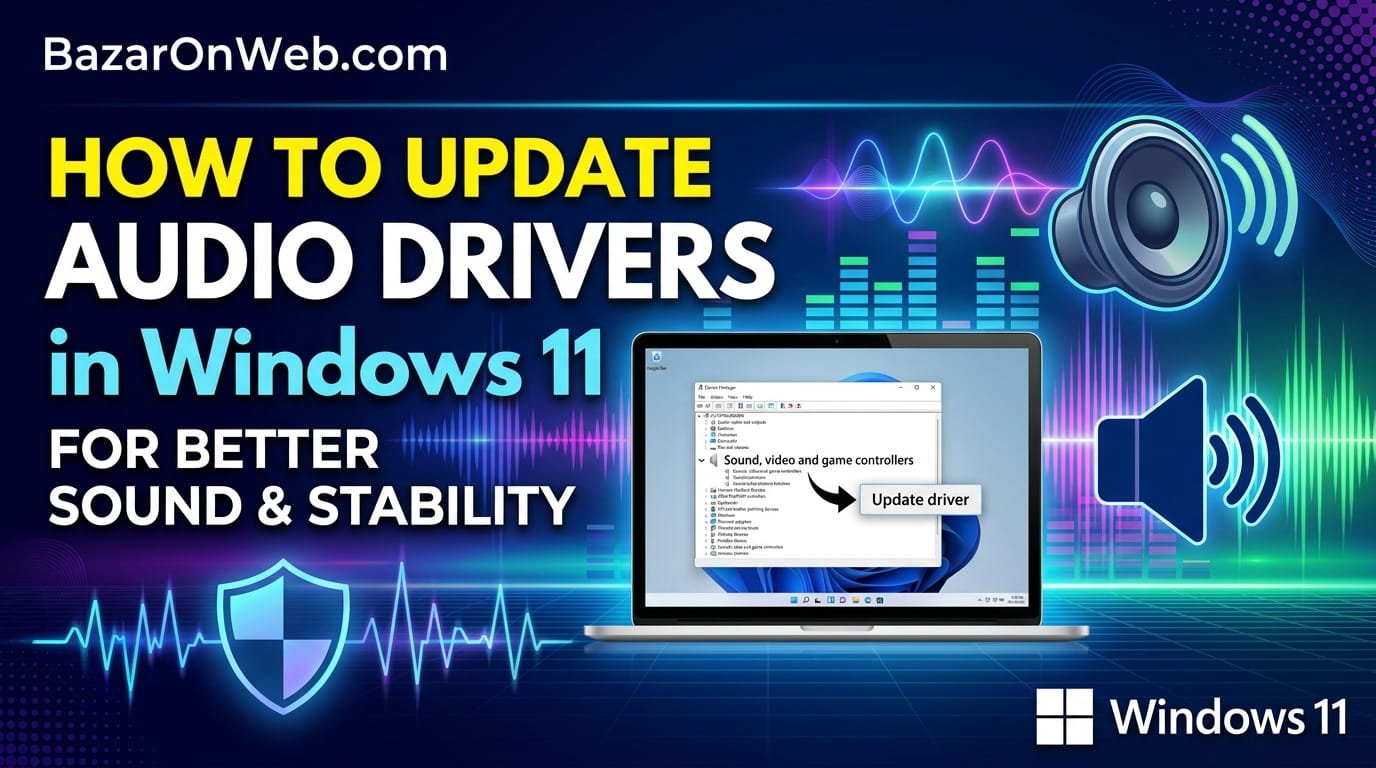
To begin, right-click the Start button and select Device Manager from the menu. Once the window opens, locate the “Sound, video and game controllers” category and expand it. Here, you will usually see audio drivers such as Realtek Audio, Intel Smart Sound Technology, AMD Audio Device, or NVIDIA High Definition Audio depending on your hardware configuration.
Right-click your audio device and select “Update driver.” Windows will then provide two options. The first option searches automatically for updated drivers online, while the second option allows you to browse manually for downloaded driver files. For most users, the automatic search works well for basic updates.
After selecting automatic search, Windows scans Microsoft’s driver database and installs any available updates. Once installation finishes, restarting the computer is recommended to ensure the changes apply correctly. This method is ideal for users who want a quick and safe update process without downloading files manually.
Device Manager can also help troubleshoot corrupted drivers. If the audio device shows a yellow warning icon, uninstalling the driver and reinstalling it through Device Manager often resolves sound-related issues effectively.
Updating Audio Drivers Through Windows Update
Windows Update is another reliable way to install updated audio drivers in Windows 11. Microsoft frequently distributes certified driver updates through its update platform, making this method both secure and beginner-friendly. Many users overlook optional updates, which often include important audio driver improvements.
To access this method, open the Settings app and navigate to Windows Update. Click “Check for updates” and allow Windows to scan for available system and driver updates. If audio driver updates are available, they may appear automatically within the main update list or under the “Advanced options” section.
Inside Advanced options, click “Optional updates.” Here you may find driver updates for Realtek, Intel, AMD, or other audio-related hardware. Select the audio driver updates you want to install and proceed with the installation process.
One advantage of using Windows Update is compatibility testing. Drivers distributed through Microsoft are usually verified to work properly with Windows 11, reducing the risk of system instability or driver conflicts. This makes the method especially useful for casual users who prefer safer installations.
Additionally, Windows Update may install fixes for microphone problems, Bluetooth headset compatibility, or HDMI audio issues after major Windows feature updates. Restarting the computer after installation ensures all audio services reload correctly.
Checking Windows Update regularly helps maintain overall system performance and prevents outdated drivers from causing audio interruptions during gaming, streaming, online meetings, or multimedia playback.
Downloading Audio Drivers from the Manufacturer Website
If Windows Update or Device Manager does not provide the latest audio driver, downloading drivers directly from the manufacturer’s website is often the best solution. This method ensures you receive the newest version with the latest bug fixes, performance improvements, and compatibility enhancements.
First, identify your computer model or motherboard model. Laptop manufacturers such as Dell, HP, Lenovo, and ASUS usually provide dedicated support pages where drivers can be downloaded. If you built your own PC, you may need to visit the motherboard manufacturer’s support website instead.
After locating your model number, search for the Windows 11 audio driver section. Download the latest driver package available for your system architecture, typically 64-bit. The downloaded file is usually an executable installer that automatically updates the audio components.
Running manufacturer-provided drivers often unlocks additional audio features unavailable in generic Microsoft drivers. These features may include equalizer controls, noise suppression, microphone enhancements, surround sound settings, and advanced speaker configurations.
Using official manufacturer drivers is especially important for gaming laptops and professional audio systems because generic drivers may limit sound performance. However, always avoid downloading drivers from unknown third-party websites, as they may contain outdated or unsafe software.
After installation, restart your PC and test audio playback using speakers, headphones, and microphones to confirm that the updated driver works correctly across all devices.
Reinstalling Audio Drivers to Fix Corrupted Sound Issues
Sometimes updating drivers alone may not solve persistent audio problems. Corrupted driver files, incomplete updates, or software conflicts can prevent sound hardware from functioning properly. In such situations, reinstalling the audio driver completely is often the most effective solution.
Start by opening Device Manager and expanding the “Sound, video and game controllers” section. Right-click the audio device currently installed on your system and choose “Uninstall device.” Some systems may also display an option to remove driver software completely. If available, selecting this option helps eliminate corrupted files from the system.
After uninstalling the device, restart the computer. During startup, Windows 11 automatically detects the missing hardware and reinstalls the default audio driver. In many cases, this alone resolves audio distortion, missing sound output, or microphone detection problems.
If Windows does not reinstall the driver automatically, return to Device Manager and select “Scan for hardware changes.” This forces Windows to search for connected audio hardware and reinstall the required drivers.
For advanced troubleshooting, you can reinstall the latest manufacturer-provided driver after removing the corrupted version. This creates a clean installation environment and often restores advanced sound features that were malfunctioning previously.
Reinstallation is especially helpful after failed Windows updates, sudden power interruptions, or accidental deletion of audio-related system files. It is also a useful solution when audio services crash repeatedly or when speakers disappear from playback device lists unexpectedly.
Updating Realtek Audio Drivers in Windows 11
Realtek audio hardware is one of the most common sound solutions used in Windows laptops and desktop computers. Because of its popularity, many users specifically experience issues related to Realtek drivers, including crackling sound, missing Realtek Audio Console features, or microphone malfunctions.
To update Realtek drivers, first determine your current version by opening Device Manager and checking the driver properties under “Sound, video and game controllers.” Once identified, visit your laptop manufacturer’s support page or the official Realtek website to search for updated drivers compatible with Windows 11.
Many systems include the Realtek Audio Console application from the Microsoft Store. Updating the driver may also restore missing console features such as equalizer presets, speaker enhancements, and noise cancellation settings. If the console fails to open, reinstalling both the driver and application usually resolves the issue.
Users who upgraded from Windows 10 to Windows 11 may especially benefit from updated Realtek drivers because older versions may not fully support Windows 11’s newer audio framework. This can cause headphone jack issues, inconsistent sound switching, or microphone instability.
During installation, temporary sound interruptions are normal. Once completed, restarting the computer ensures the audio services initialize properly. After rebooting, test playback using speakers and headphones to verify that sound quality and microphone performance have improved successfully.
Keeping Realtek drivers updated also helps reduce latency issues during gaming, streaming, and video editing tasks where stable audio performance is critical.
Updating Bluetooth Audio Drivers for Wireless Headphones
Bluetooth audio devices such as wireless headphones, earbuds, and speakers rely heavily on updated drivers for smooth connectivity and stable sound performance. Outdated Bluetooth drivers can lead to audio lag, frequent disconnections, poor sound quality, or devices failing to pair correctly with Windows 11.
To update Bluetooth audio drivers, open Device Manager and expand the Bluetooth category. Locate your Bluetooth adapter, right-click it, and choose “Update driver.” Windows will search for newer versions automatically and install them if available.
In some cases, the Bluetooth adapter manufacturer provides more advanced drivers than Windows Update. Companies like Intel, Qualcomm, and Realtek frequently release updates that improve wireless stability and reduce latency. Downloading these drivers from the official support website may significantly improve the performance of wireless audio devices.
Windows 11 also allows users to remove and reconnect problematic Bluetooth devices. Go to Settings, open Bluetooth & devices, remove the paired headphones or speakers, and reconnect them after updating the drivers. This refreshes the pairing configuration and often resolves audio synchronization issues.
Another common problem involves Bluetooth profiles. Headphones may switch between stereo and hands-free communication modes automatically, reducing audio quality during calls. Updated drivers improve profile handling and maintain more stable sound performance.
Restarting both the computer and Bluetooth audio device after updating drivers ensures proper communication between the devices. This simple maintenance step can dramatically improve the overall wireless listening experience.
Using Intel Driver & Support Assistant for Audio Updates
Many Windows 11 computers use Intel audio technologies alongside Intel chipsets and processors. In these systems, the Intel Driver & Support Assistant can automatically detect outdated drivers and install recommended updates, including audio-related components.
To use this tool, install the Intel Driver & Support Assistant from Intel’s official website. Once installed, the application scans your hardware configuration and checks for available driver updates. It then provides download and installation options for compatible components.
Intel Smart Sound Technology drivers are particularly important on modern laptops because they help manage microphones, speakers, and digital signal processing. Outdated Intel audio components can cause microphone detection problems, distorted conference call audio, or reduced sound performance.
One major advantage of Intel’s update utility is convenience. Instead of manually identifying hardware models and downloading files individually, the software automates the process while ensuring compatibility with your system configuration.
The utility also helps update chipset-related drivers that indirectly affect audio stability. Sometimes sound issues are not caused by the primary audio driver itself but by outdated system components interacting with the sound hardware.
After completing updates, restarting the PC is highly recommended. Users should then test playback quality, microphone functionality, and Bluetooth performance to confirm that the updated Intel drivers improved overall audio reliability on Windows 11.
How to Roll Back Audio Drivers After a Problematic Update
Although updating drivers usually improves performance, there are situations where a newly installed audio driver may introduce unexpected problems. Users sometimes experience reduced volume, distorted sound, missing microphone functionality, or application crashes after installing a newer driver version.
Windows 11 provides a rollback feature that allows users to return to the previously installed driver version. To access this feature, open Device Manager and locate your audio device under “Sound, video and game controllers.” Right-click the device, choose “Properties,” and navigate to the Driver tab.
If available, click the “Roll Back Driver” button and follow the on-screen instructions. Windows restores the earlier driver version and removes the problematic update. Restart the computer afterward to finalize the rollback process.
Rolling back drivers is particularly useful when a manufacturer releases an unstable driver update or when compatibility issues arise after major Windows updates. Some older hardware devices function more reliably with previous driver versions rather than the newest releases.
If the rollback option is unavailable, users can manually reinstall an older driver downloaded from the manufacturer’s support page. Creating a system restore point before updating drivers is also a smart precaution because it allows full system recovery if problems occur later.
Understanding how to reverse problematic updates gives users more control over system stability while reducing frustration during troubleshooting sessions.
Common Audio Problems Fixed by Updating Drivers
Updating audio drivers in Windows 11 can resolve a surprisingly wide range of sound-related problems. Many users initially assume hardware damage is responsible for poor sound quality, but outdated or corrupted drivers are often the true cause behind these issues.
One of the most common problems fixed by driver updates is missing audio output. Sometimes Windows fails to detect speakers or headphones after system updates, making devices disappear from playback settings. Updated drivers usually restore proper hardware recognition immediately.
Driver updates also help solve crackling audio, popping noises, and delayed sound synchronization during video playback. Gamers frequently notice improved audio latency and smoother communication in multiplayer games after installing newer drivers.
Microphone issues are another major area affected by outdated drivers. Voice calls, online meetings, and recording software may fail to detect microphones correctly when incompatible drivers are installed. Updated audio software improves microphone clarity and reduces distortion.
Bluetooth connectivity problems are also commonly resolved through driver updates. Wireless earbuds and speakers may disconnect randomly or produce stuttering sound when outdated Bluetooth audio components are present on the system.
In some cases, updating audio drivers even improves overall system stability. Faulty drivers can occasionally trigger application crashes or blue screen errors related to sound processing. Keeping drivers current helps maintain reliable communication between Windows 11 and audio hardware components.
Best Practices for Maintaining Audio Drivers on Windows 11
Keeping audio drivers updated is important, but maintaining them properly over time is equally essential for long-term system stability. Many users update drivers only after experiencing problems, but proactive maintenance helps prevent audio issues before they appear.
One of the best practices is creating restore points before installing major driver updates. This allows users to revert the system if compatibility issues arise afterward. Windows 11 includes System Restore functionality that can save significant troubleshooting time during unexpected driver failures.
Avoid downloading drivers from unofficial websites. Third-party driver packages may contain outdated software, unnecessary bundled applications, or potentially harmful files. Always rely on Microsoft, motherboard manufacturers, or official laptop support pages for trusted downloads.
Users should also avoid installing multiple audio management tools simultaneously. Conflicts between Realtek software, motherboard utilities, and third-party enhancement programs can create instability and distort sound output unexpectedly.
Regularly checking Windows Update ensures you receive important driver improvements automatically. At the same time, advanced users may occasionally review manufacturer support pages for newer versions that Microsoft has not distributed yet.
Finally, restarting the computer after driver installations is extremely important. Many users skip this step and experience incomplete updates or malfunctioning audio services afterward. Proper restarts help Windows initialize updated components correctly and maintain smooth communication with audio hardware devices.
Disclaimer
This article is for informational and educational purposes only. Windows 11 settings, driver interfaces, and manufacturer utilities may vary depending on device model, hardware configuration, and software version. Always download drivers from official manufacturer websites or trusted Microsoft sources. Before making major system changes, consider creating a backup or restore point to prevent unexpected issues or data loss.
Written by Bazaronweb
Latest Tech Articles
- How to Update Audio Drivers in Windows 11 for Better Sound Performance and Stability

- How to Open DMG Files on Windows Easily Using Safe and Reliable Methods

- How to Fix Left and Right Sound Imbalance on Windows, Android, iPhone, and Headphones

- How to Generate a Full Battery Report and Check Battery Health on Windows 11

- How to Improve SSD Performance on Windows 11 Without Replacing Your Drive

Products
-
Apple Watch Ultra 3 [GPS + Cellular 49mm] Running & Multisport Smartwatch w/Rugged Titanium Case w/Black Titanium Milanese Loop - M. Satellite Communications, Advanced Health & Fitness Tracking
-

Apple iPad mini (A17 Pro): Apple Intelligence, 8.3-inch Liquid Retina Display, 256GB, Wi-Fi 6E, 12MP Front/12MP Back Camera, Touch ID, All-Day Battery Life — Purple
-

Apple AirPods Max Wireless Over-Ear Headphones, Active Noise Cancelling, Transparency Mode, Personalized Spatial Audio, Dolby Atmos, Bluetooth Headphones for iPhone – Space Gray
-

Apple AirPods Pro 2 Wireless Earbuds, Active Noise Cancellation, Hearing Aid Feature, Bluetooth Headphones, Transparency, Personalized Spatial Audio, High-Fidelity Sound, H2 Chip, USB-C Charging
-
Leo Creation 144 TC Cotton Double Jaipuri Prints Flat Bedsheet(Pack of 1, Blue, Gree, Red, Grey, Light Grey)
₹2,999.00Original price was: ₹2,999.00.₹329.00Current price is: ₹329.00.
Leave a Reply